> ## Documentation Index
> Fetch the complete documentation index at: https://docs.flowx.ai/llms.txt
> Use this file to discover all available pages before exploring further.
# Send notification action
> Send emails directly from process nodes using the Send Notification action. Supports both new outbound emails and replies to received emails.
## Overview
The Send Notification action enables process nodes to send emails directly through a predefined email connection. It supports two modes:
* **New email mode** - Send a new email to specified recipients
* **Reply mode** - Reply to an email that triggered the process (using data from an Email Trigger or Microsoft Outlook data source)
This differs from the existing [Kafka send](../node/message-send-received-task-node) notification approach: instead of publishing a message to Kafka for the Notifications Plugin to process, the Send Notification action sends the email directly through an email connection configured as an Email Sender (SMTP) or Microsoft Outlook (MS Graph) data source.
Notification templates configured before this feature for Kafka-based sending continue to work without modification.
**Recommended for new processes.** The Send Notification action provides typed, validated configuration fields and is the simpler choice for outbound emails. The [Kafka-based sending guide](../../platform-deep-dive/core-extensions/content-management/notifications-plugin/sending-an-email-with-attachments) remains fully supported for existing processes and advanced cases where you need to craft the notification payload yourself.
***
## Prerequisites
Before using the Send Notification action, ensure you have:
1. An Email Sender (SMTP) or Microsoft Outlook (MS Graph) data source configured in Integration Designer (or a Default Server configured at the environment level)
2. A [notification template](../../platform-deep-dive/core-extensions/content-management/notifications-plugin/managing-notification-templates) with **Email Server** set to **Predefined Email Connection**
***
## Adding the action
The Send Notification action is available on the following node types:
* [Send Message Task](../node/message-send-received-task-node#send-message-task)
* [Task](../node/task-node)
* [User Task](../node/user-task-node)
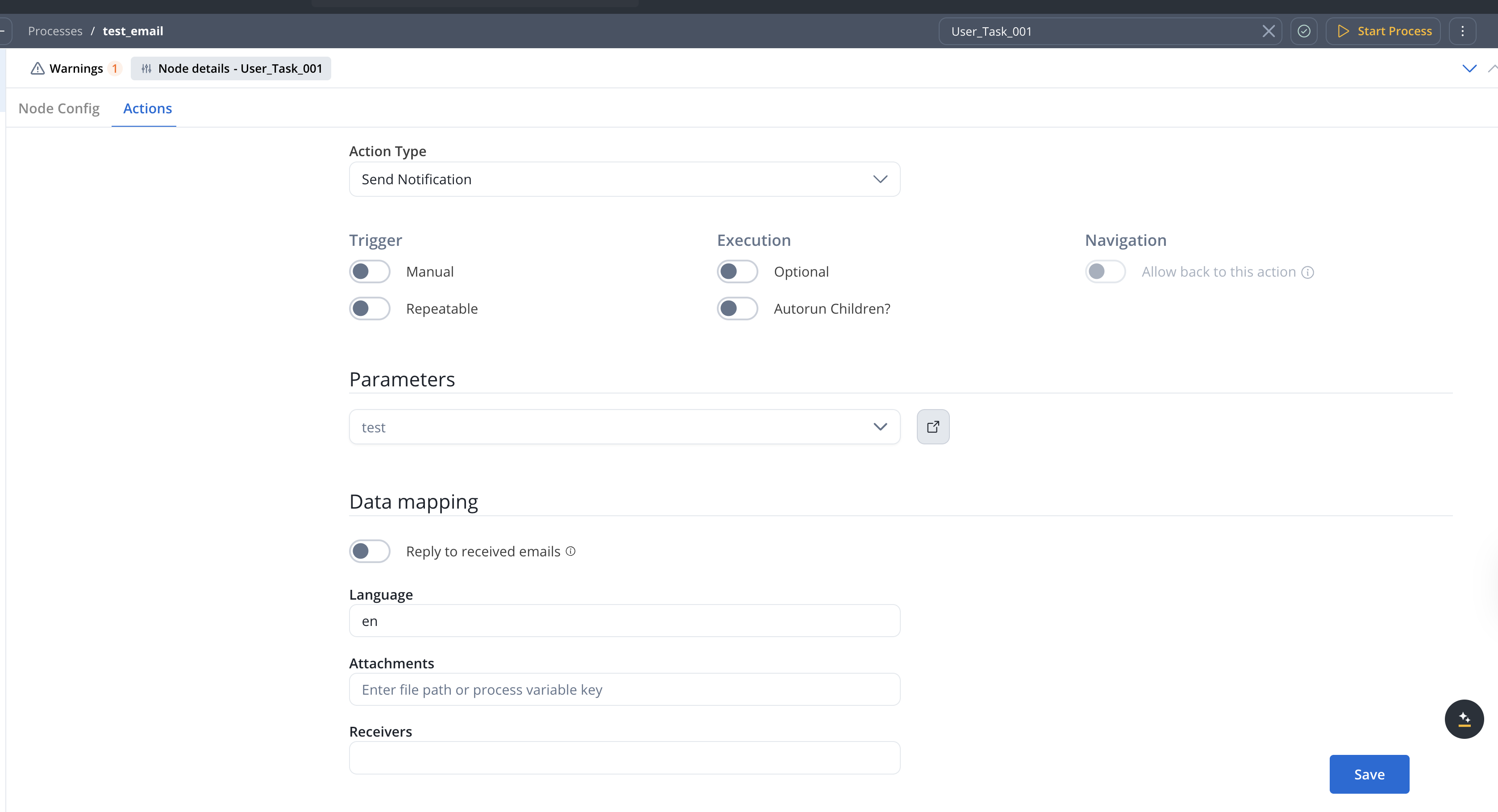
To add the action:
1. Select a node in your process definition
2. Open the **Actions** tab
3. Click **Add action**
4. Set **Action type** to **Send Notification**
***
## Configuration
### Notification template
Select the notification template to use for the email content.
Only notification templates with **Email Server** set to **Predefined Email Connection** appear in this list.
### Data mapping
The **Data Mapping** section contains the email delivery settings, starting with the reply toggle.
Toggle this setting to reply to the email that started the process.
**Default:** OFF
When enabled, the reply is sent only to the original sender unless you configure CC or BCC Receivers. The subject is automatically set to `RE: `.
***
## Reply mode (reply toggle ON)
When **Reply to received emails** is enabled, the action replies to the email that triggered the current process instance. The email is sent to the original sender, and the subject is automatically prefixed with `RE:`.
The process variable key that contains the `headerParams` object from the original email received through an Email Trigger.
**Example:** `${replyField}`
The `headerParams` object includes the `Message-ID` and other headers from the original email, which are required to maintain the email conversation thread.
The process variable key that resolves to a language code for the notification template.
**Examples:** `en`, `ro`, `fr`
Use a process variable key that resolves to a language code — for example, `"en"` or `"ro"`.
Optional file attachments. Enter a JSON object (single attachment) or array of JSON objects (multiple), or a process variable that resolves to the same shape.
Each attachment requires:
* `path` — file storage key (for example, `flowx-document-plugin-.../file.pdf`), not a local OS path
* `filename` — name shown to the recipient
**Example:**
```json theme={"dark"}
[{"path": "flowx-document-plugin-.../report.pdf", "filename": "Report.pdf"}]
```
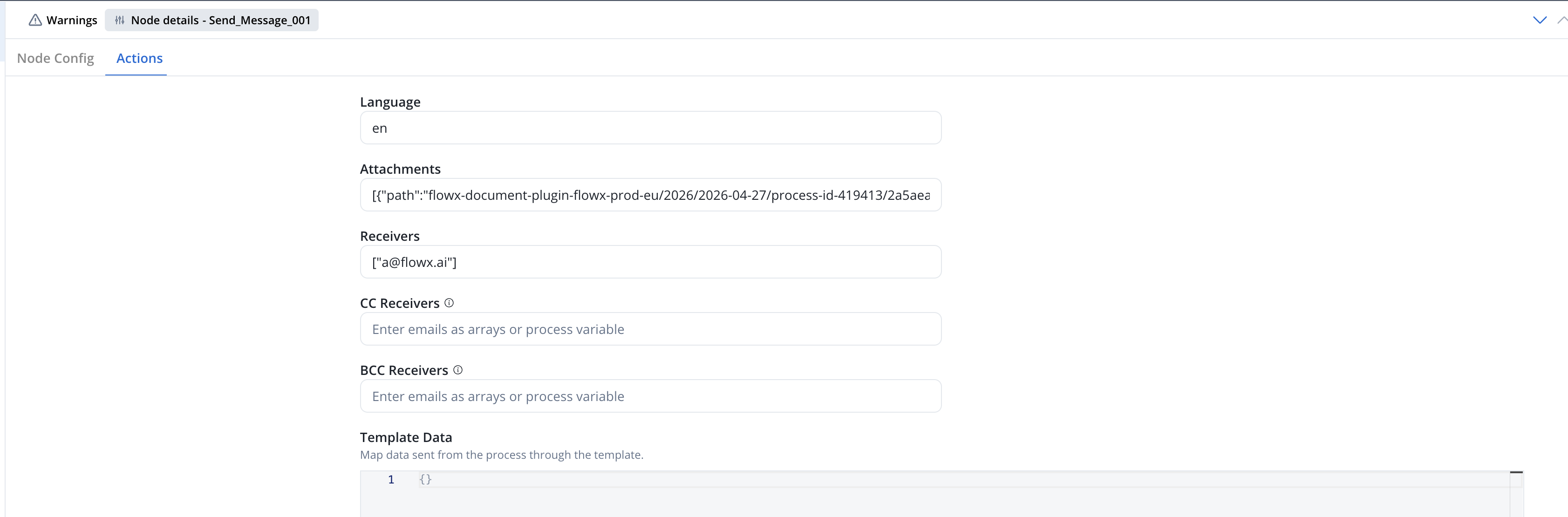
On SMTP, omitting `filename` results in an unnamed attachment. Always set it.
The recipients for the reply. If left empty, the reply is automatically sent to the original sender (`emailMessage.sender`). Use a process variable or explicit list to override.
**Example:** `${emailMessage.sender}`
For multiple addresses, enter a JSON array literal (`["a@example.com","b@example.com"]`) or a process variable key that resolves to a list.
CC recipients for the reply email. Enter a JSON array literal (`["a@example.com","b@example.com"]`) or a process variable key that resolves to a list.
Original CC recipients are **not** preserved automatically. If this field is empty, the reply is sent without any CC. To reply-all, pass `${emailMessage.cc}` explicitly (or build your own list).
BCC recipients for the reply email. Enter a JSON array literal (`["a@example.com","b@example.com"]`) or a process variable key that resolves to a list.
BCC recipients from the original email are not visible on incoming messages and cannot be inherited. Set this field explicitly if you need BCCs on the reply.
Map data sent from the process through the template. Use the JSON editor to define key-value pairs matching the data model in your notification template.
***
## New email mode (reply toggle OFF)
When **Reply to received emails** is turned off, the action sends a new email to the specified recipients.
The process variable key that resolves to a language code for the notification template.
**Examples:** `en`, `ro`, `fr`
Use a process variable key that resolves to a language code — for example, `"en"` or `"ro"`.
Optional file attachments. Enter a JSON object (single attachment) or array of JSON objects (multiple), or a process variable that resolves to the same shape.
Each attachment requires:
* `path` — file storage key (for example, `flowx-document-plugin-.../file.pdf`), not a local OS path
* `filename` — name shown to the recipient
**Example:**
```json theme={"dark"}
[{"path": "flowx-document-plugin-.../report.pdf", "filename": "Report.pdf"}]
```

On SMTP, omitting `filename` results in an unnamed attachment. Always set it.
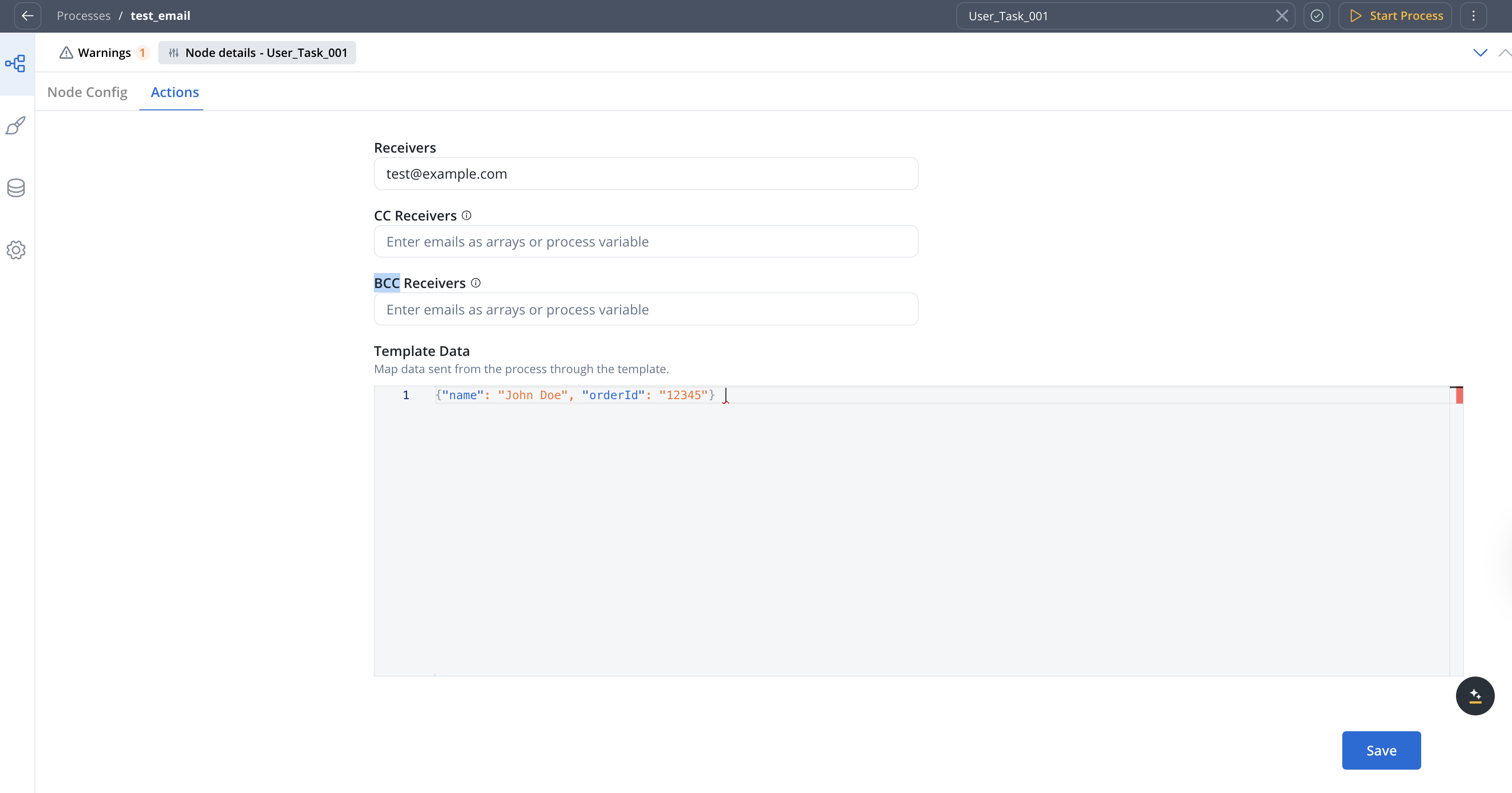
The recipients for the email. Enter a JSON array literal (`["a@example.com","b@example.com"]`) or a process variable key that resolves to a list.
CC recipients for the email. Enter a JSON array literal (`["a@example.com","b@example.com"]`) or a process variable key that resolves to a list.
BCC recipients for the email. Enter a JSON array literal (`["a@example.com","b@example.com"]`) or a process variable key that resolves to a list.
Map data sent from the process through the template. Use the JSON editor to define key-value pairs matching the data model in your notification template.
***
## Example: Reply to a customer email
This example shows a complete flow where an incoming email triggers a process, and the process replies to the sender.
Configure an Email Trigger data source to monitor incoming emails (for example, `support@company.com`).
Configure an Email Sender data source with SMTP credentials for outbound emails.
Create a notification template for the reply email:
1. Set **Email Server** to **Predefined Email Connection**
2. Set **Email Sender** to your Email Sender data source
3. Design the reply content using the template editor
Create a process with:
* A **Message Start Event** configured with the Email Trigger
* Processing nodes for your business logic (for example, classify the email, look up customer data)
* A node with the **Send Notification** action configured in reply mode
On the appropriate node:
1. Set **Action type** to **Send Notification**
2. Select your notification template
3. Toggle **Reply to received emails** to **ON**
4. Set **Reply to Email Header** to the process variable containing the original email's header params (for example, `${replyField}`)
5. Set **Receivers** to `${emailMessage.sender}`
6. Set **Language** to the appropriate language code (for example, `en`)
When an email arrives, the process starts automatically, runs your business logic, and sends a reply to the original sender — maintaining the email conversation thread.
***
## Related resources
Create and manage email notification templates
Learn about all available action types
## Related topics
- [FlowX.AI 5.5.0 Release Notes](/release-notes/v5.x/v5.5.0-february-2026/v5.5.0-february-2026.md)
- [Notifications plugin setup](/5.1/setup-guides/notifications-plugin-setup.md)
- [Managing notification templates](/5.1/docs/platform-deep-dive/core-extensions/content-management/notifications-plugin/managing-notification-templates.md)
- [FlowX.AI 5.9.0 Release Notes](/release-notes/v5.x/v5.9.0-june-2026/v5.9.0-june-2026.md)
- [Sending an email](/5.1/docs/platform-deep-dive/core-extensions/content-management/notifications-plugin/sending-an-email-with-attachments.md)