

Documentation Index
Fetch the complete documentation index at: https://docs.flowx.ai/llms.txt
Use this file to discover all available pages before exploring further.
This feature is available in FlowX SaaS deployments starting with v5.4.0.
Overview
Organization Admins can invite designer users to their organization via email. Invited users receive a secure invitation link, can be pre-assigned roles and groups, and go through a guided activation flow before becoming active members.Only users with the Organization Admin role can invite new designer users.
Accessing user invitations
The invitation feature is available from the Designer Users page: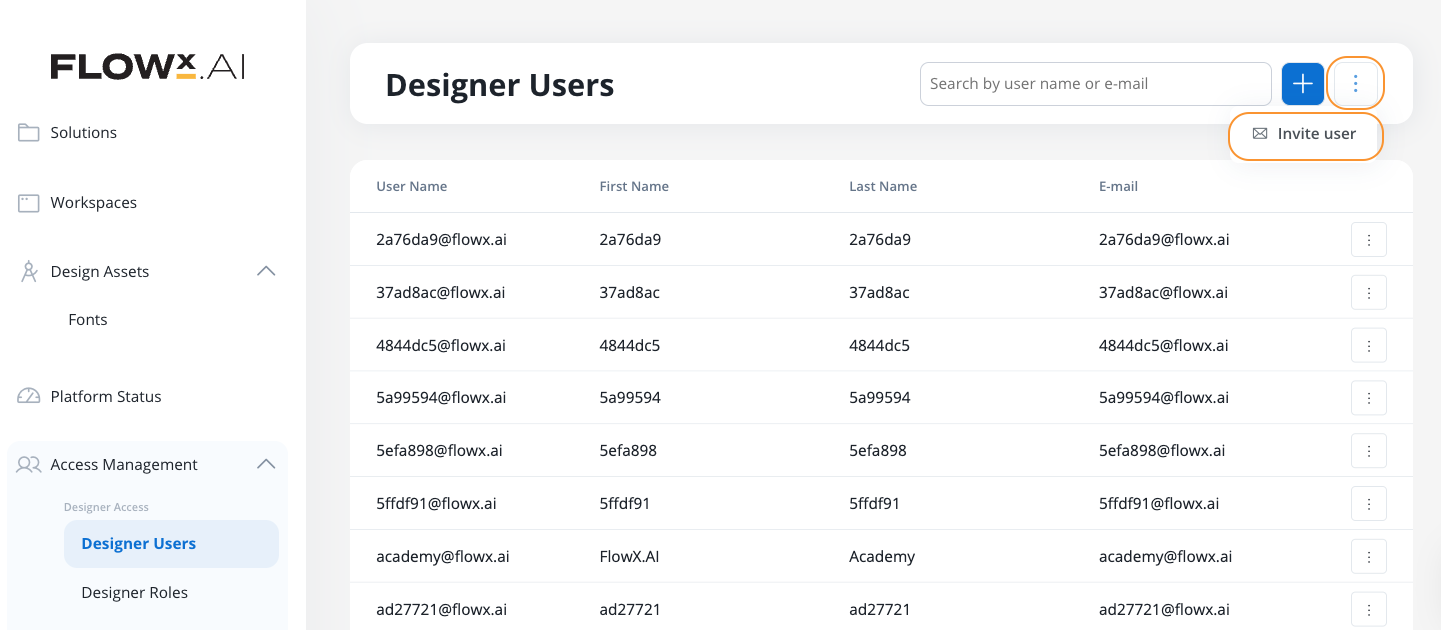
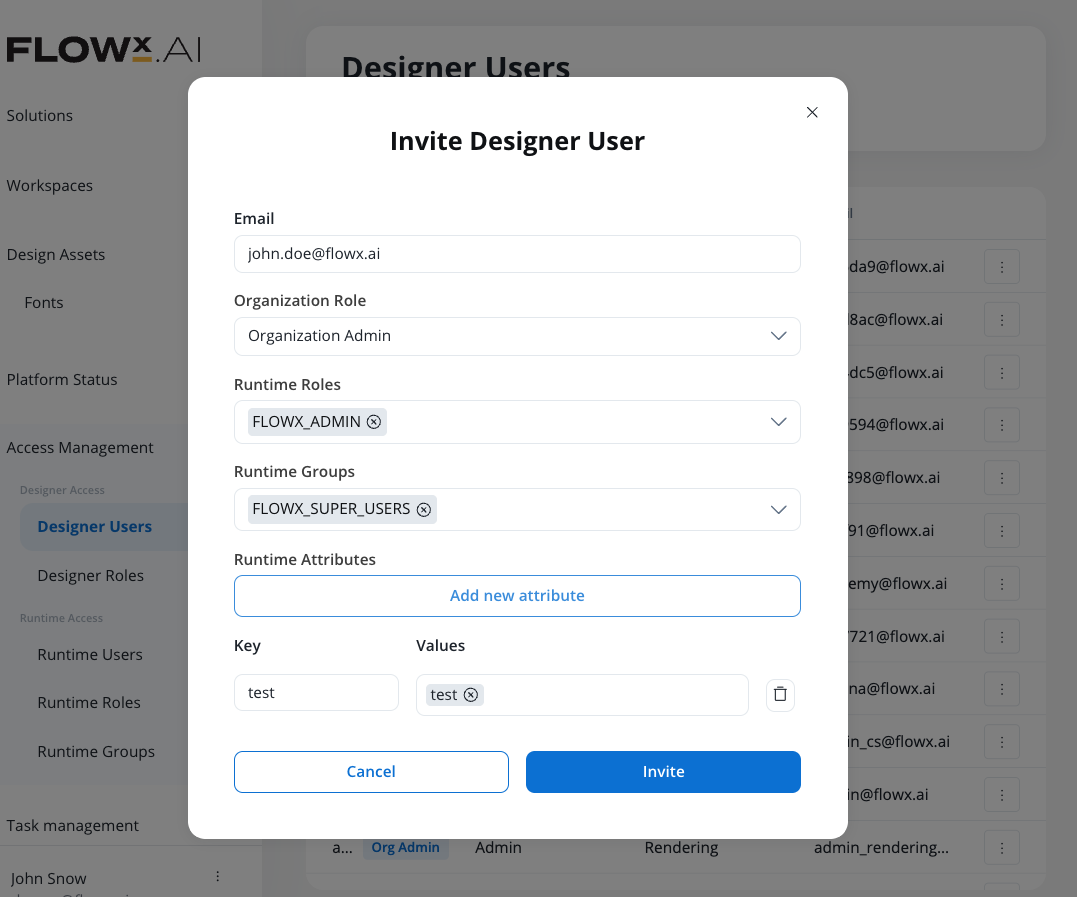
Invitation form
When inviting a new user, you can configure the following options:| Field | Required | Description |
|---|---|---|
| email address | Yes | Valid email format for the invitation |
| Designer role | No | Organization Admin or Organization Owner |
| Runtime Roles | No | Assign runtime roles to the user |
| Runtime Groups | No | Add user to runtime groups |
| User attributes | No | Set custom user attributes |
Invitation workflow
Sending an invitation
Configure access (optional)
Select a designer role, runtime roles, groups, and any custom attributes
-
A user account is created in Keycloak with:
- The provided email address
- Selected runtime roles and groups
- email verified set to
false - Required actions: update password and update profile
-
A user record is created in FlowX with:
- Assigned selections (roles, groups, attributes)
- Status: Pending
- Organization Owner role (if selected)
- An invitation email is sent to the user
A success notification confirms: “Invitation sent successfully”
Invitation email
The invited user receives an email with the following content:Subject: You’ve been invited to your FlowX.ai accountHi,You’ve been invited to join the FlowX Platform to test our new Agentic Apps.This early access will let you explore how Agentic Apps work and give feedback on the experience before the broader rollout.[Accept Invitation]Best
User activation flow
When the invited user clicks the invitation link, they complete a two-step activation process:Step 1: Set password
The user creates a secure password for their account:- Minimum 8 characters, maximum 64 characters
- Must include at least one uppercase letter, one lowercase letter, one number, and one special character (
!@#$%^&*()_+-) - Cannot be the same as the user’s email address
- Upon submission, proceeds to profile setup
Step 2: Complete profile
The user provides their profile information:| Field | Required | Description |
|---|---|---|
| First name | Yes | User’s first name |
| Last name | Yes | User’s last name |
- User profile is updated with the provided information
- email is marked as verified
- User is redirected to the login page with a success message
First login
After completing activation and logging in for the first time:- User status changes from Pending to Active
- First name and last name are populated in the FlowX user profile
- User appears in the Designer Users list with Active status
Handling expired invitations
If a user clicks an invitation link after it has expired (more than 2 days), they see an “Invite link expired” page.User statuses
| Status | Description |
|---|---|
| Pending | User has been invited but hasn’t completed activation |
| Active | User has completed activation and logged in at least once |
| Disabled | User account has been deactivated by an administrator |
Available starting with FlowX.AI 5.5.0The Disabled status allows administrators to deactivate user accounts without deleting them. This preserves account history and allows reactivation later.
Disabling and enabling users
Administrators can change a user’s status from the Designer Users or Runtime Users page:Select the action
Choose Disable to deactivate an active user, or Enable to reactivate a disabled user
The Disable/Enable actions are available only for Runtime Users. Disabled users cannot log in until their account is re-enabled.
Resending invitations
Available starting with FlowX.AI 5.5.0
Find the pending user
Find the user with Pending status in the Designer Users or Runtime Users list.
Best practices
Pre-assign appropriate roles
Pre-assign appropriate roles
Configure the correct designer role and runtime roles during invitation to ensure users have proper access from day one.
Use runtime groups for team organization
Use runtime groups for team organization
Add users to runtime groups during invitation to automatically organize them into teams and apply group-based permissions.
Monitor pending invitations
Monitor pending invitations
Regularly check the Designer Users page for users with Pending status to identify invitations that may need to be resent.
Communicate invitation timing
Communicate invitation timing
Let invited users know to expect the invitation email and complete activation within 2 days to avoid expiration.
Limitations
The following features are planned for future releases:
- Cancel invite - Ability to cancel a pending invitation
- Copy invite link - Ability to copy the invitation link directly
Related documentation
FlowX SaaS Overview
Learn about FlowX SaaS deployment and multi-tenancy
Access Management
Configure IAM and Keycloak settings
Workspaces
Understand workspace organization
Roles & Permissions
View the complete roles and permissions reference