

Overview
The FlowX.AI Designer is a collaborative platform that empowers you to create sophisticated web and mobile applications without coding expertise. Let’s explore the key capabilities available in the Designer:- Workspace Management
- Project Management
- Process Design
- Content & UI
- Integrations
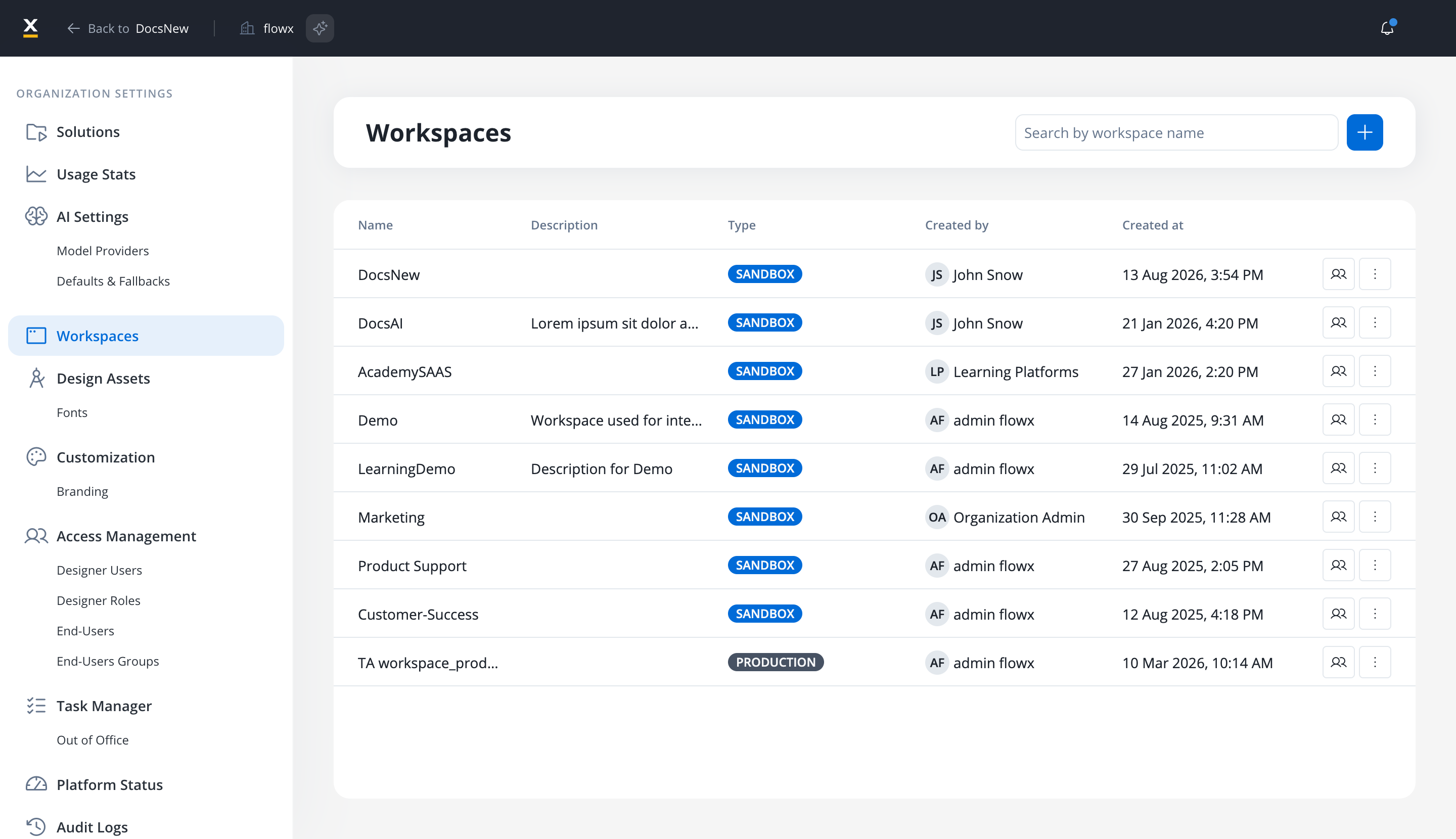
- Create dedicated spaces for different teams or departments
- Manage user access and permissions at workspace level
- Organize projects by business unit or use case
- Maintain separation between development contexts
- Control visibility and collaboration boundaries
Key features & capabilities
Workspace Management
Organize projects into isolated workspaces with dedicated access control, enabling team separation and structured collaboration across departments.
Project & Library Management
Create and manage projects and libraries with centralized resources, version control, and modular components that enable efficient collaboration.
Process Design & Monitoring
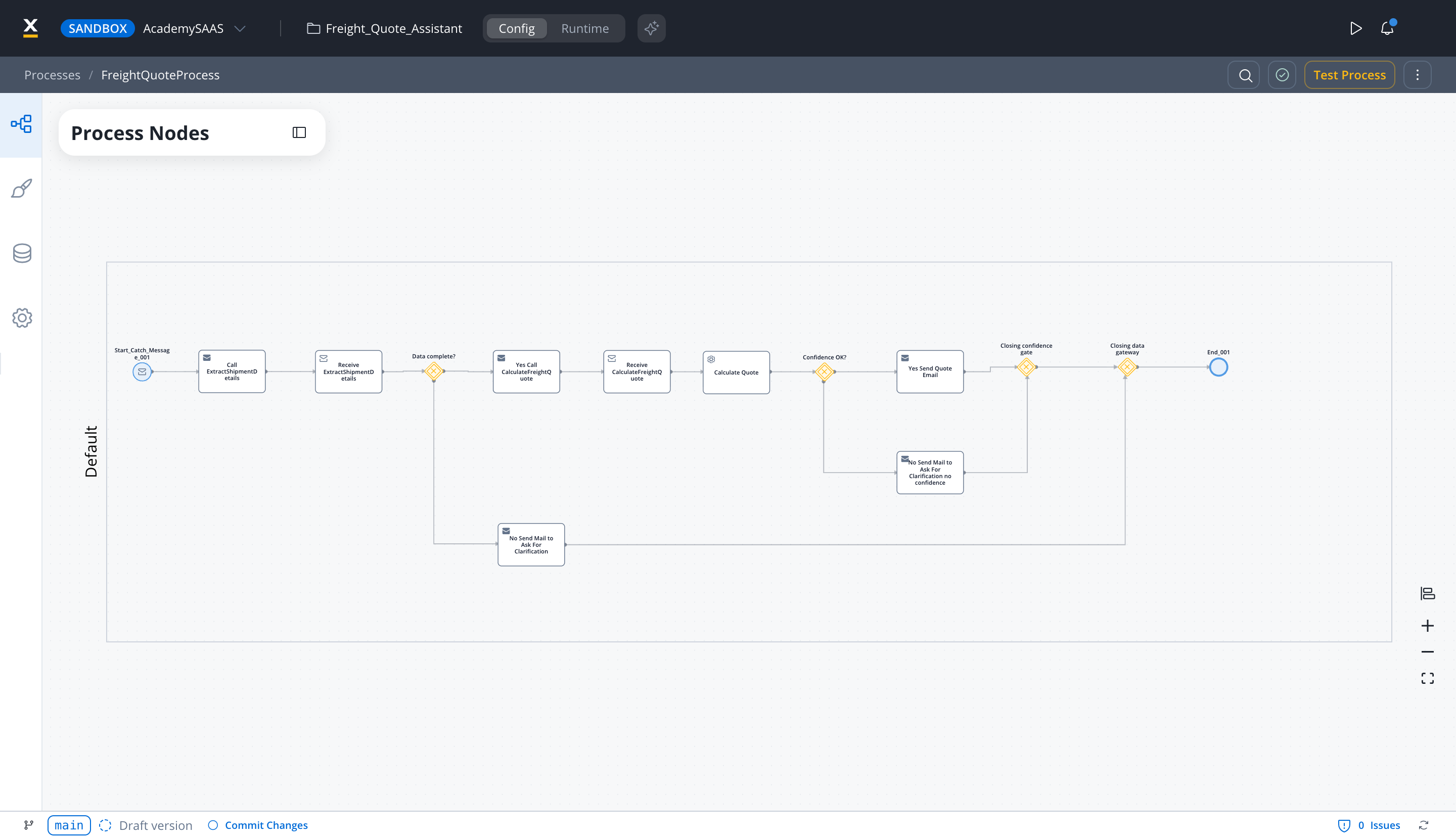
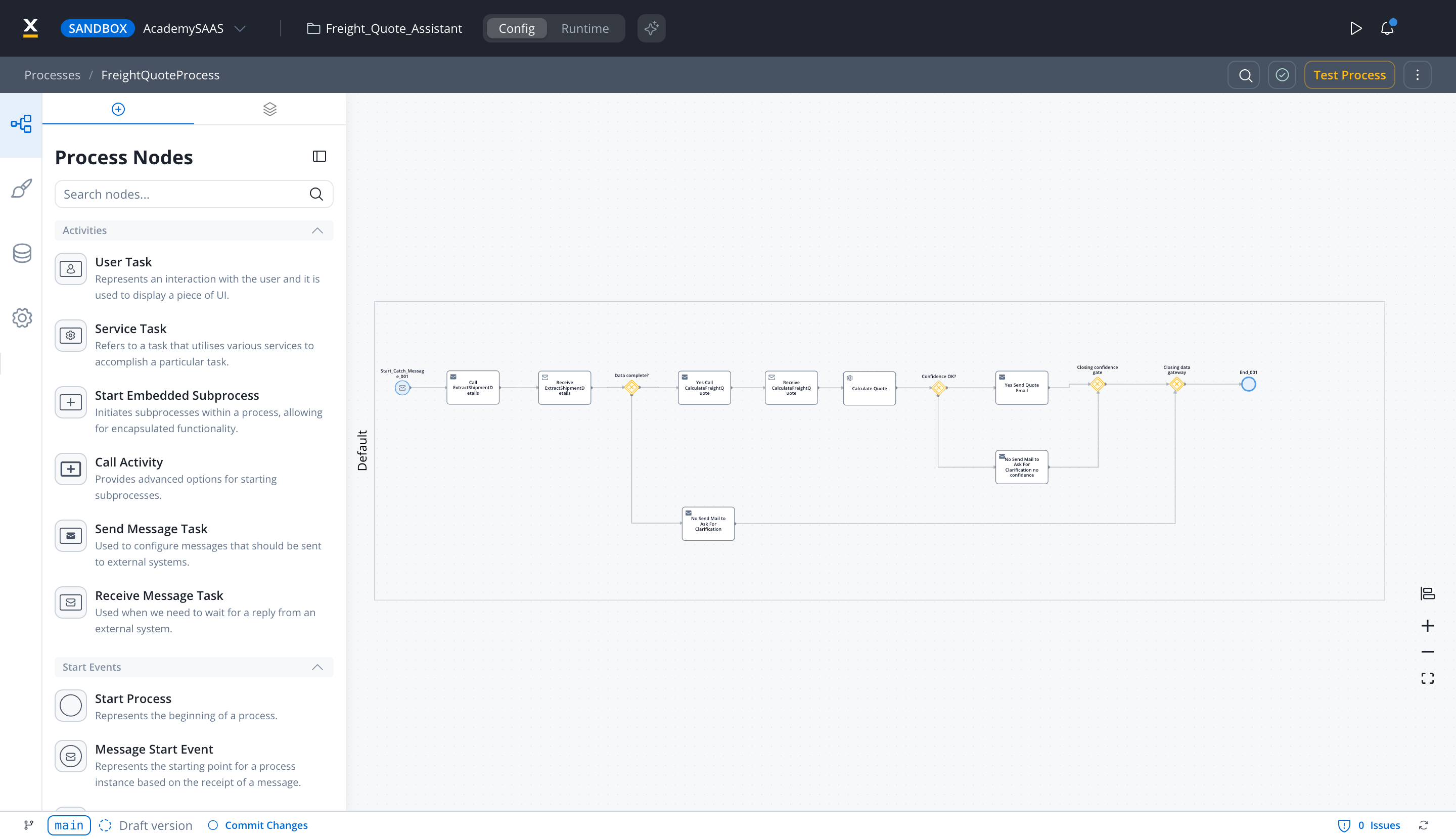
Design, debug, and monitor processes using BPMN 2.0 standards.
Content Management
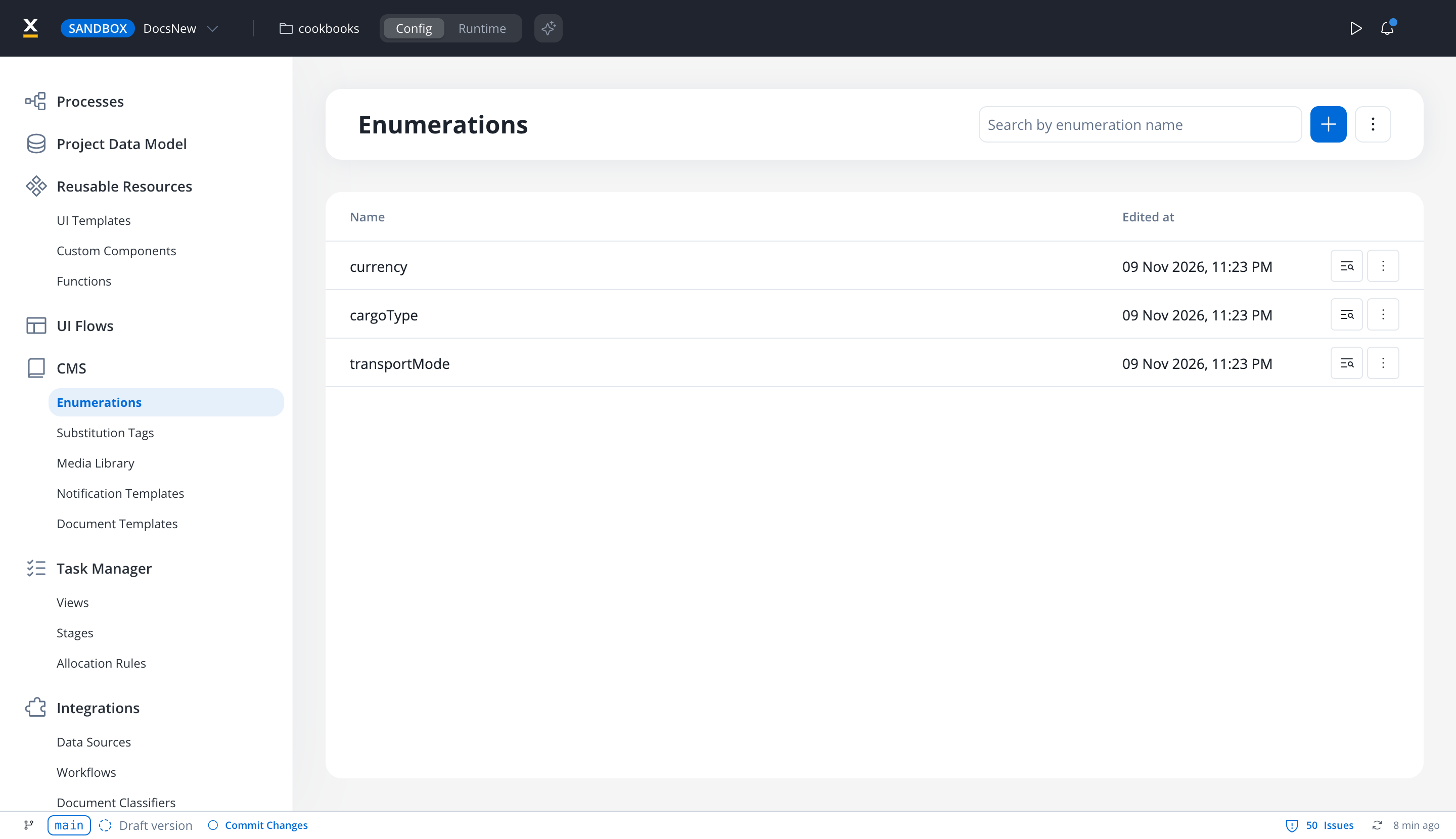
Manage enumerations, substitution tags, media files, and notification and document templates.
UI Design
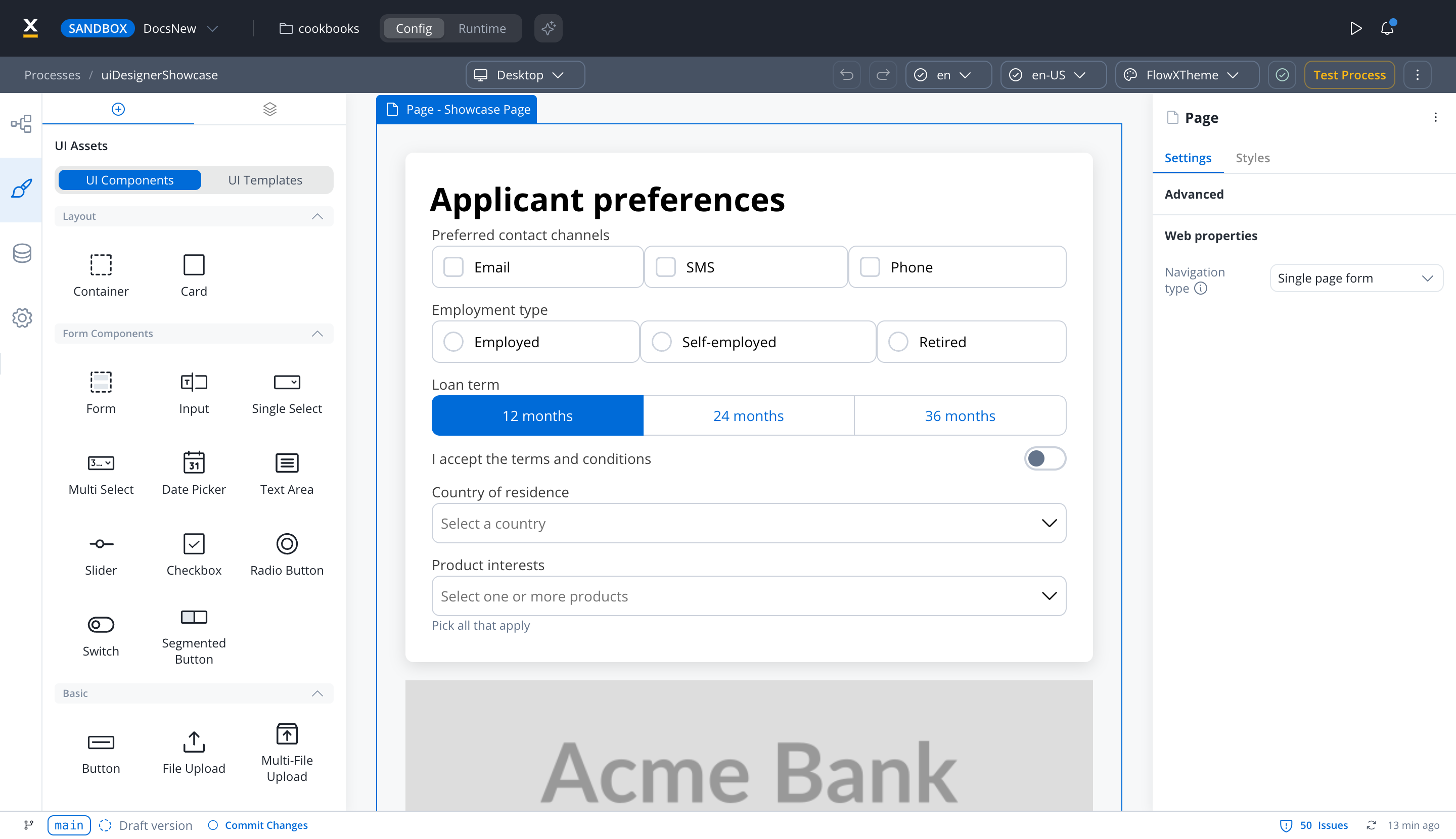
Create intuitive interfaces with an advanced navigator, component library, and flexible styling options.
Templates and Task Manager
Build notification and document templates in the CMS, and track assigned work in the Task Manager.
Integration Tools
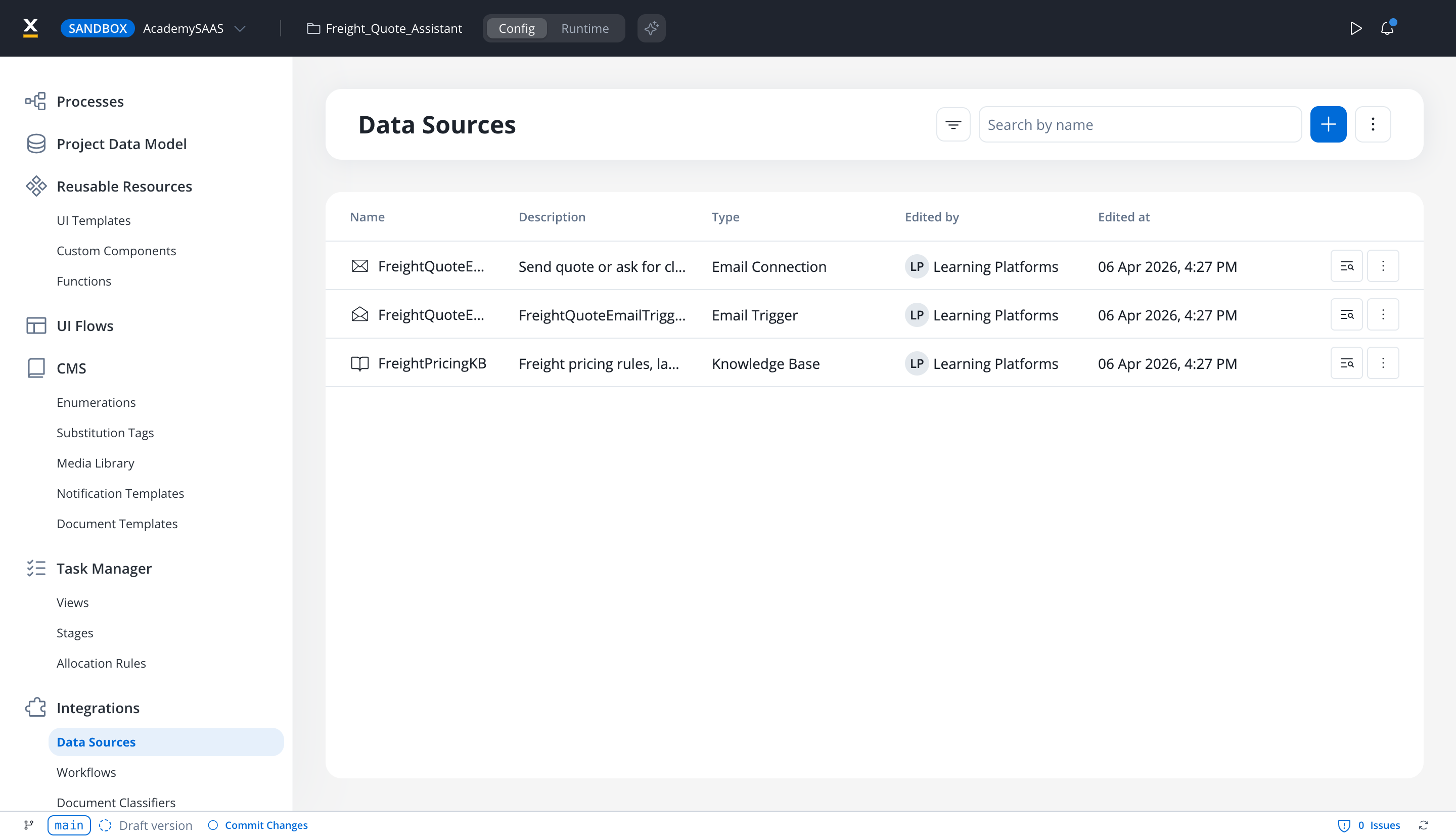
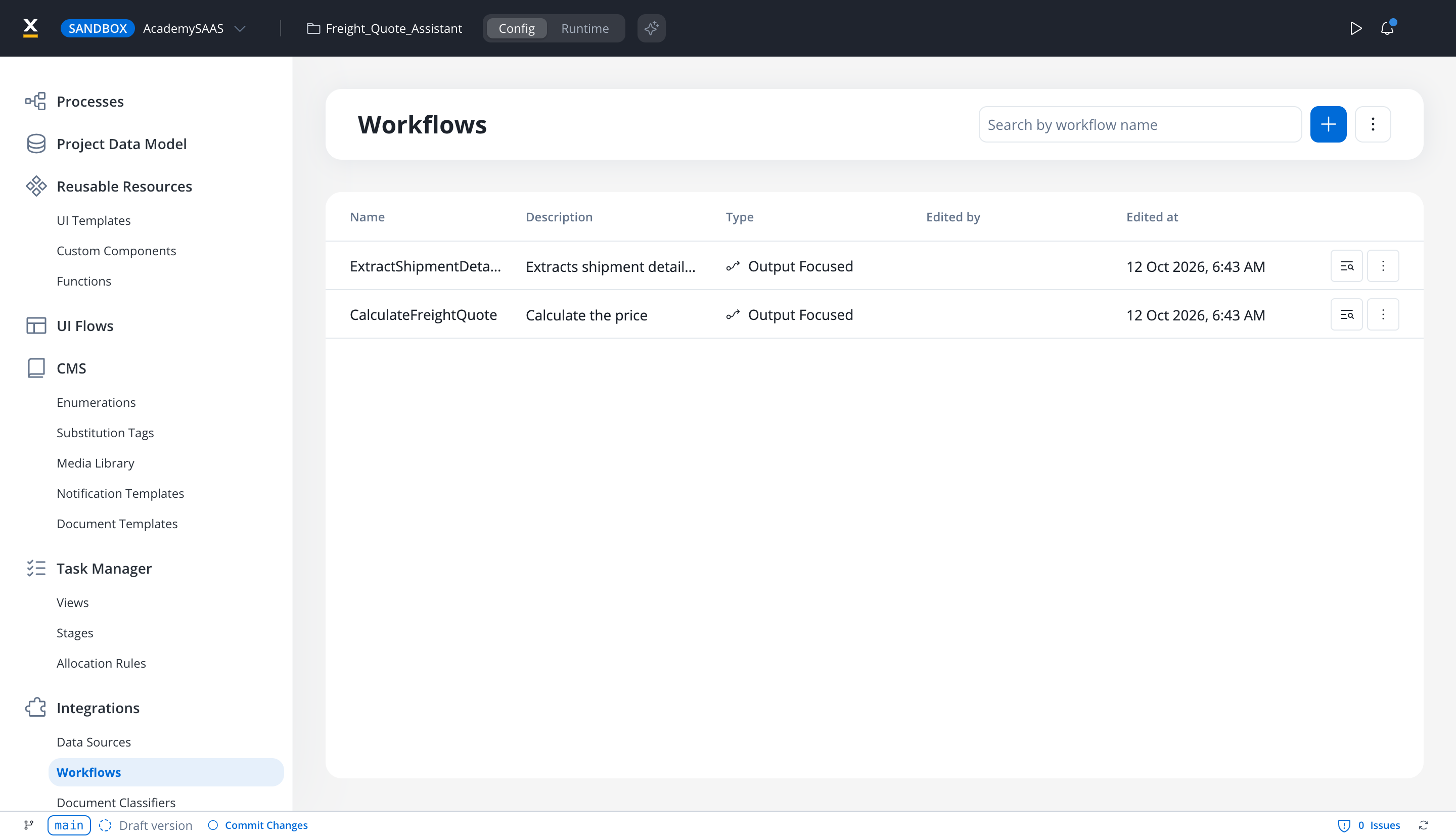
Connect projects to external systems with data sources, integration workflows, and proxy connections.
Platform Monitoring
Track the health and installed version of every platform component.
AI Assistance
Accelerate development with AI-powered suggestions, optimization recommendations, and contextual help.
Depending on your access rights, some features and tabs might not be visible. For more information, check Access Management section.
Where to find things
The Designer has a menu for each level. Entries in parentheses are the items inside a group.Detailed component overview
Workspaces
Workspaces
Key Capabilities
1
Workspace Creation & Management
Create dedicated workspaces for different teams, departments, or business units. Each workspace acts as an independent container with its own projects and resources.
2
Access Control
Configure workspace-level permissions to control who can view, edit, or manage projects within each workspace. Administrators can assign users and groups specific roles.
3
Project Organization
Group related projects together within a workspace for better organization and discoverability. Projects inherit workspace-level settings and permissions.
4
Team Collaboration
Enable focused collaboration by bringing together stakeholders who need to work on related projects, while maintaining separation from other teams.
Benefits
- Isolation: Keep different teams’ work separate and secure
- Flexibility: Organize workspaces by department, product line, or any business structure
- Security: Control access at the workspace level for enhanced governance
- Clarity: Reduce clutter by showing users only relevant workspaces and projects
Workspace Access Rights
Learn more about configuring workspace access rights
Projects & Libraries
Projects & Libraries
- Projects
- Libraries
A project groups resources that represent a project’s entire lifecycle. It’s not just a collection of processes; it’s an organized workspace containing all dependencies required for that project. It enables: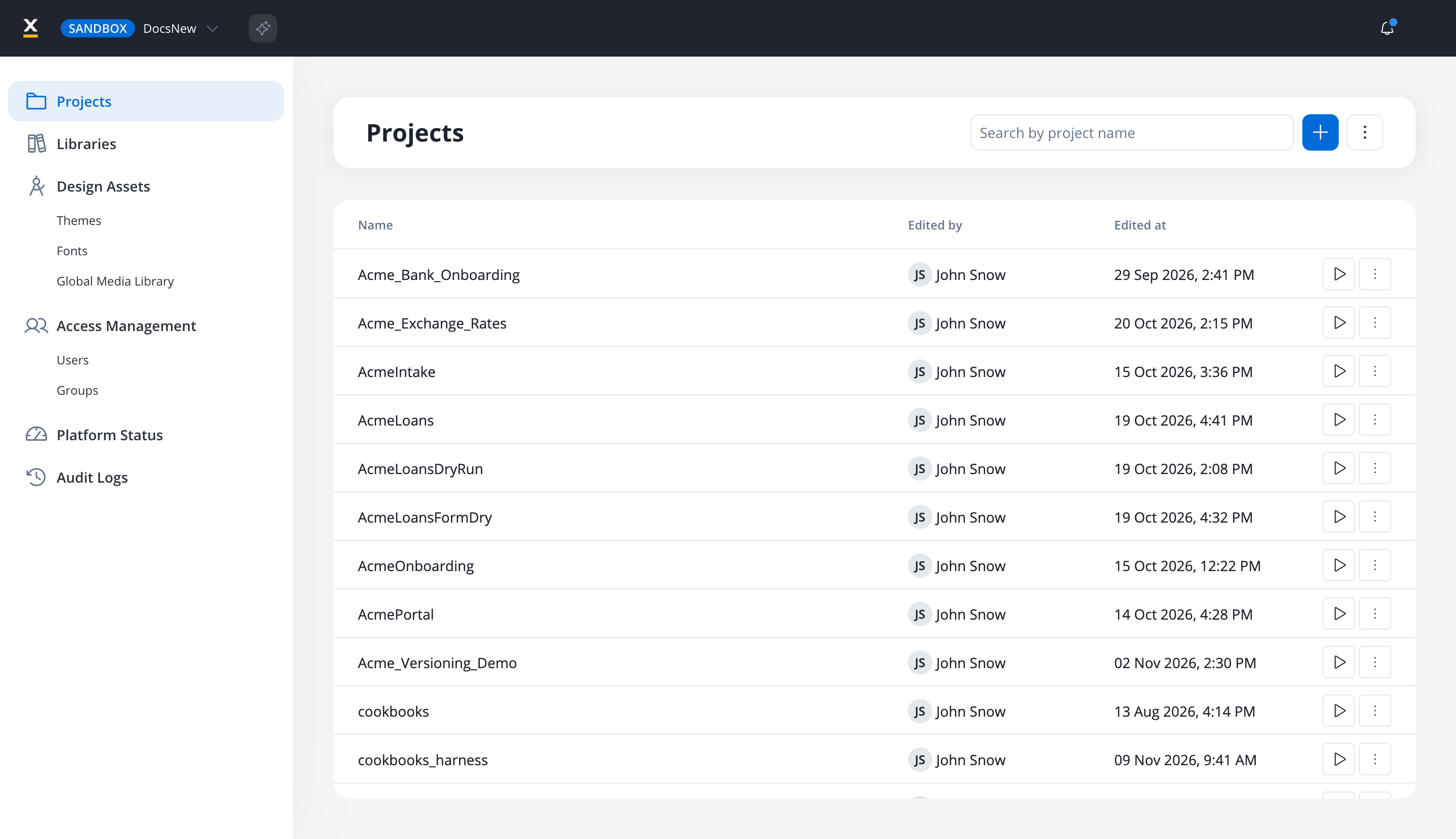
- Centralized resource management
- Version control with history tracking
- Build deployment across environments
- Collaborative workflows with simultaneous editing
- Modular organization of processes and assets
Learn More About Projects
Process Management
Process Management
- Process Definitions
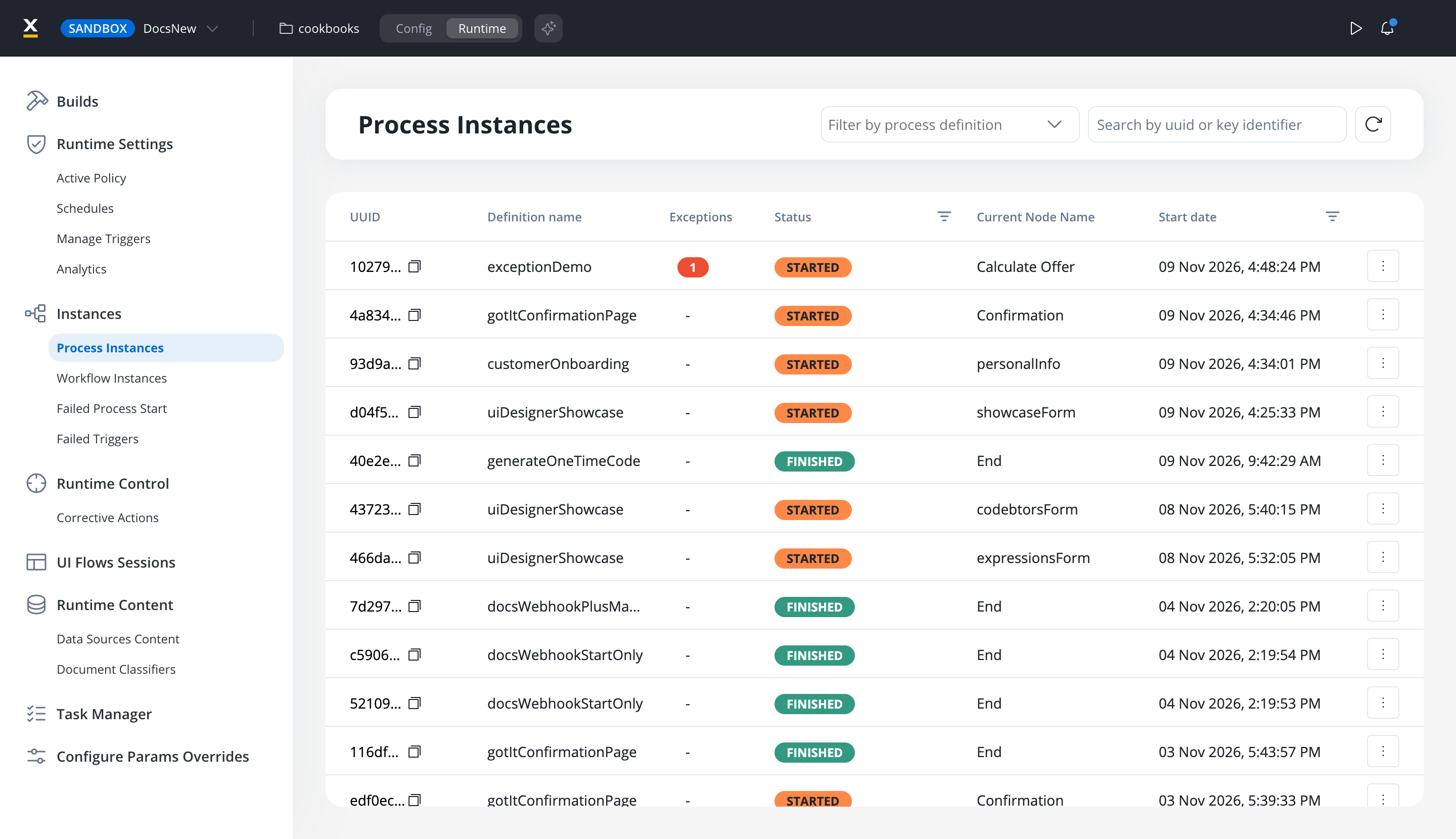
- Process Instances
Process definitions are versioned as part of their project, not individually. The process designer provides: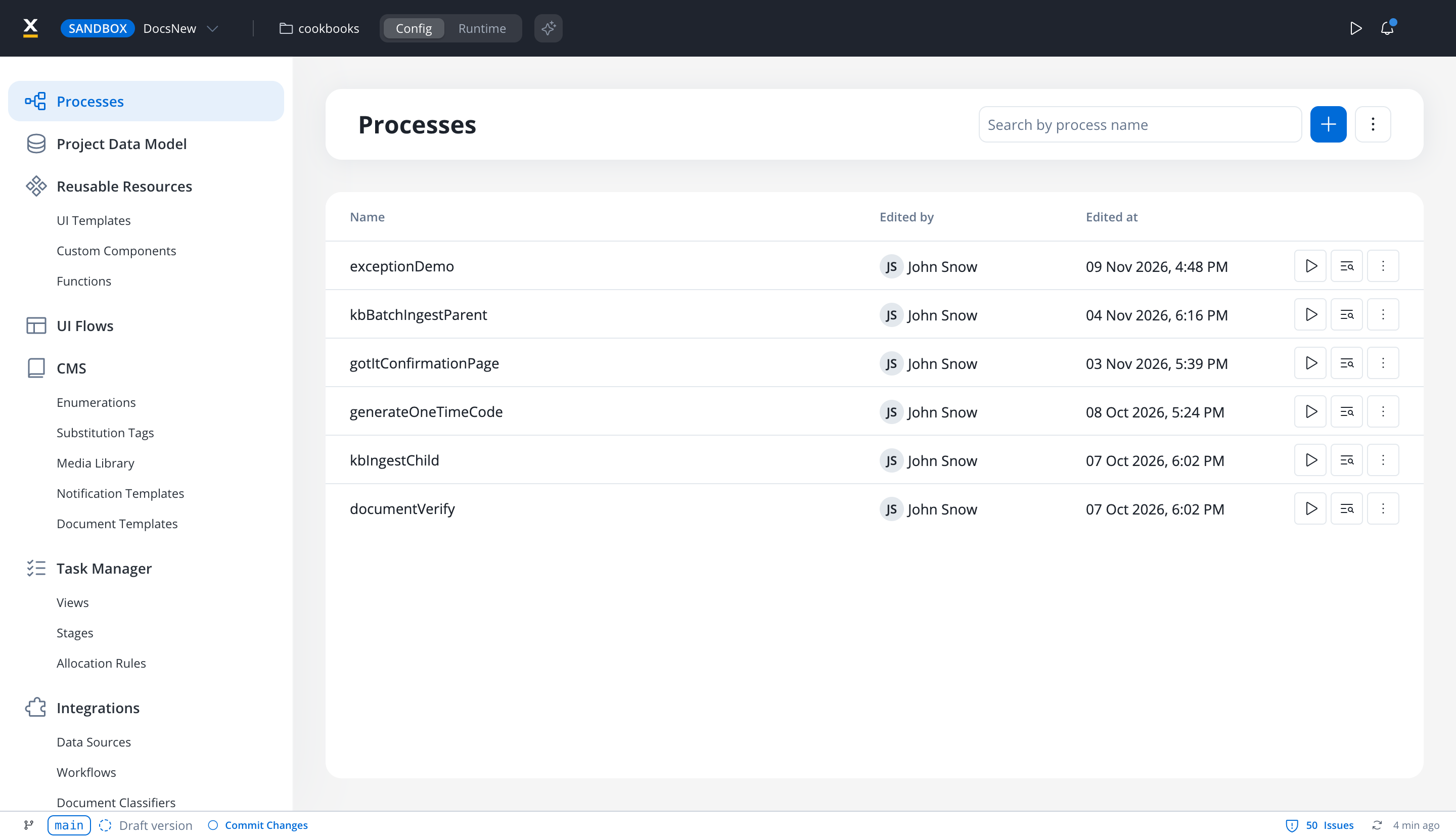
- Process definition management
- Versioning history with comparison capabilities
- Debugging tools for process execution
- Version comparison for change identification
- BPMN 2.0 standard compliance
Process Definition
Managing a Process Flow
Content Management
Content Management
Data & Localization
1
Enumerations
Manage static value definitions that can be used in UI components or templates with bulk import/export capabilities.
2
Substitution Tags
Generate dynamic content across the platform with context-aware tag suggestions for localization.
3
Source Systems
Connect to multiple data sources for enumeration values with third-party system integration.
Media
1
Media Library
Centrally manage various media files with metadata tagging and optimization capabilities.
Notification Templates

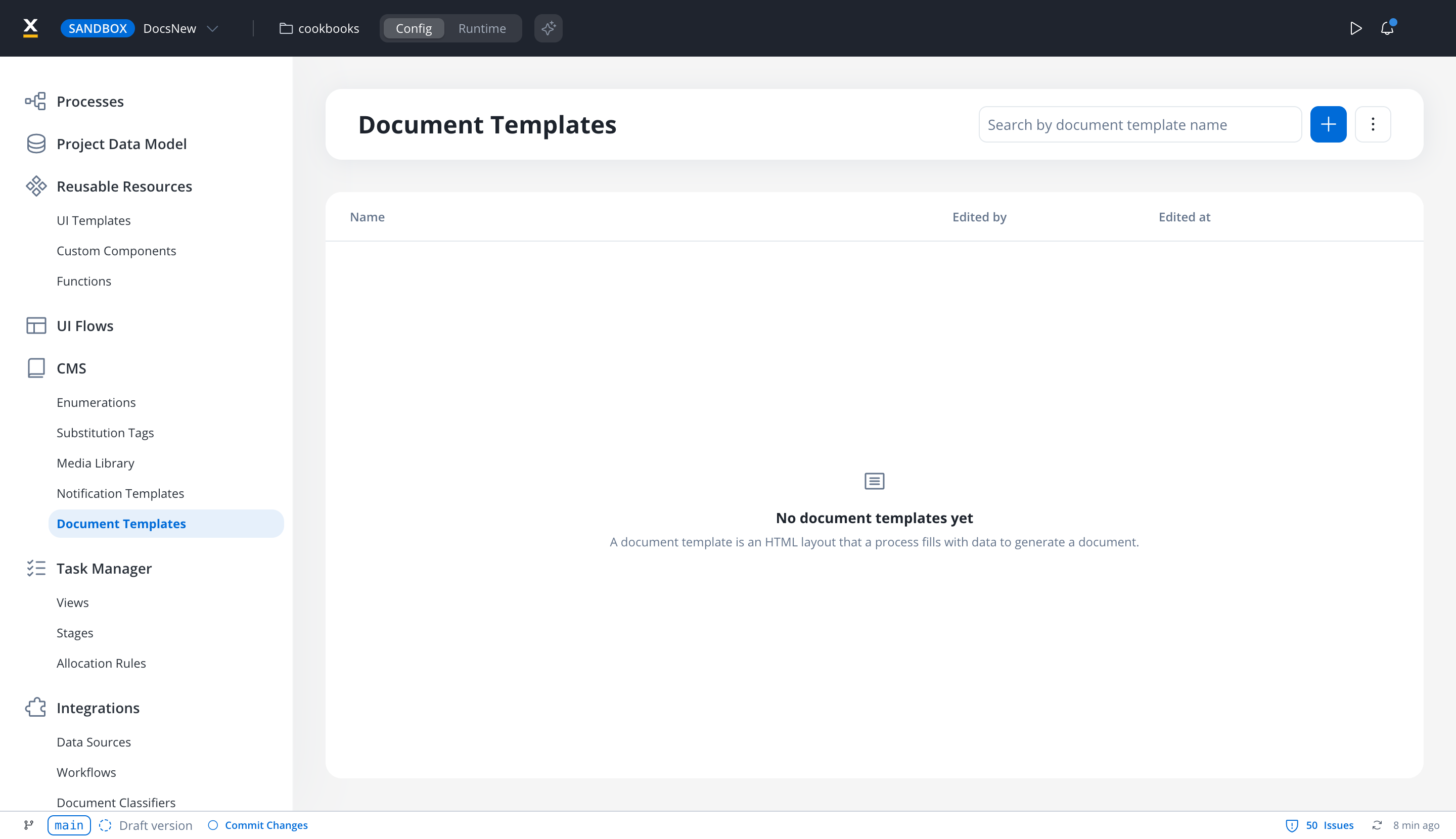
Document Templates
You need to deploy the CMS service in your infrastructure before you can start defining and using custom content types.
Headless CMS
CMS Setup Guide
Task Manager
Task Manager
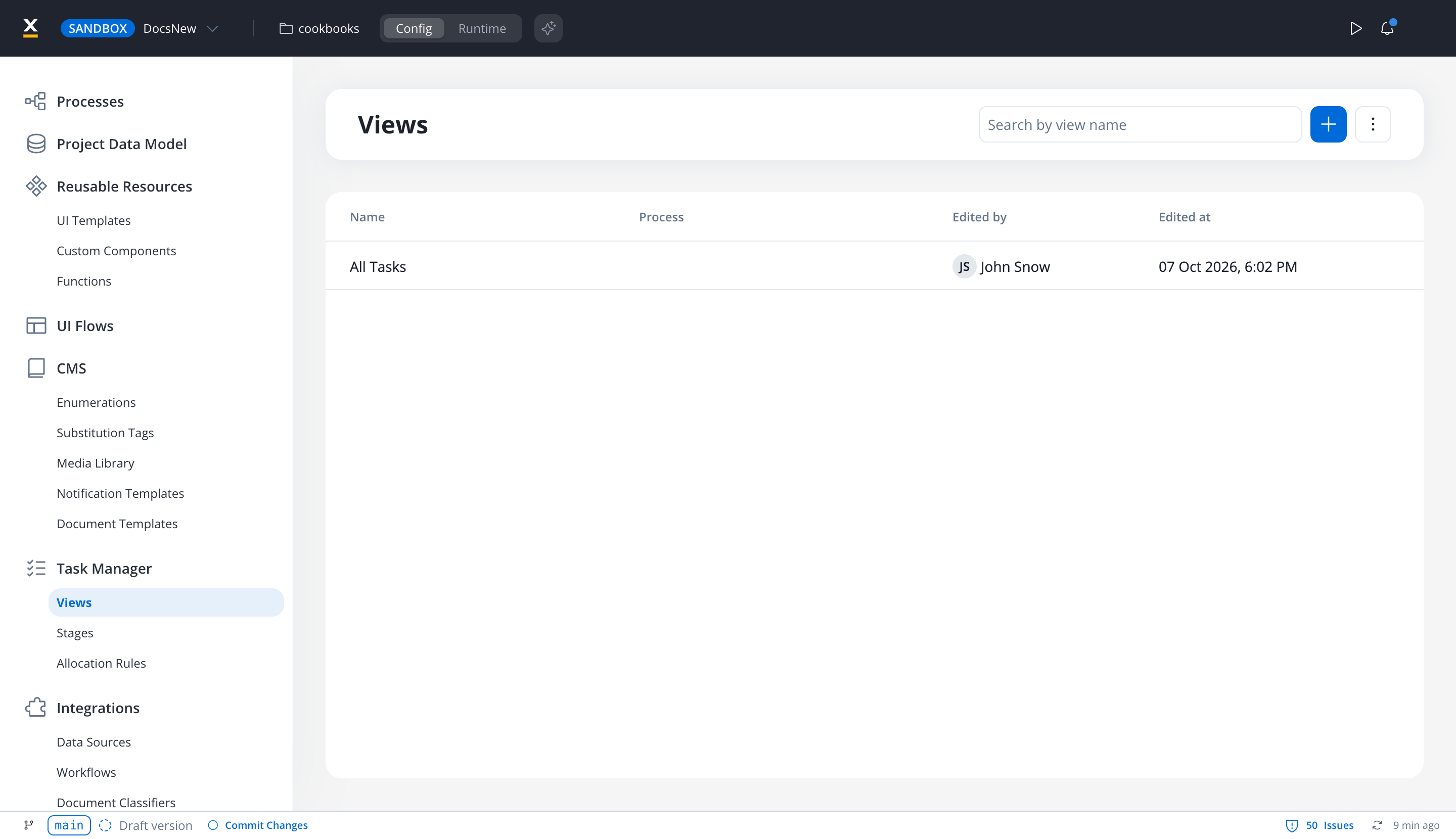
Task Management
System Settings
System Settings
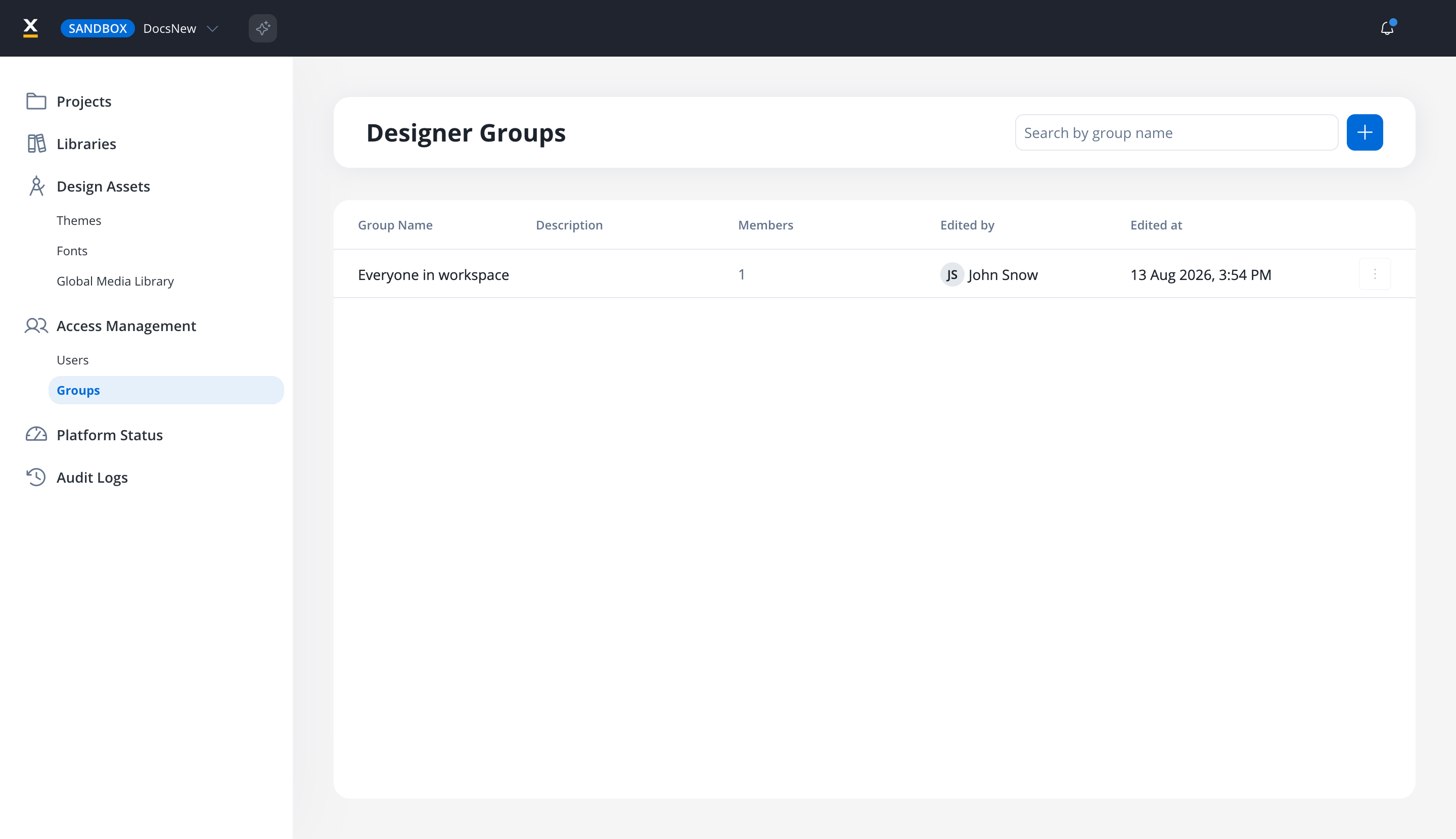
- Configuration Parameters
- Access Management
- Integrations
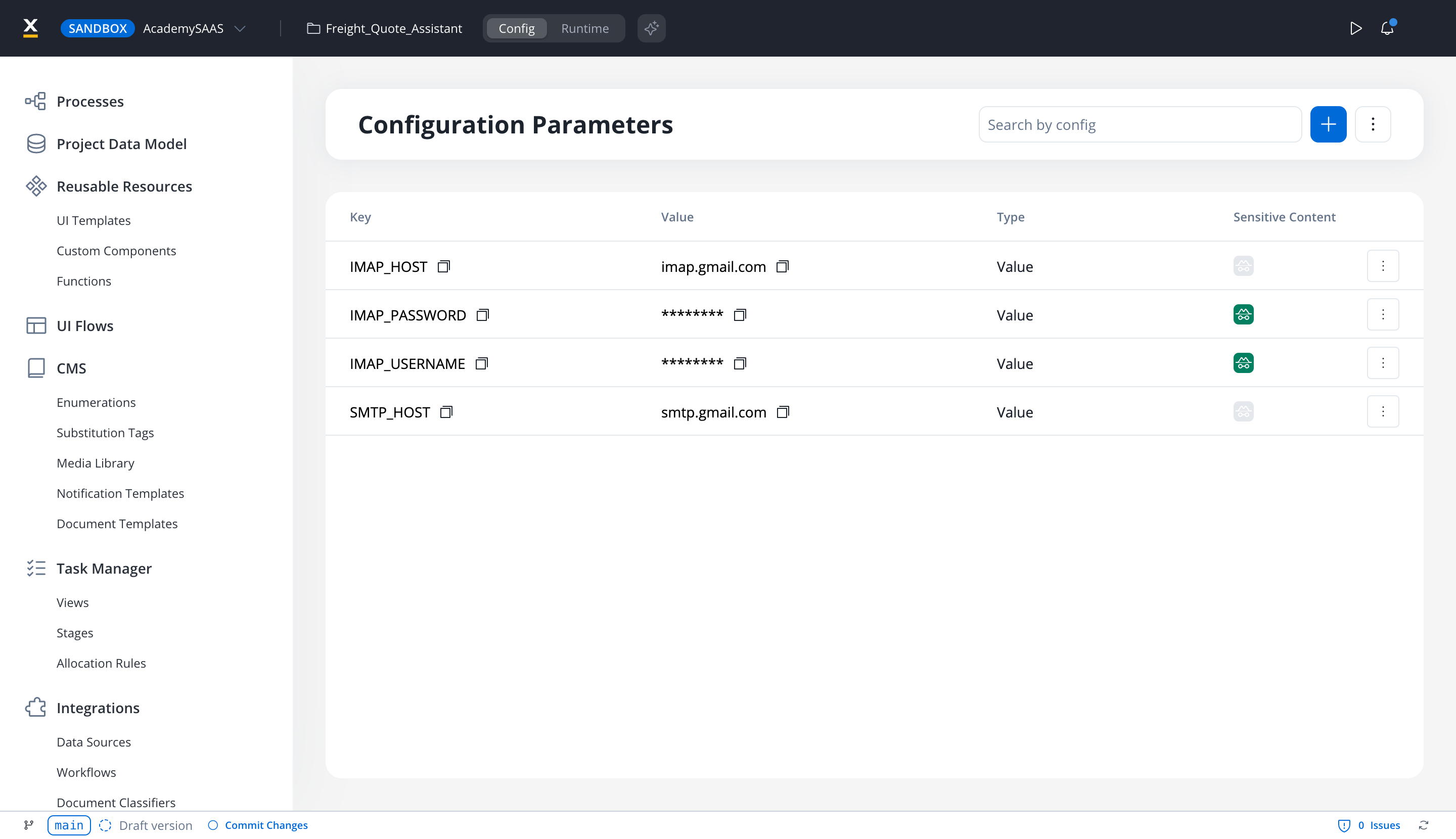
- Key-value parameter definition
- Environment-specific value configuration
- Import/export capabilities
Platform Status
Platform Status
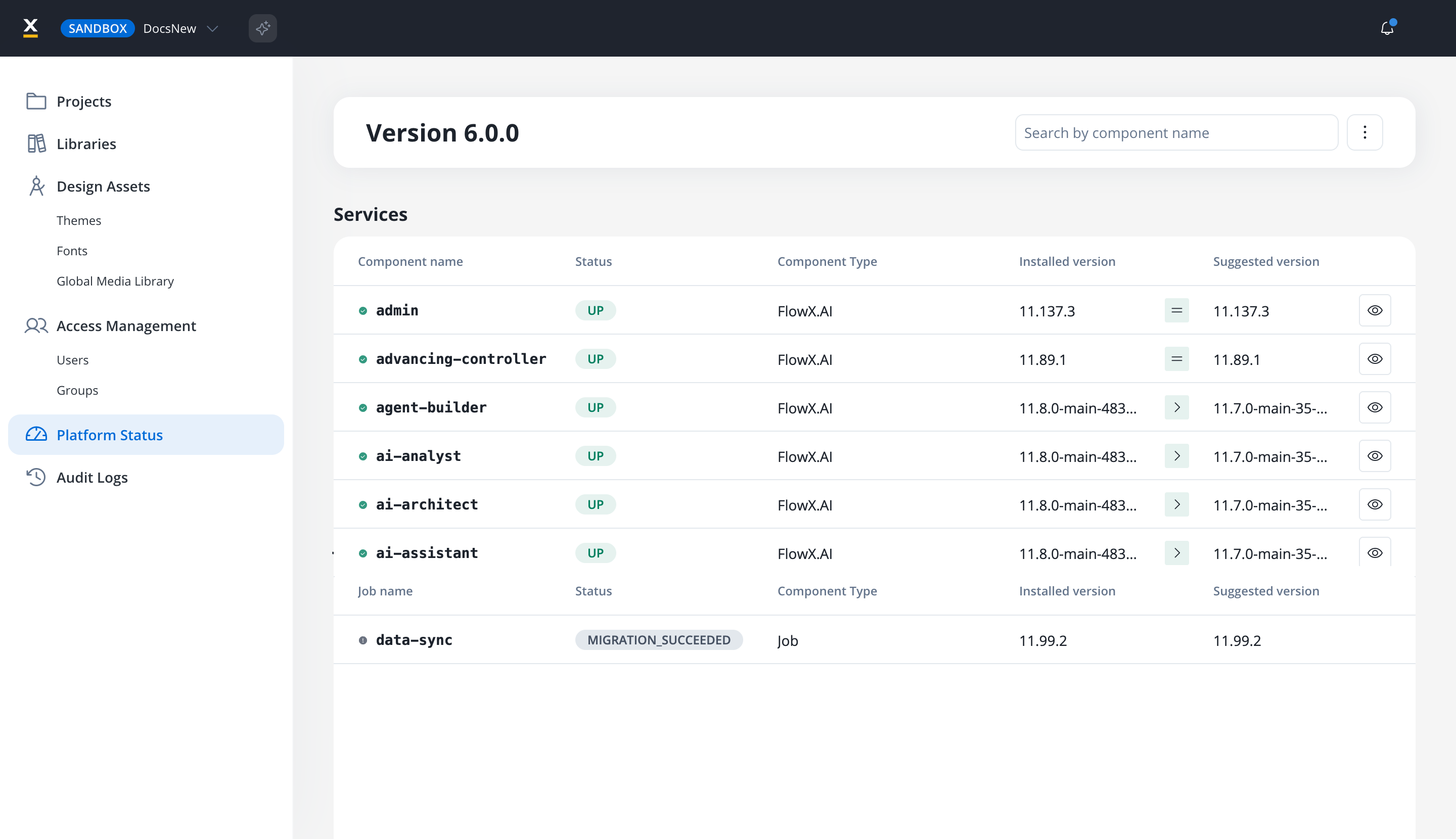
- Search by component name
- Open a component’s details from its row
- Run Force Rescan or Export from the page menu
UI Designer
UI Designer
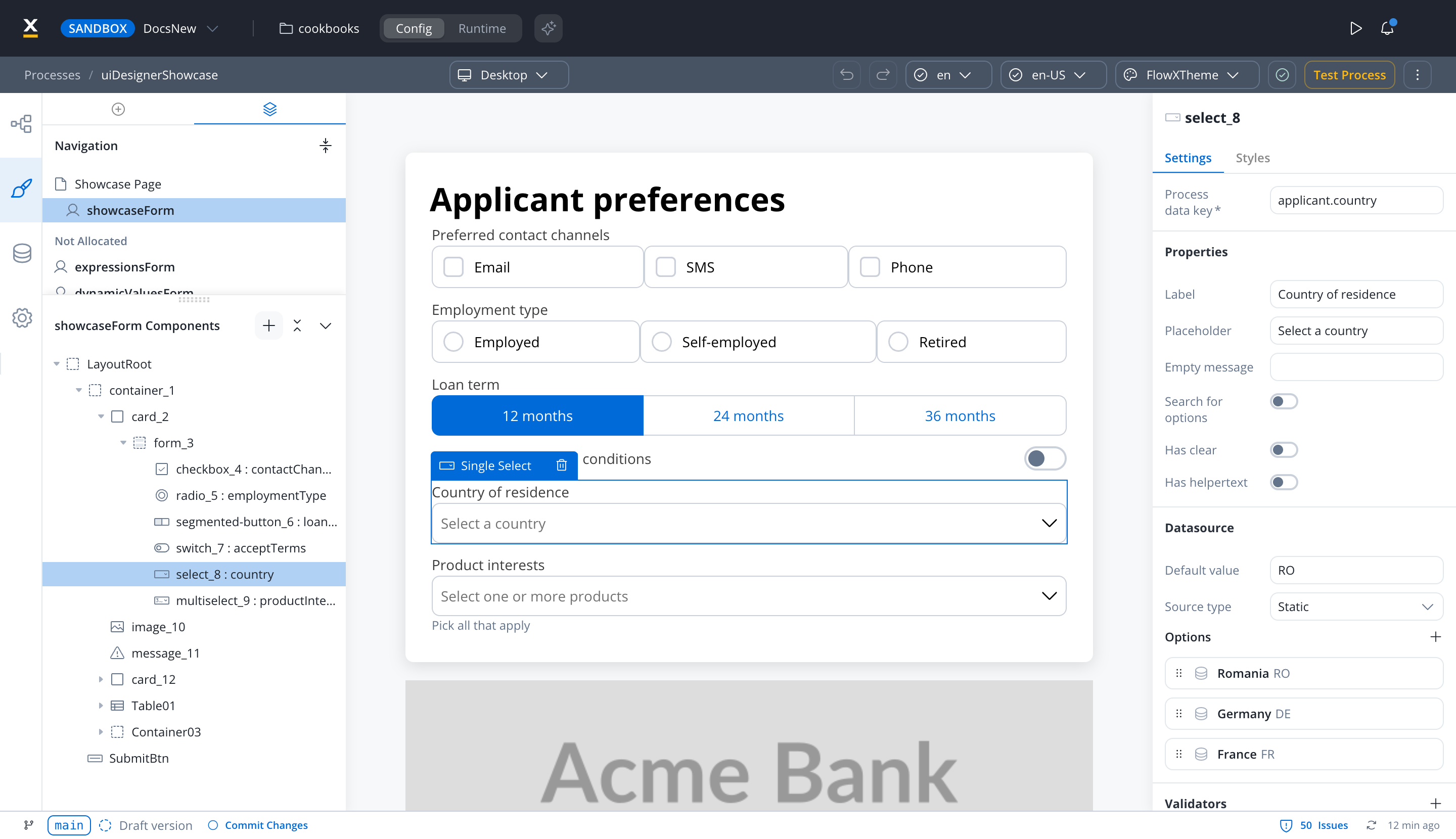
- Enhanced UI layer panel for intuitive design element management
- Improved drag and drop functionality for precise component placement
- Flexible root component management for form groups and containers
- Clear component hierarchy visualization with navigation controls
- Rich component library with customization options
- Integration with themes and styling capabilities
UI Designer Documentation
Learn more about UI Designer capabilities and components
Next steps
Managing a Process Flow
Learn how to create and manage a process from scratch