

Using the UI Designer
The FlowX platform includes an intuitive UI Designer for creating diverse UI templates. You can use various elements such as basic buttons, indicators, and forms, as well as predefined collections and prototypes. To access the UI Designer, follow these steps:- Open FlowX Designer and select Definitions from the Processes tab.
- Select a process from the process definitions list.
- Click the Edit process button.
- Select a node or a navigation area then click the brush icon to open the UI Designer.
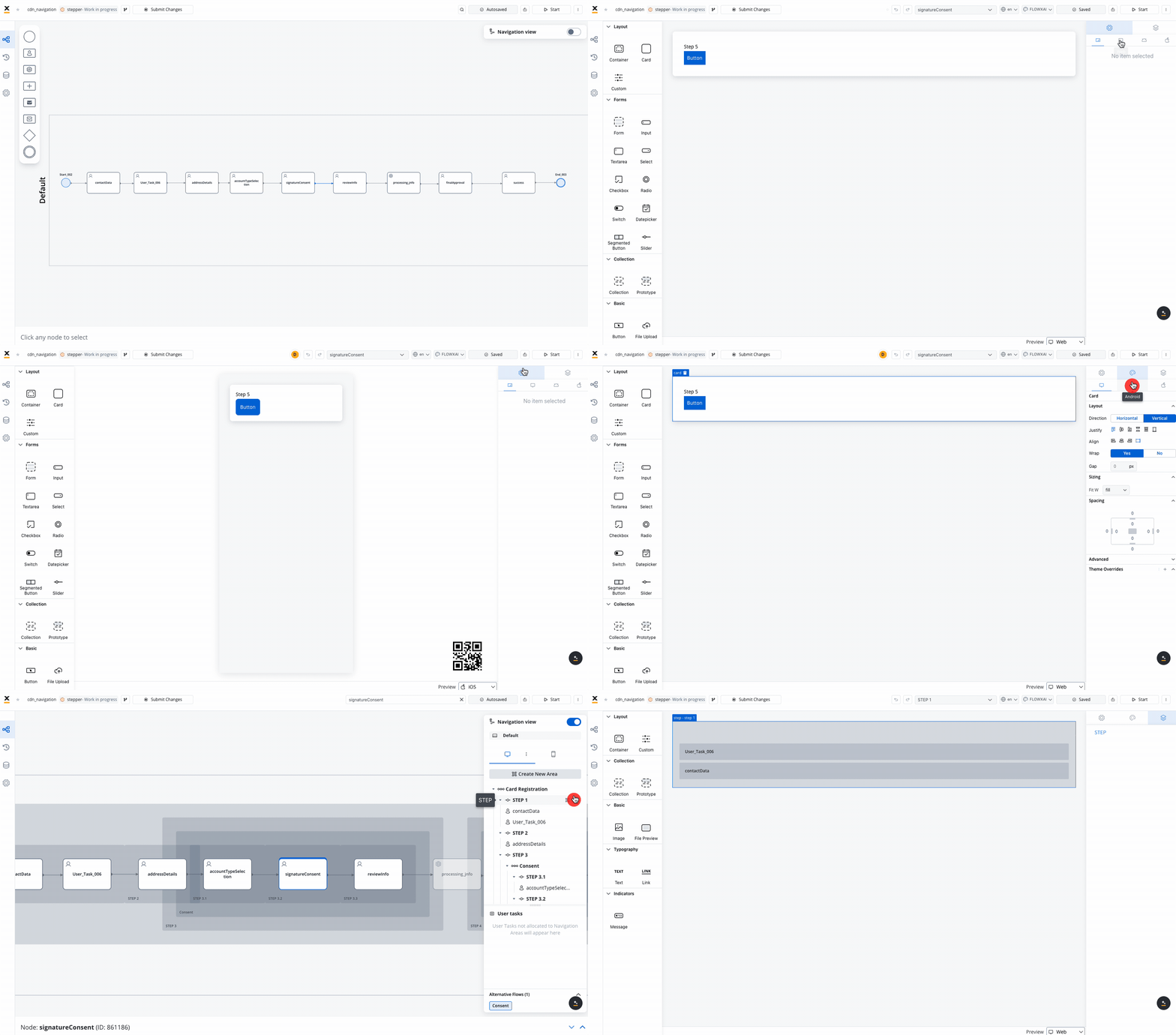
The UI designer is available for User task nodes and Navigation Areas elements.
UI components
FlowX offers a wide range of UI components that can be customized using the UI Designer. For example, when configuring a card element (which is a root component), the following properties can be customized:
Settings tab
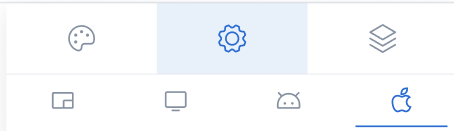
Generic tab
This is where you configure the logic and assign process keys, UI actions, and other component settings that are common across all platforms (Web, iOS, Android).Platform-specific settings
For example, on Android, you might want to change the Card title to a shorter one. To override a general property like a title, follow these steps:1
Go to UI Designer
Access the UI Designer and select a UI Element, such as a Card.
2
Access platform-specific settings
From the UI Designer navigation panel, select the Settings tab, then select the desired platform
3
Perform the override
Click the ”+” button (next to “Overrides”) and select Properties -> Title, then input your desired value.
Settings overrides can always be imported/pushed from one platform to another: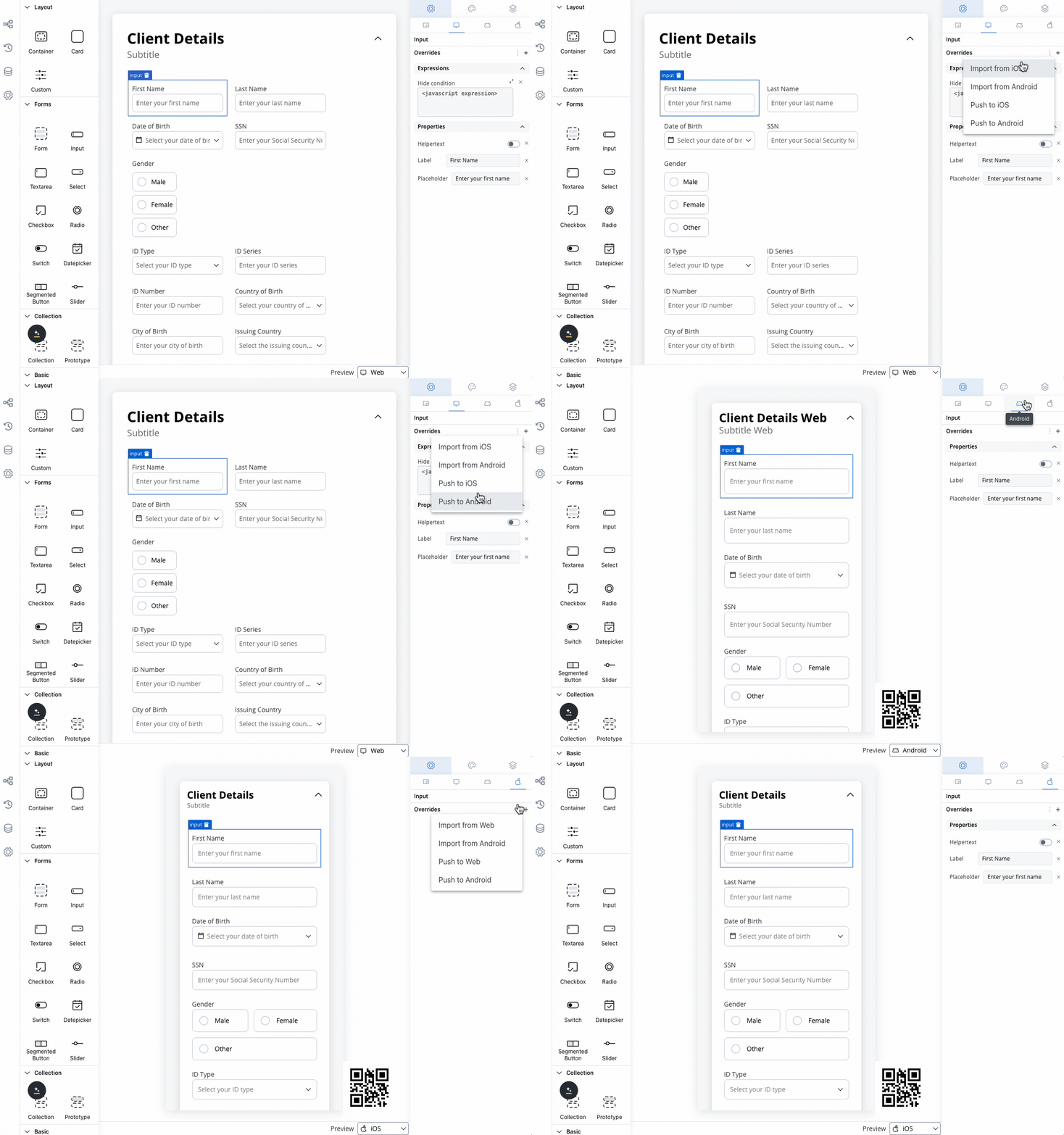
4
Preview your changes
Preview your changes in the UI Designer by navigating from one platform to another or by comparing them.
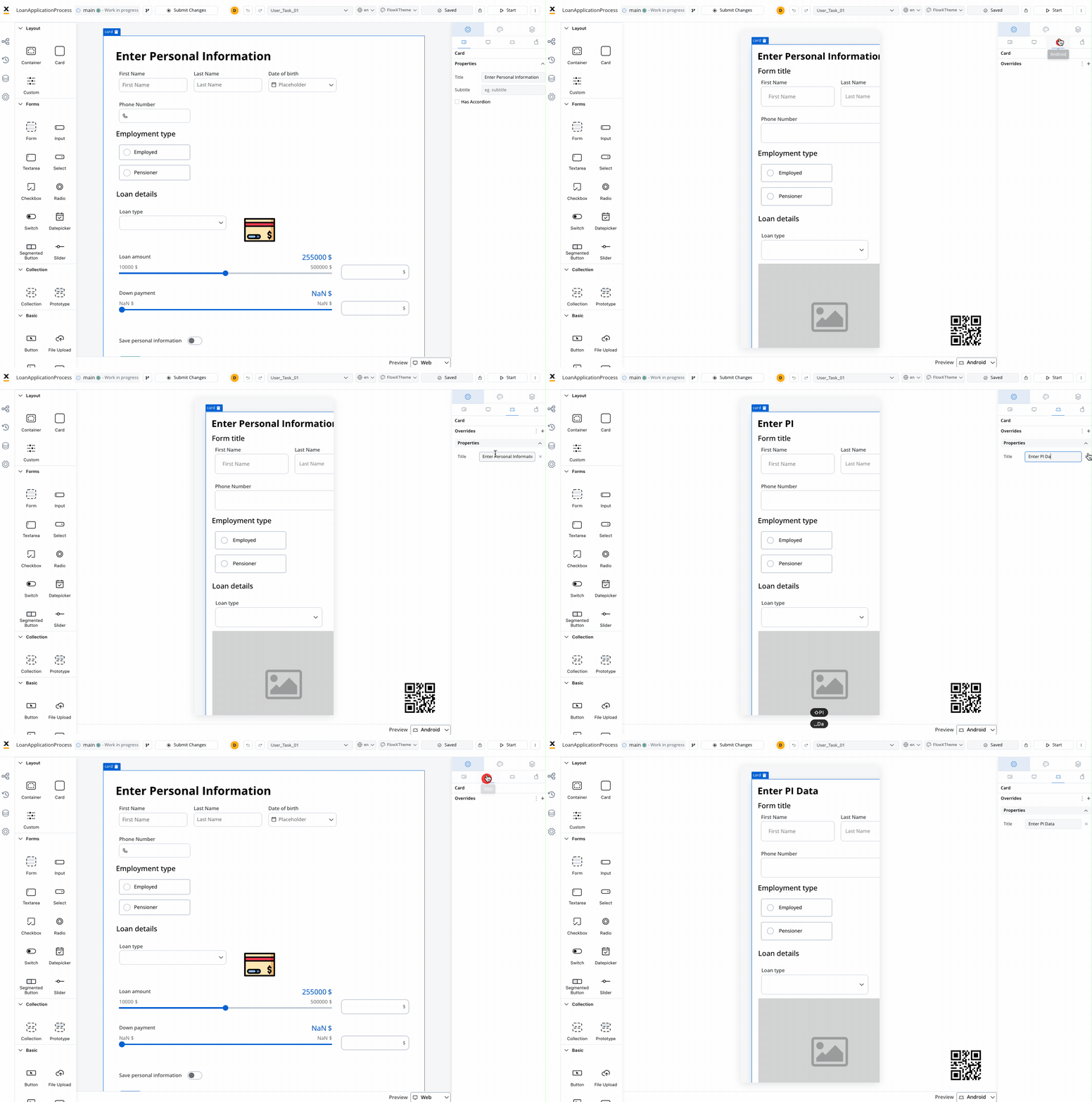
Keep in mind that the preview generated in the UI Designer for iOS and Android platforms is an estimate meant to help you visualize how it might look on a mobile view.
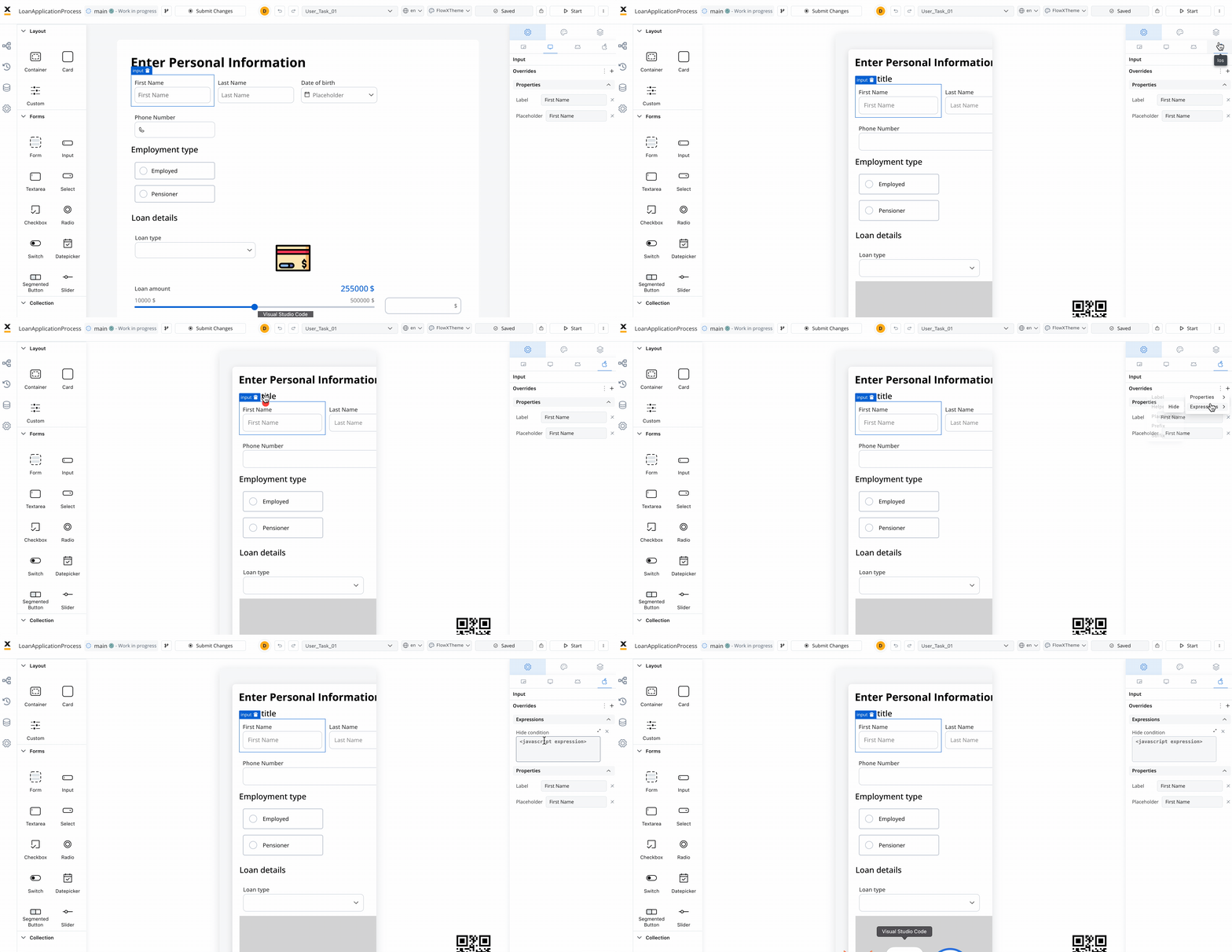
Hide expressions
By utilizing Overrides in the Settings tab, you can selectively hide elements on a specific platform. To achieve this:1
Select a UI component in the UI Designer, then navigate to Settings -> your desired platform -> Overrides (+) -> Expressions -> Hide.
2
Add your JavaScript Hide condition.
Styling tab
The Styles tab functions independently for three platforms: Web, iOS, and Android. Here, you can customize styles for each UI component on each platform.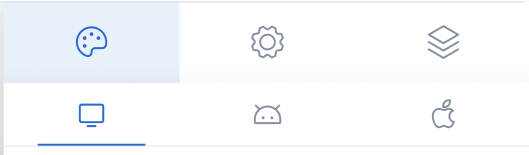
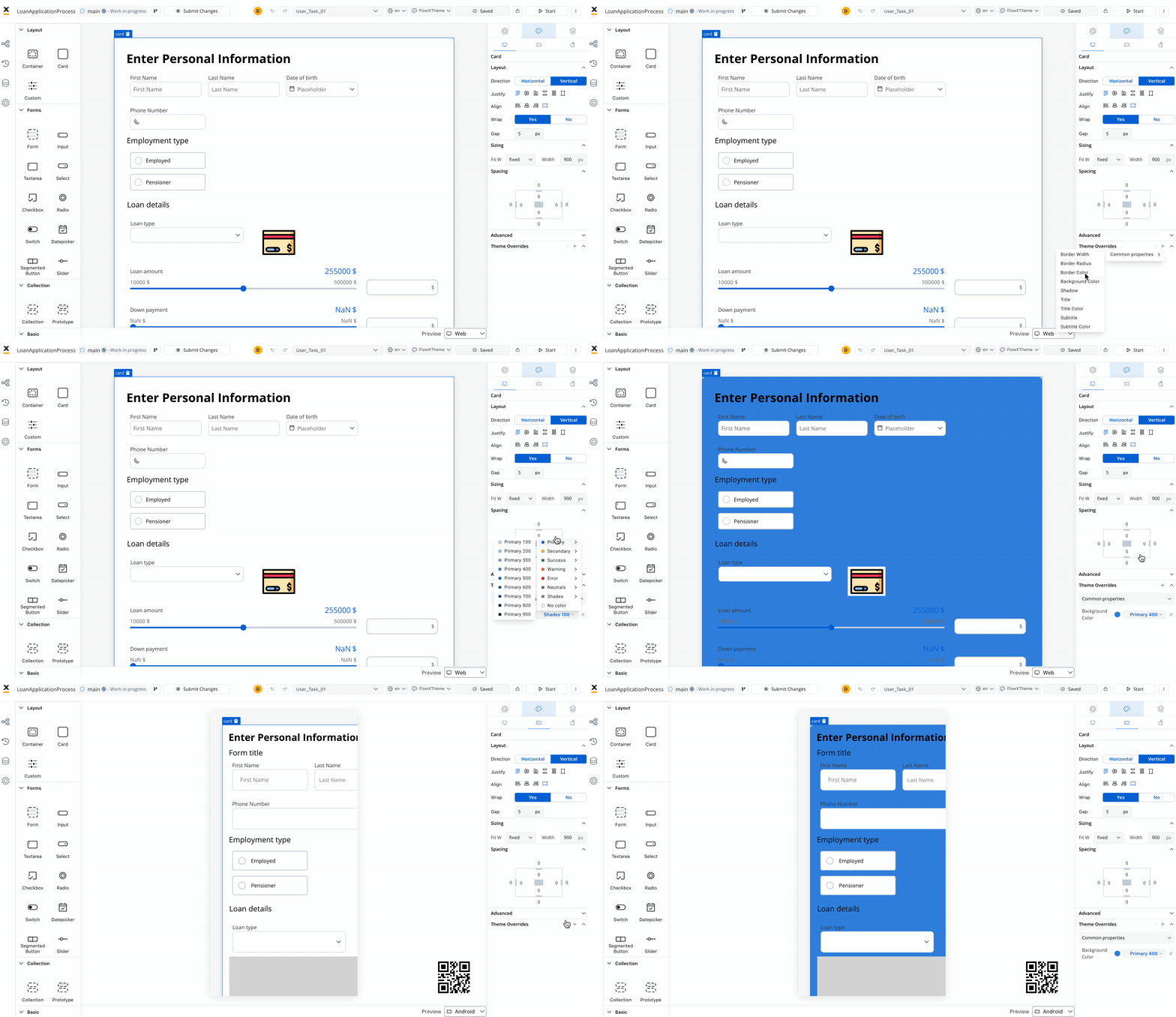
Theme overrides can be imported from one platform to another.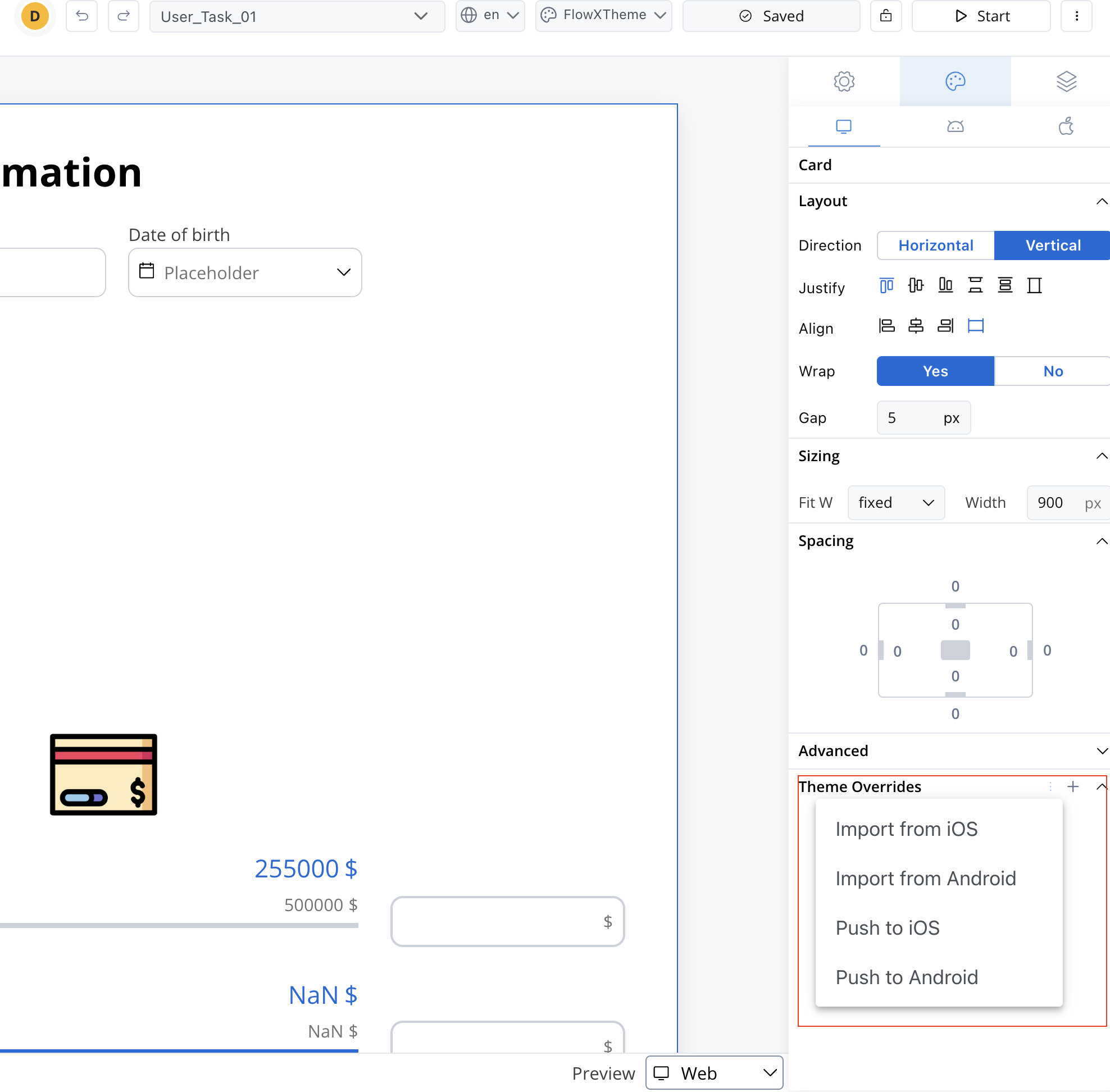
Theme Management
Preview
When you are editing a process in UI Designer you have the possibility of having the preview of multiple themes: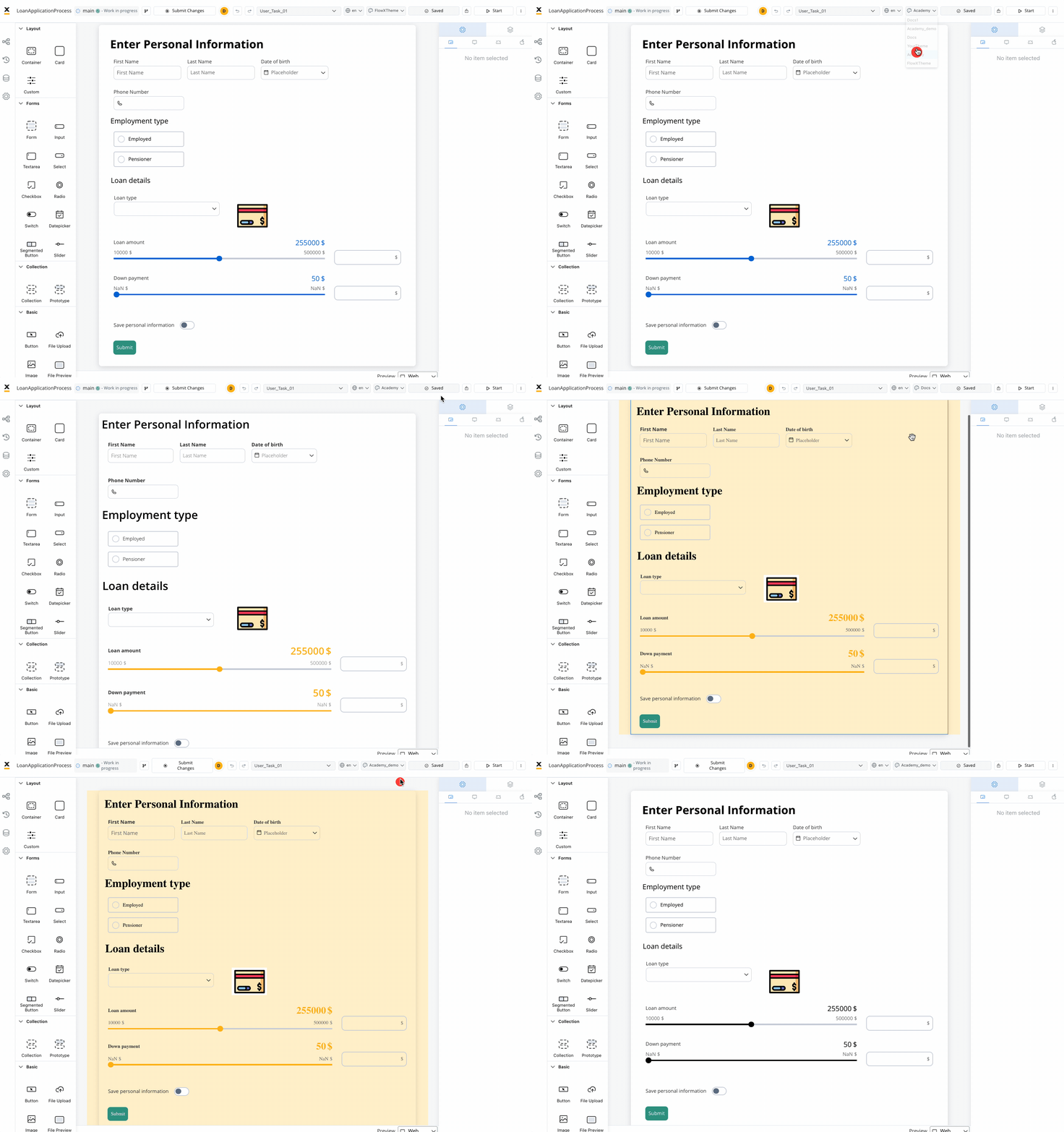
Overrides are completely independent of the theme, regardless of which theme you choose in the preview mode.
Layout
There are two main types of layouts for organizing child elements: Linear and Grid.- Linear Layout: Arranges child elements in a single line, either horizontally or vertically. Ideal for simple, sequential content flow.
- Grid Layout: Organizes elements into a structured grid with multiple columns and rows, useful for more complex, multi-dimensional designs.
- Platform-Specific Layouts: You can customize layout settings per platform (e.g., Grid on web, Linear on mobile) to ensure optimal responsiveness.
Both layouts offer options to customize direction, alignment, spacing, and wrap behavior for flexibility in design.
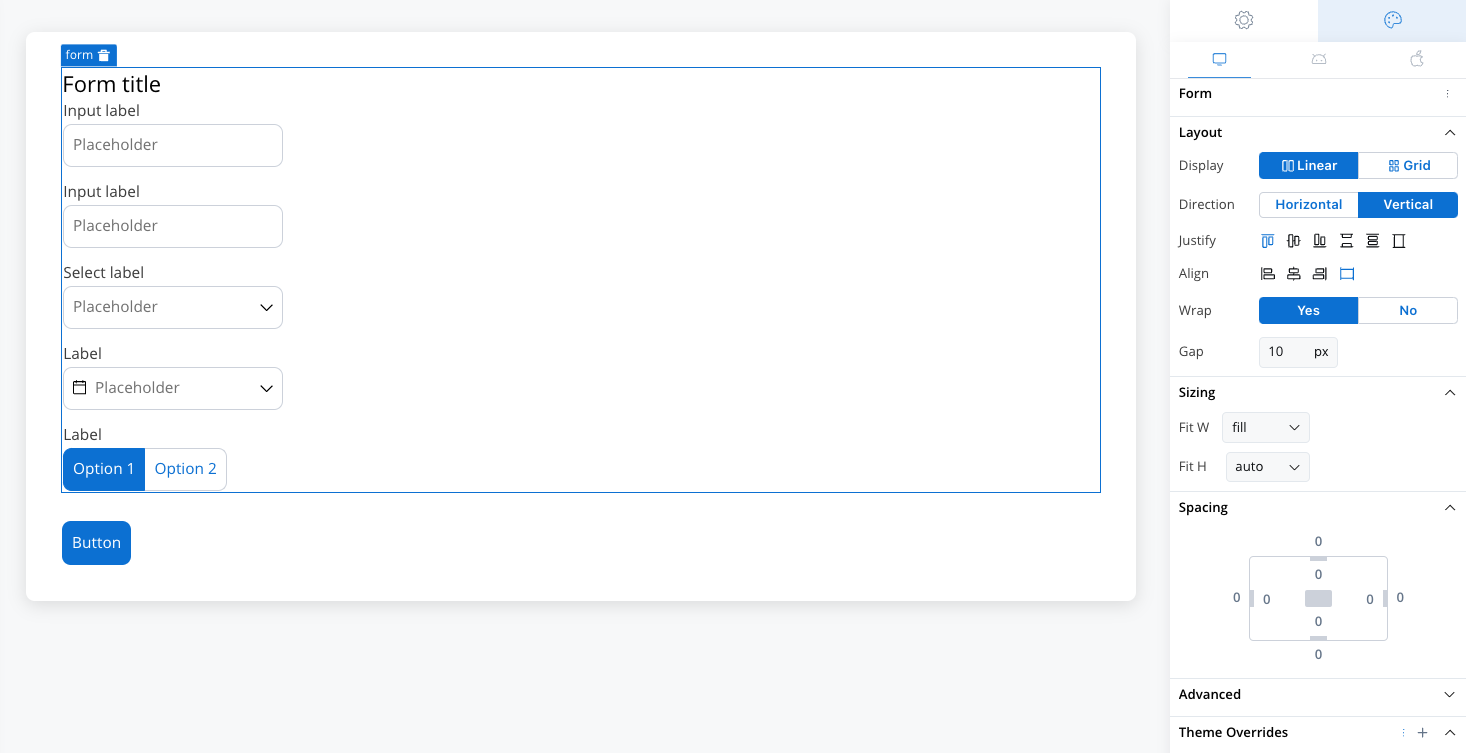
Layout
Sizing
By setting desired values for these props, you can ensure that all UI elements on the interface are the desired size and perfectly fit with each other. When adjusting the Fit W and Fit H settings, users can control the size and shape of the elements as it appears on their screen:- Fit W: fill, fixed or auto
- Fit H: fill, fixed or auto
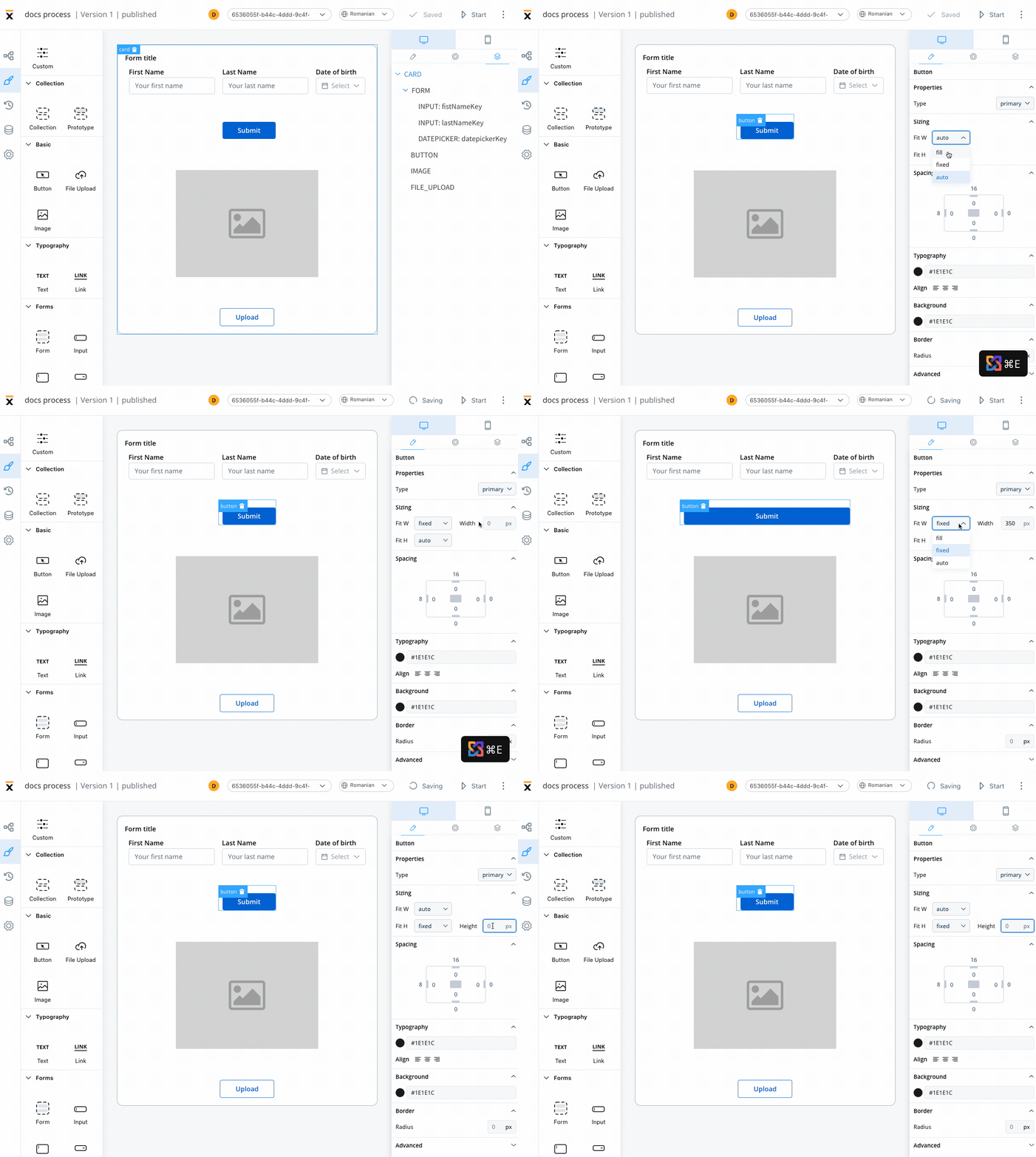
Spacing
Margin and padding are CSS properties used to create space between elements in a web page:- margin - the space outside an element
- padding - the space inside an element
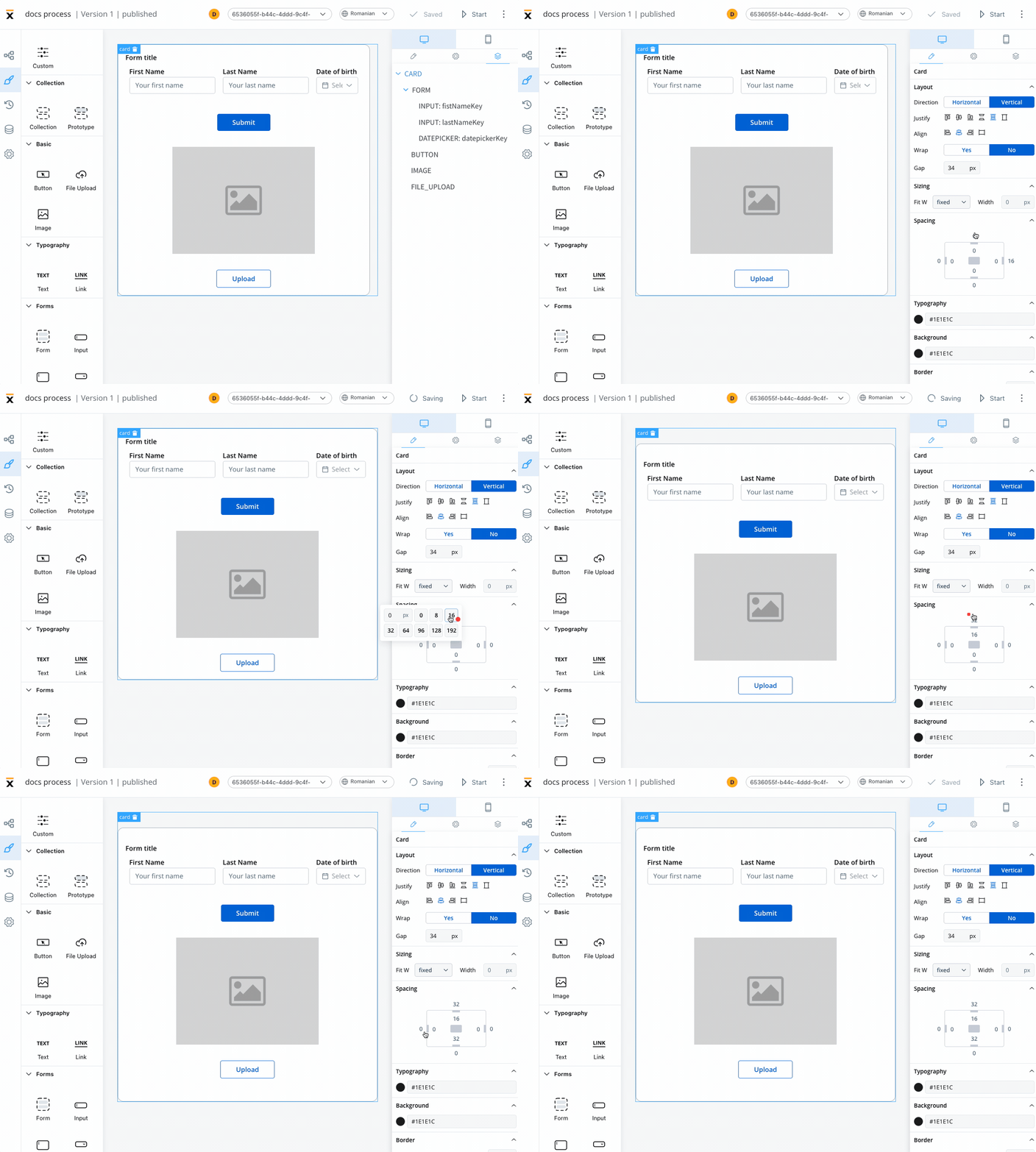
Margin
Padding
Advanced
- Advanced - for advanced customization, users can add CSS classes to pre-defined components, this option is available under the Advanced section
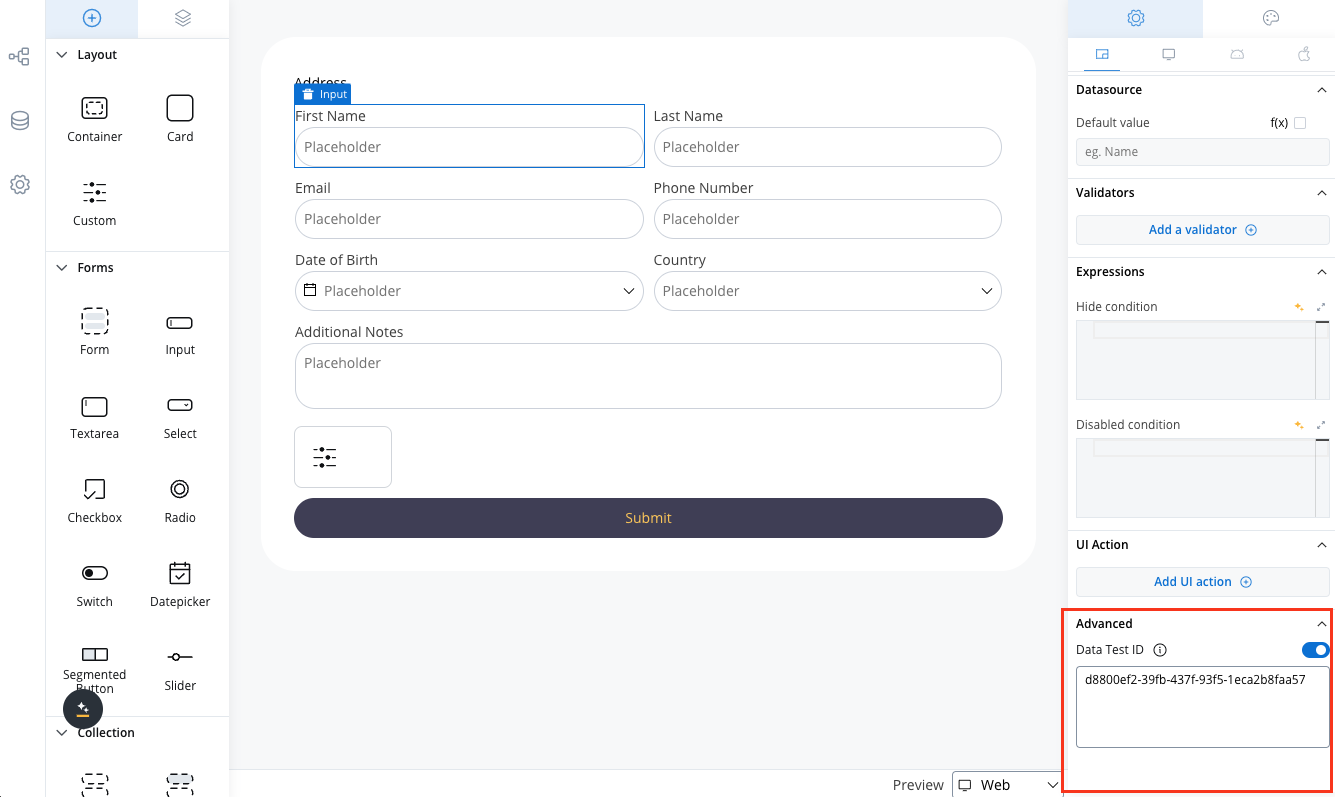
- Data Test ID - add custom test identifiers for automated testing and element interaction
Data Test ID
The Advanced section includes a Data Test ID field, allowing you to assign custom identifiers to UI components. This feature enhances automated testing by providing meaningful, easily identifiable selectors for UI elements. Key benefits:- Replace auto-generated test IDs with custom, readable identifiers
- Simplify element targeting in test scripts
Tree view
The Tree View panel displays the component hierarchy, allowing users to easily navigate through the different levels of their interface. Clicking on a specific component in the tree will highlight the selection in the editor, making it easy to locate and modify.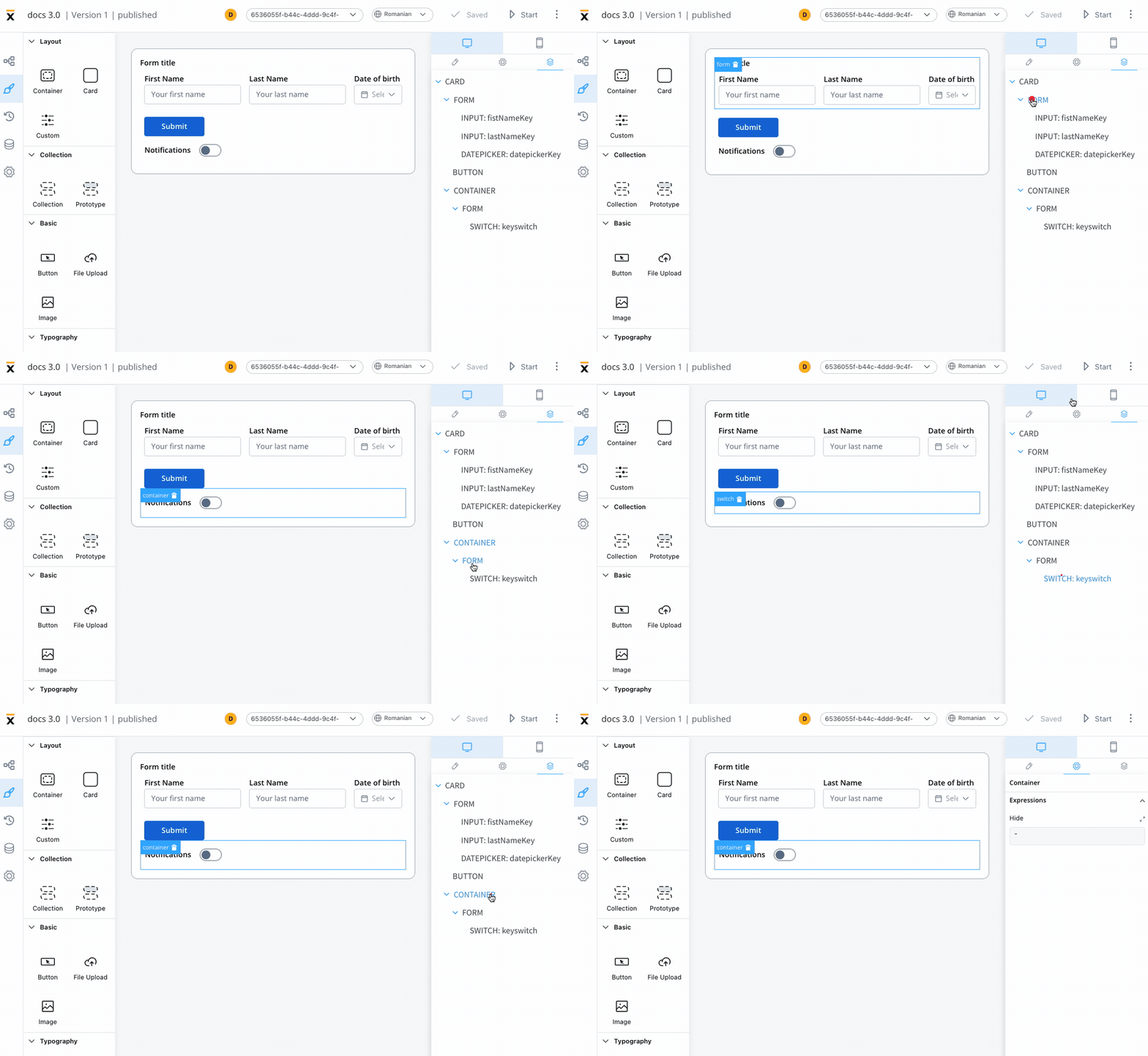
UI component types
Different UI component types can be configured using UI Designer. The UI components are available and can be configured only using user task nodes or navigation areas.Depending on the component type different properties are available for configuration.
Collection
Collection
Basic
Basic
Typography
Typography
- Text
- Link
Forms
Forms
Form elements are a crucial aspect of creating user interfaces as they serve as the means of collecting information from the users. These elements come in various types, including simple forms, inputs, text areas, drop-down menus (select), checkboxes, radio buttons, toggle switches (switch), segmented buttons, sliders and date pickers. Each of these form elements serves a unique purpose and offers different options for capturing user input.
Indicators
Indicators