


A process definition version can accommodate only one Timer Start Event, and a swimlane can hold only one start node of any kind (Start Event, Message Start Event, or Timer Start Event).
Configuration
The Timer Start Event supports two timer types:The Start Timer Event supports either ISO 8601 formats or Spring cron expressions for defining timer values. The Definition must be a static value: the dynamic value option (reading the definition from a process parameter) is not available on this node, because no process instance exists yet when the timer fires.
Starting a process via registered timers requires sending a process start message to Kafka, necessitating a service account and authentication. For detailed guidance, refer to:Service Accounts
Timer type details
Date
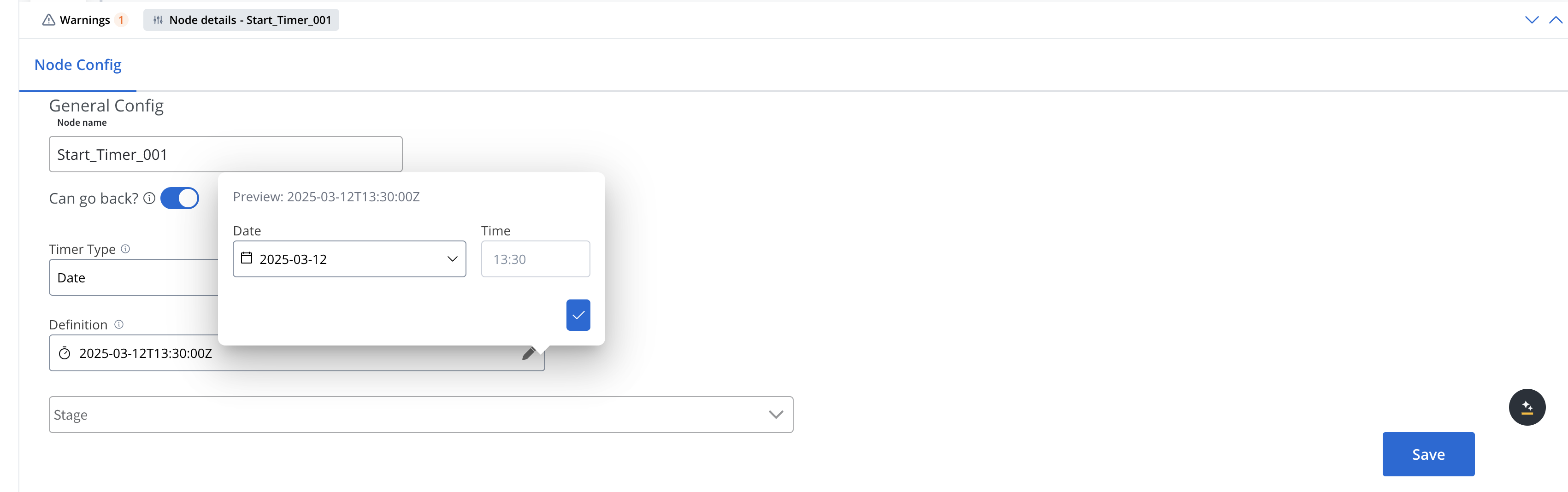
Specifies an exact date and time for triggering the event. You can use ISO 8601 date format for accurate date-time representation. When configuring a Date timer with the definition editor (pencil icon), you can set:- Date: Select a specific date (format: yyyy-mm-dd) using the date picker
- Time: Set the specific time when the timer should trigger
2025-03-12T13:30:00Z). To schedule in another time zone, type the ISO value with an offset directly in the Definition field (for example 2025-03-12T15:30:00+02:00).
Cycle
Specifies a repeating interval for triggering the event. Select ISO or Cron next to the Definition label to choose the format. For the Cycle timer definition, you can use either:ISO 8601 repeating intervals
For standardized time intervals (e.g., “R5/PT10M” for repeating 5 times with 10 minutes between each)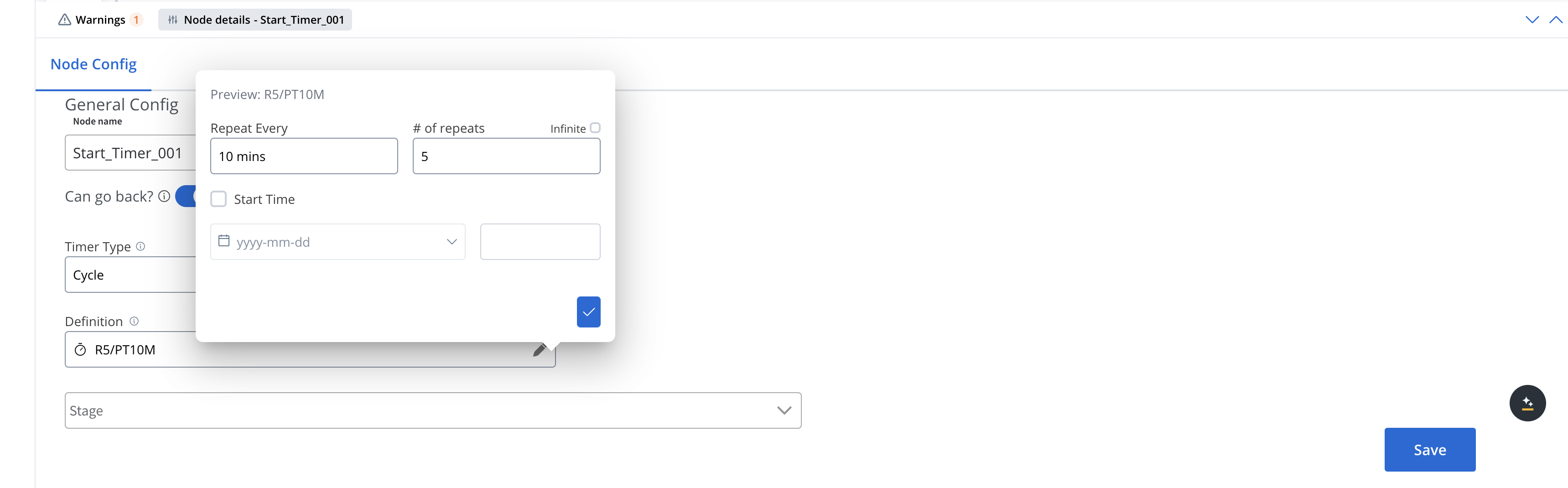
Cron expressions
For more complex scheduling patterns (e.g., “0 0 12 * * MON-FRI” for 12pm every weekday). Type the Spring cron expression in the Definition field. The definition editor (pencil icon) lets you bound the schedule with a Start Date and Start Time and an End Date and End Time. The timer fires only inside this window. These bounds exist only on Timer Start Events.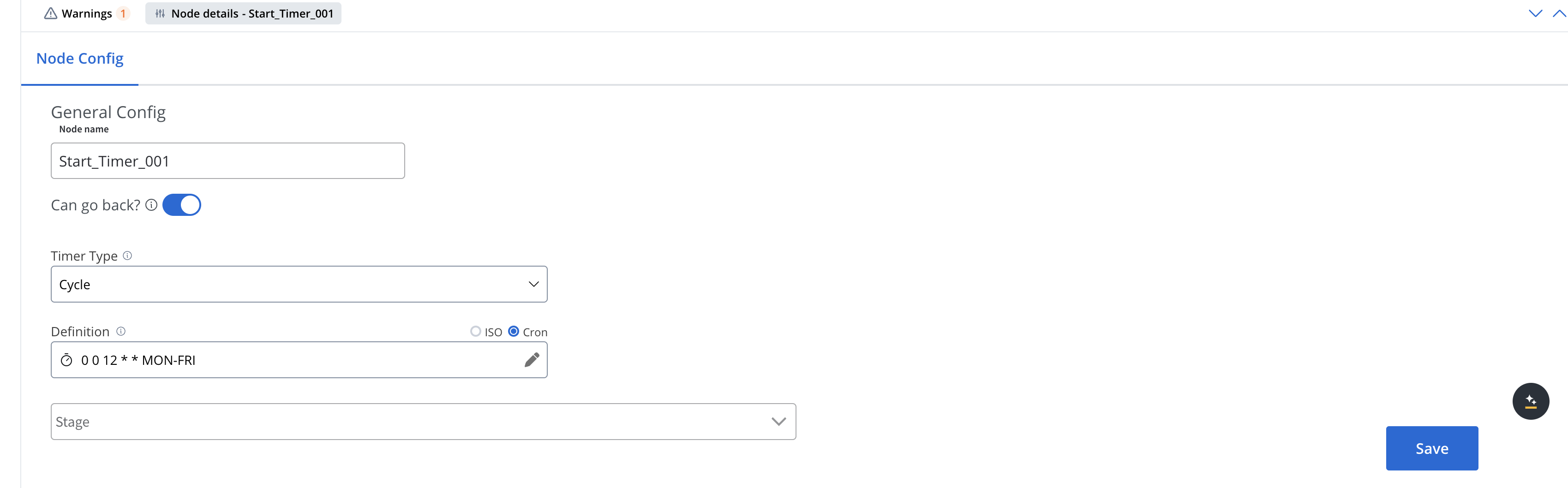
Activate/deactivate start timer events
All timers can be activated/deactivated in the Runtime section under “Scheduled Processes”: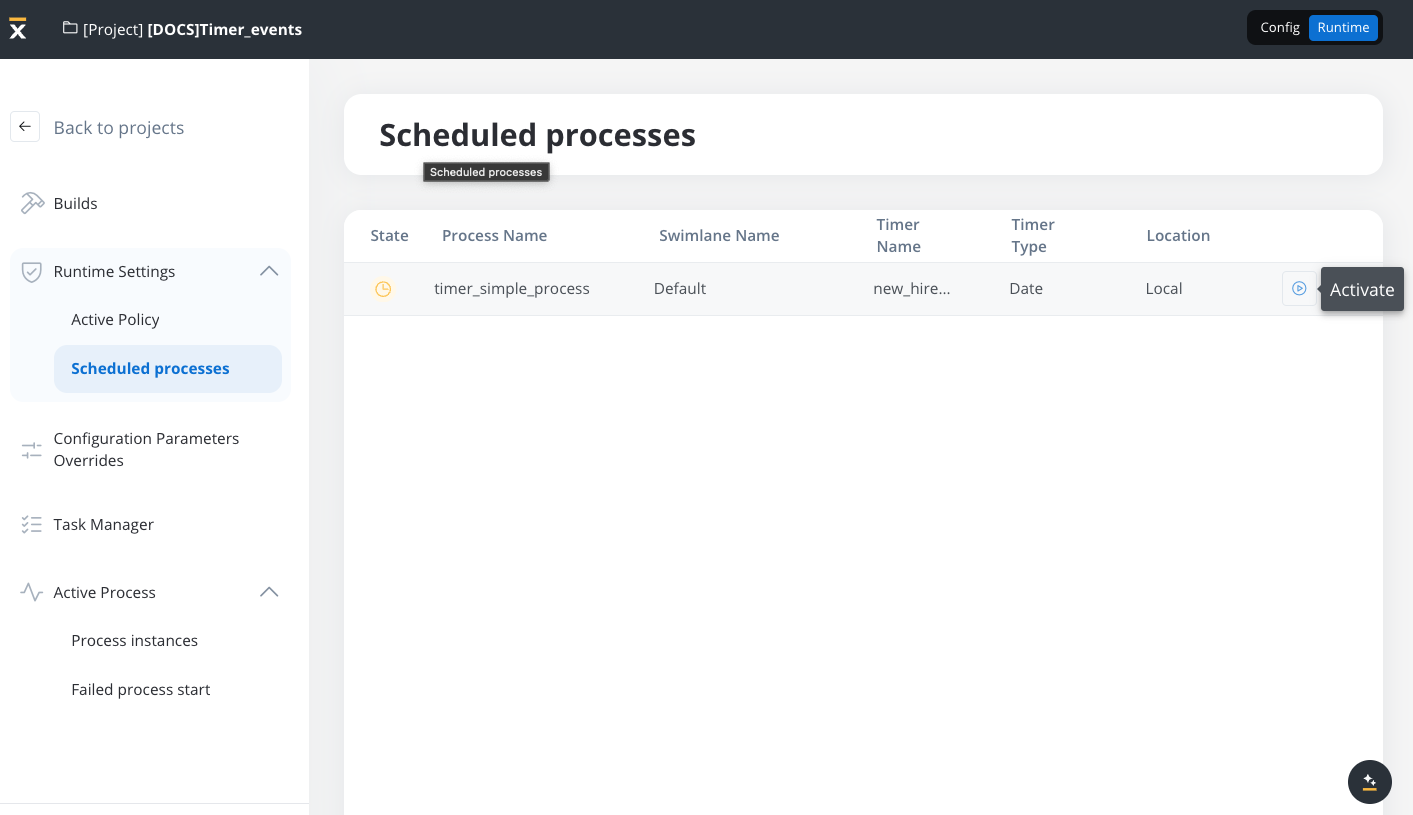
If a project contains multiple versions with Start Timer Event nodes, a scheduler will be generated only for the ones included in the version set in the active policy.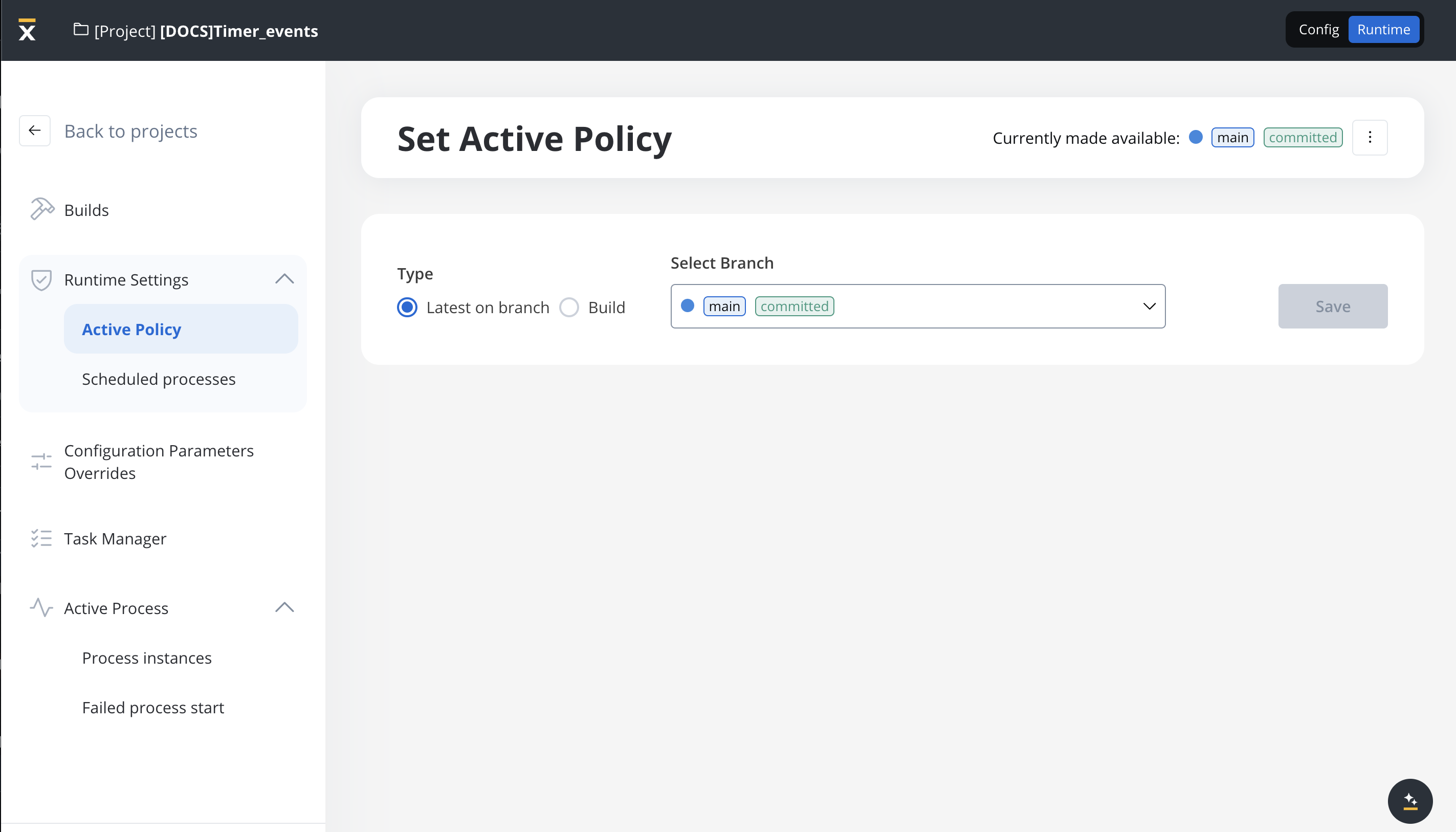
Usage examples
Date timer example: Employee Onboarding Reminder
In this scenario, the Timer Start Event triggers an employee onboarding process at a specific date and time.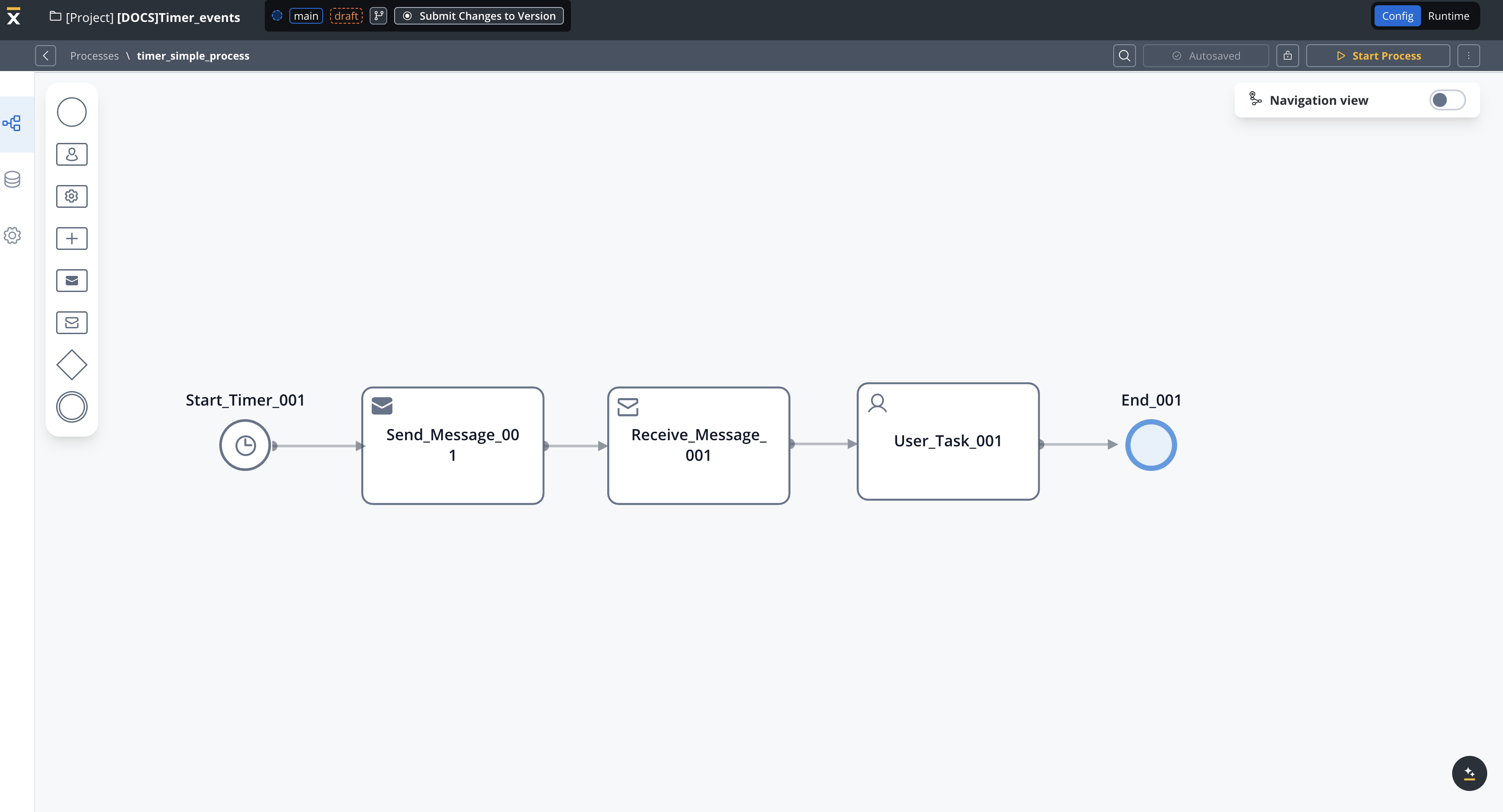
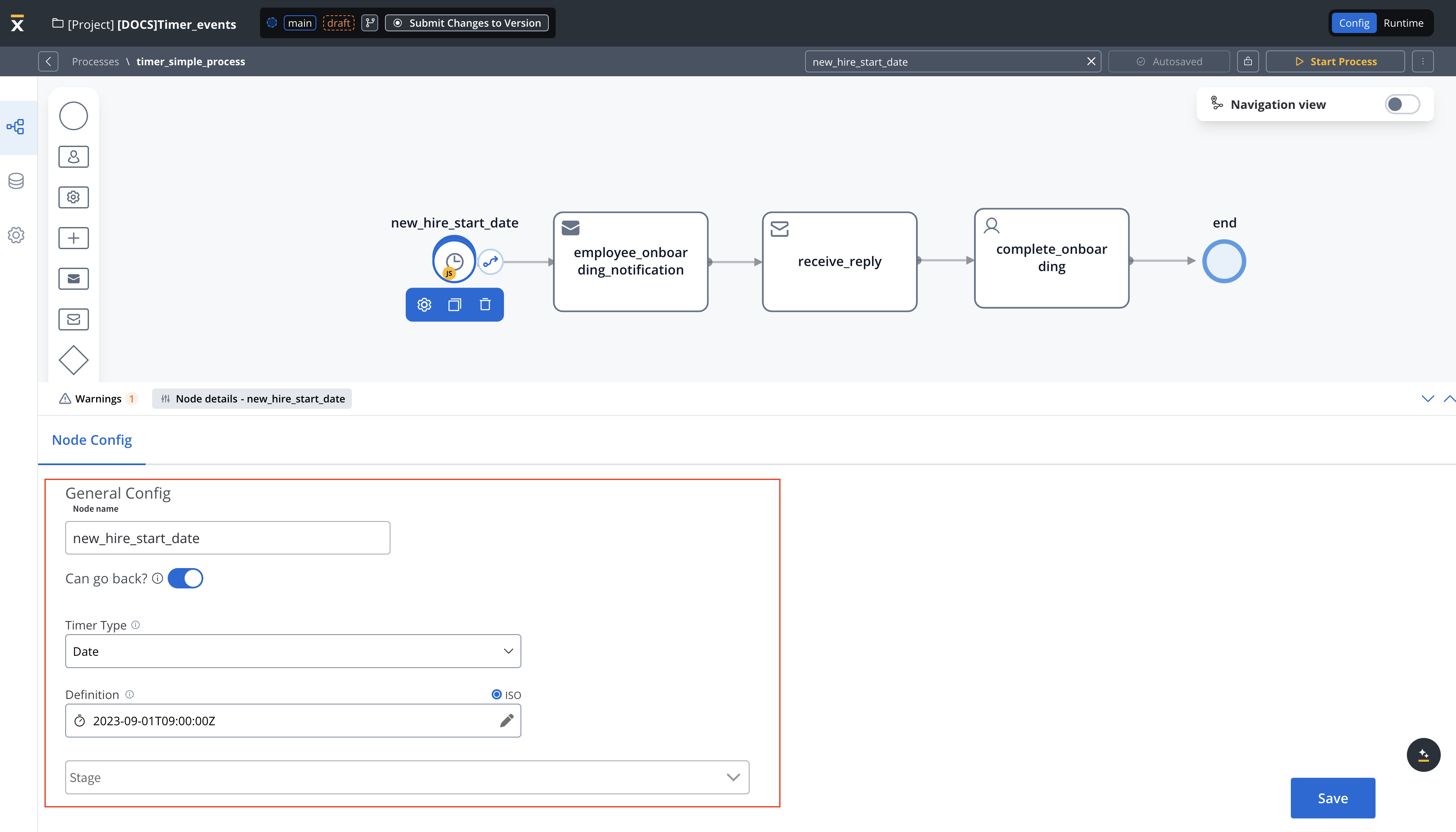
- Start Event (Timer Start Event) - New Hire Start Date
- Timer Definition: 2023-09-01T09:00:00Z (ISO 8601 format) → This means the process will initiate automatically at the specified date and time.
- This event serves as the trigger for the entire process.
- Transition → Employee Onboarding Notification
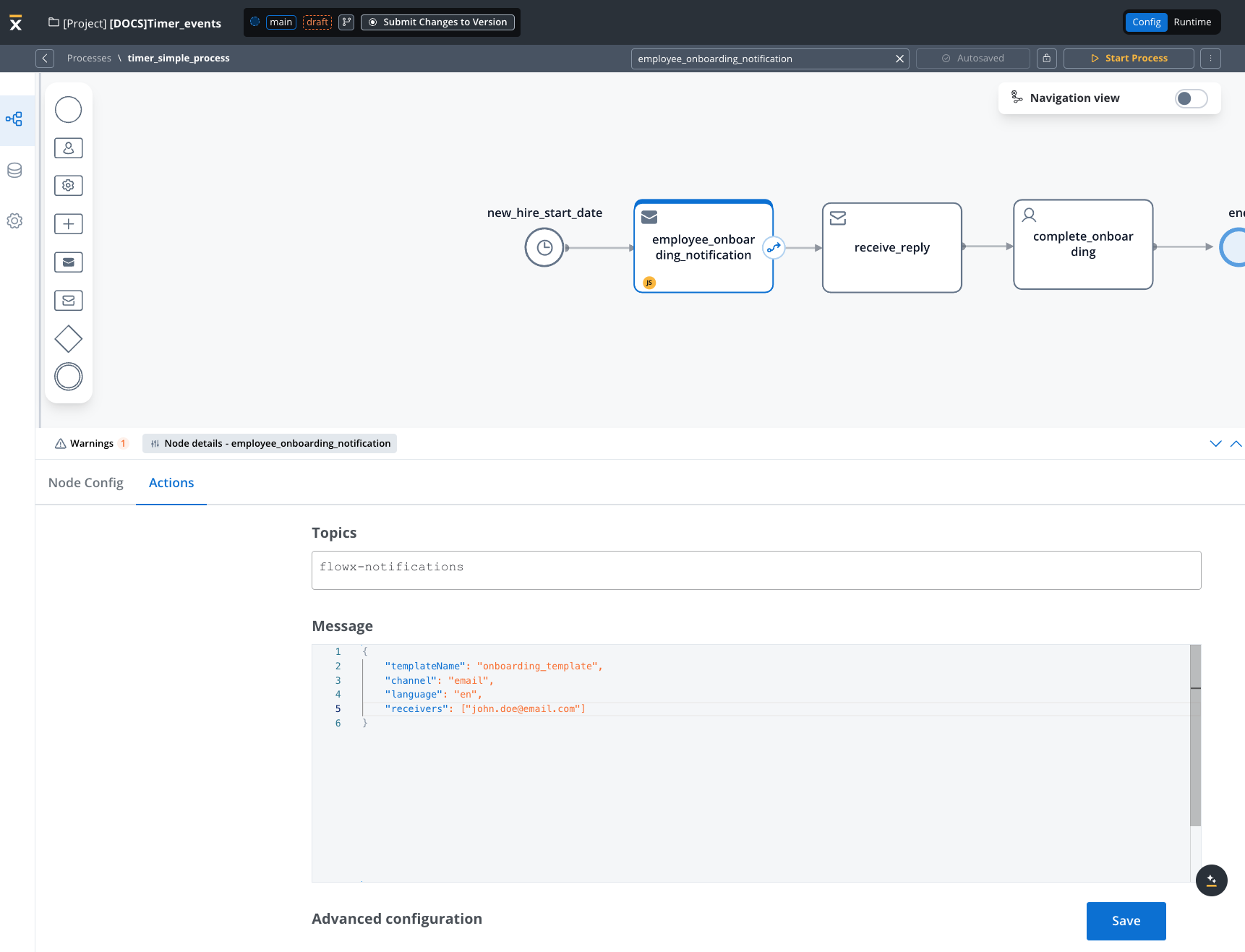
- Employee Onboarding Notification
- Notify new employee about onboarding requirements by sending an email notification with a template called “Important Onboarding Information”
- Actions: The HR team or automated system sends out necessary email information/documents, and instructions to the new employee.
- After the notification is sent, the process transitions to the Complete Onboarding node.
- Complete Onboarding
- Employee onboarding completed
- At this point, the employee’s onboarding process is considered complete.
- Actions: The employee may have completed required tasks, paperwork, or orientation sessions.
General rules
- Schedulers are generated only for builds that are part of the active policy.
- If you change the active policy, processes with Timer Start Event nodes might appear or disappear from the scheduled processes list if they aren’t part of the active build.
- You can view scheduled processes in the Runtime section under “Scheduled Processes” (available since version 4.6.0).
- When a build in the active policy is updated with new Timer Start Event settings:
- The scheduler is updated based on the new settings.
- The scheduler state (active or suspended) remains the same as before.