

Prerequisites
Before you begin, ensure you have the following:- Keycloak installed
- Administrative access to the Keycloak server
- Basic understanding of IAM concepts
Recommended Keycloak setup
To configure a minimal required Keycloak setup, this guide covers the following steps:Create a new realm
Create new users
Add clients
Add mappers
Add service accounts
Keycloak documentation
Creating a new realm
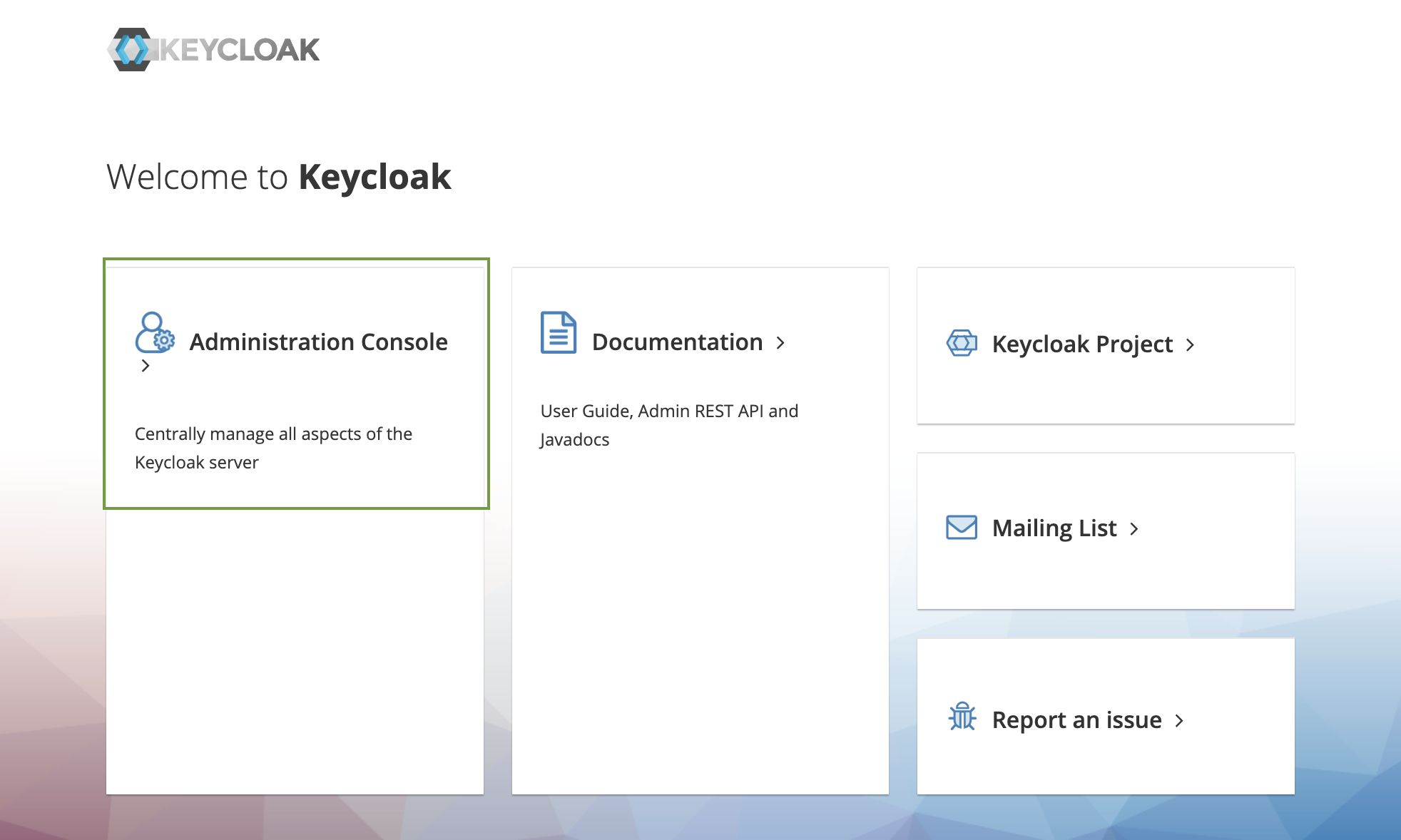
Log in to the Keycloak Admin Console
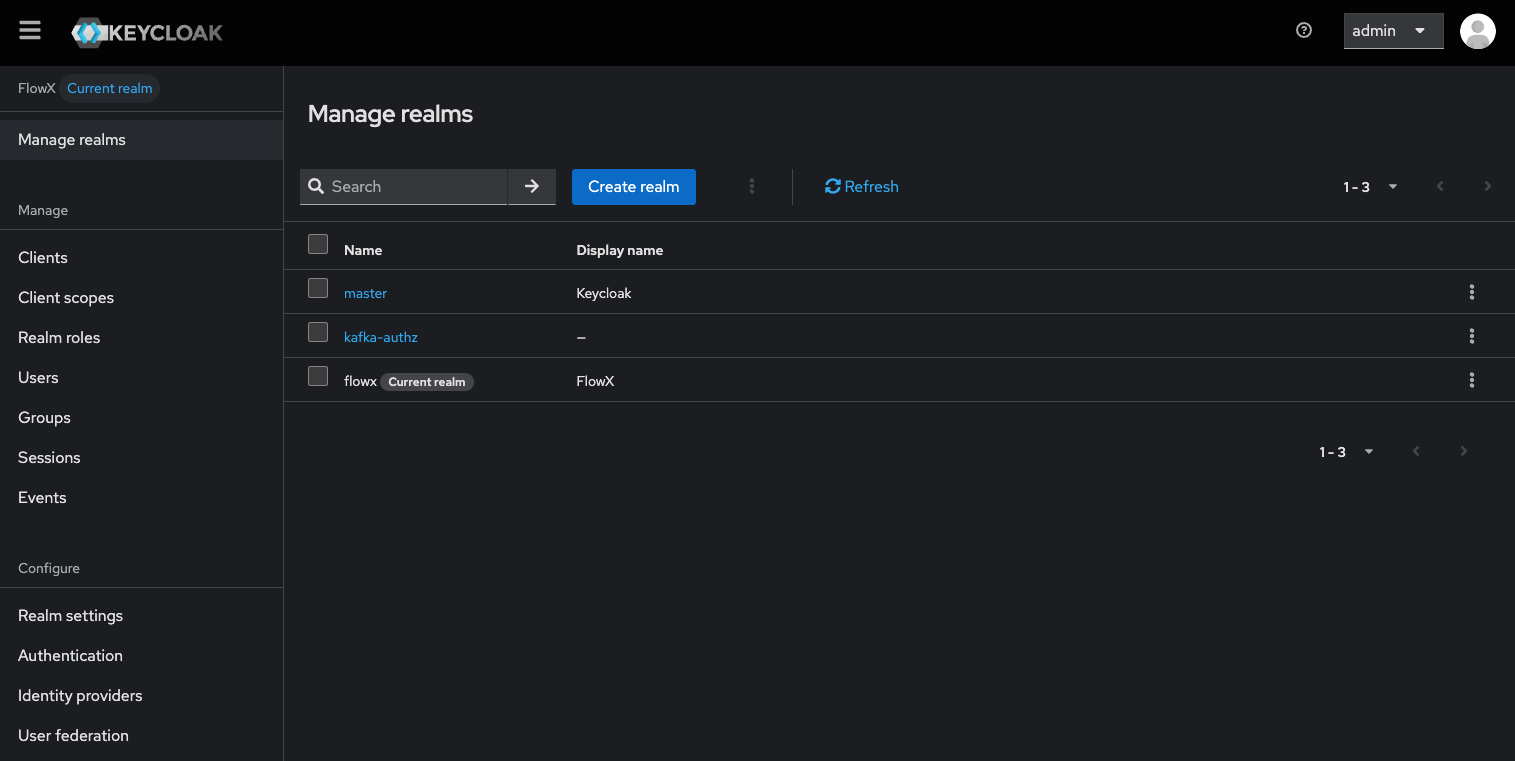
Create realm
Enter realm details
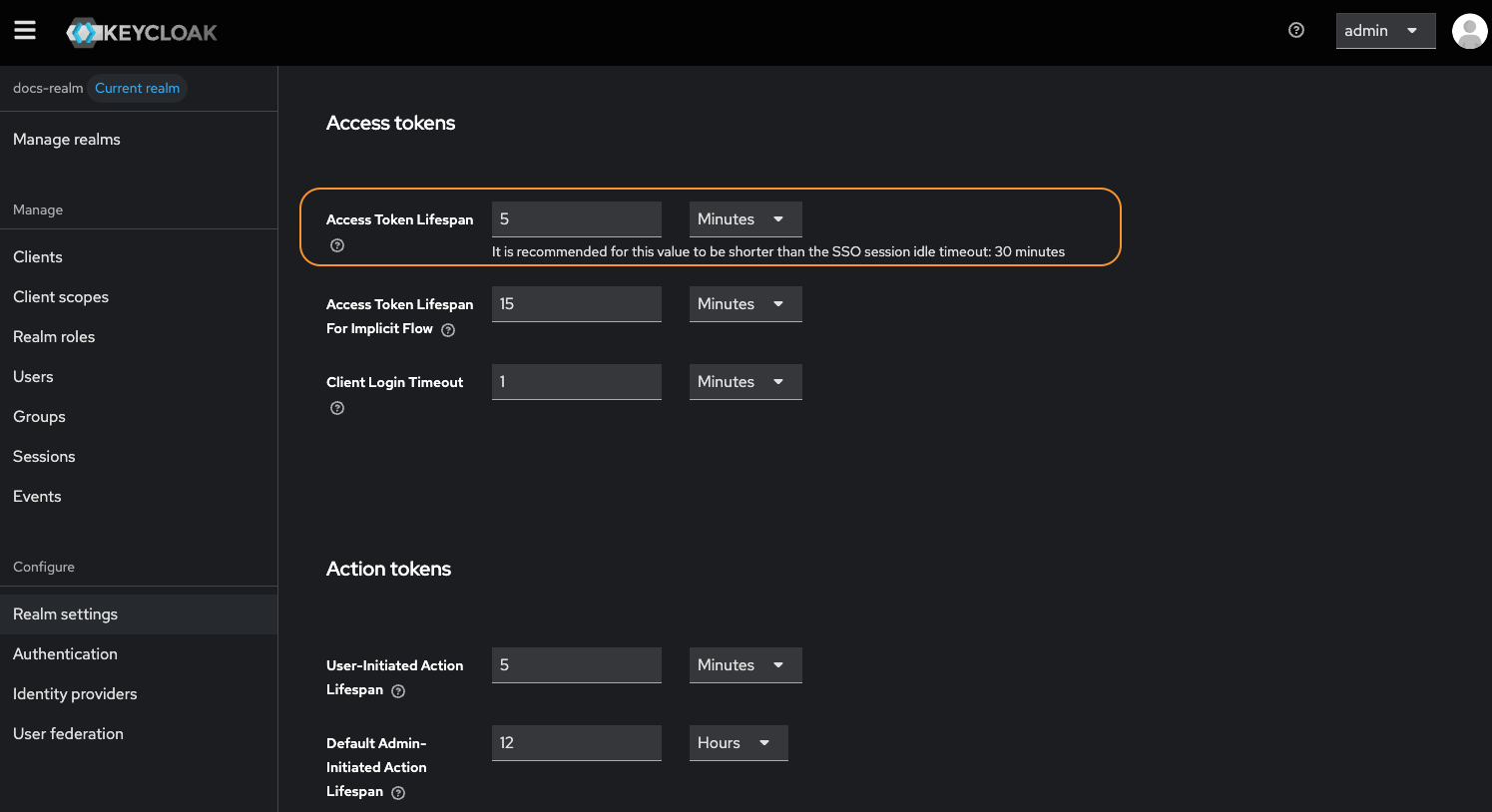
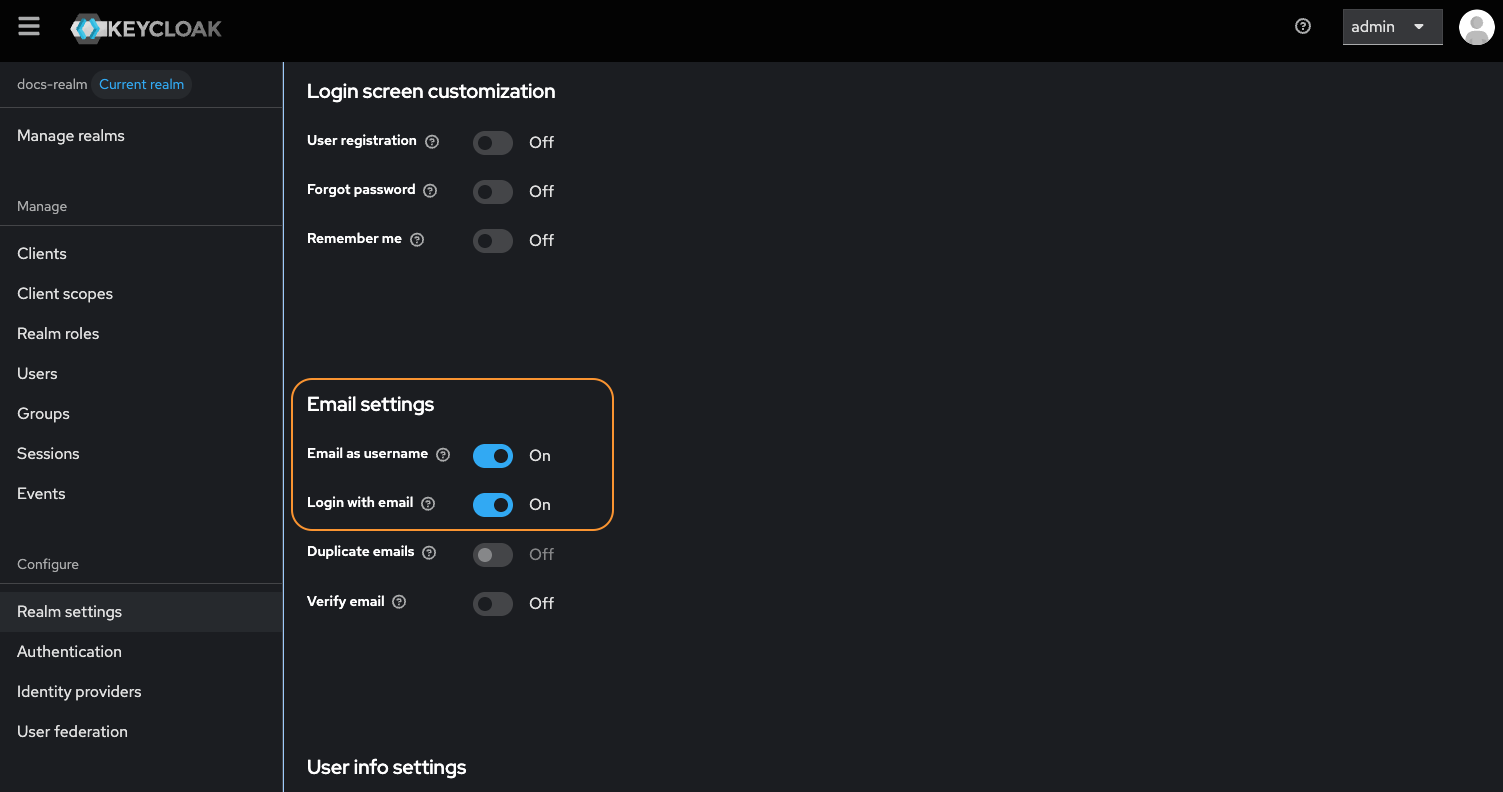
Configure realm settings
Creating new users
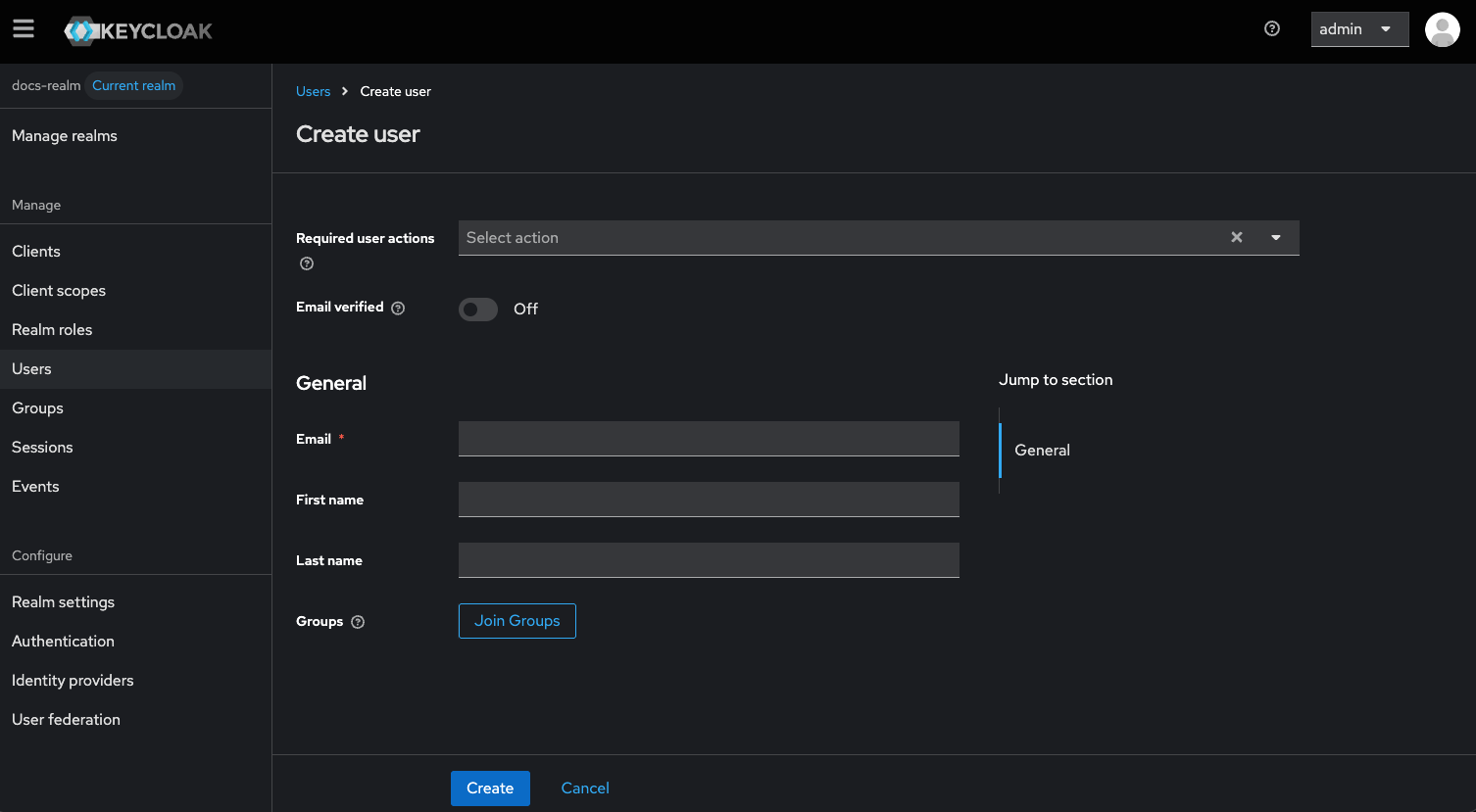
Creating new users is a fundamental part of managing access within Keycloak. Follow these steps to create a new user in a realm and generate a temporary password:Navigate to users
Add a new user
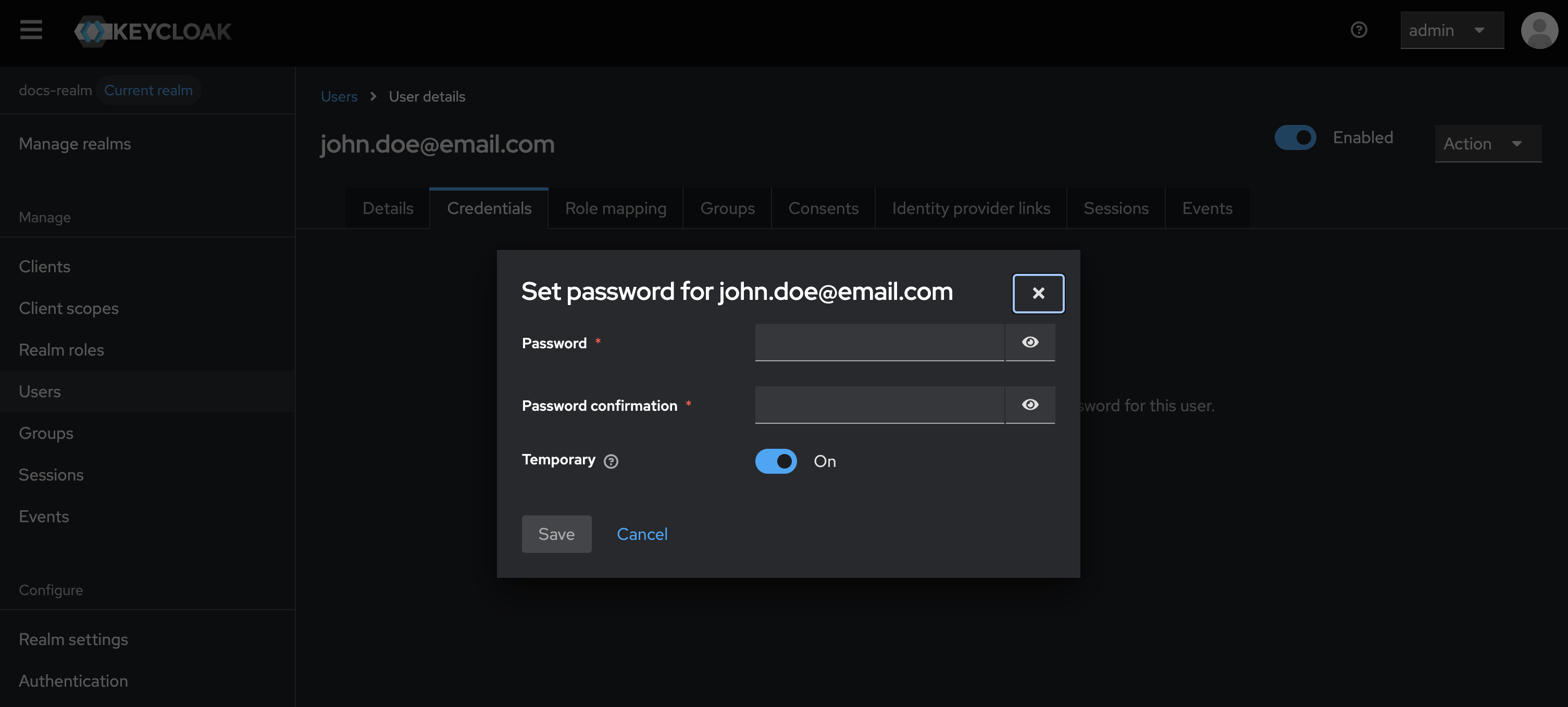
Set temporary password
Password policy
FlowX.AI enforces the following password policy for all user accounts:Adding clients
A client represents an application instance that is associated with a specific realm.Adding an OAuth 2.0 client
Add a client namedflowx-platform-authenticate, used for login, logout, and refresh token operations by web and mobile apps.
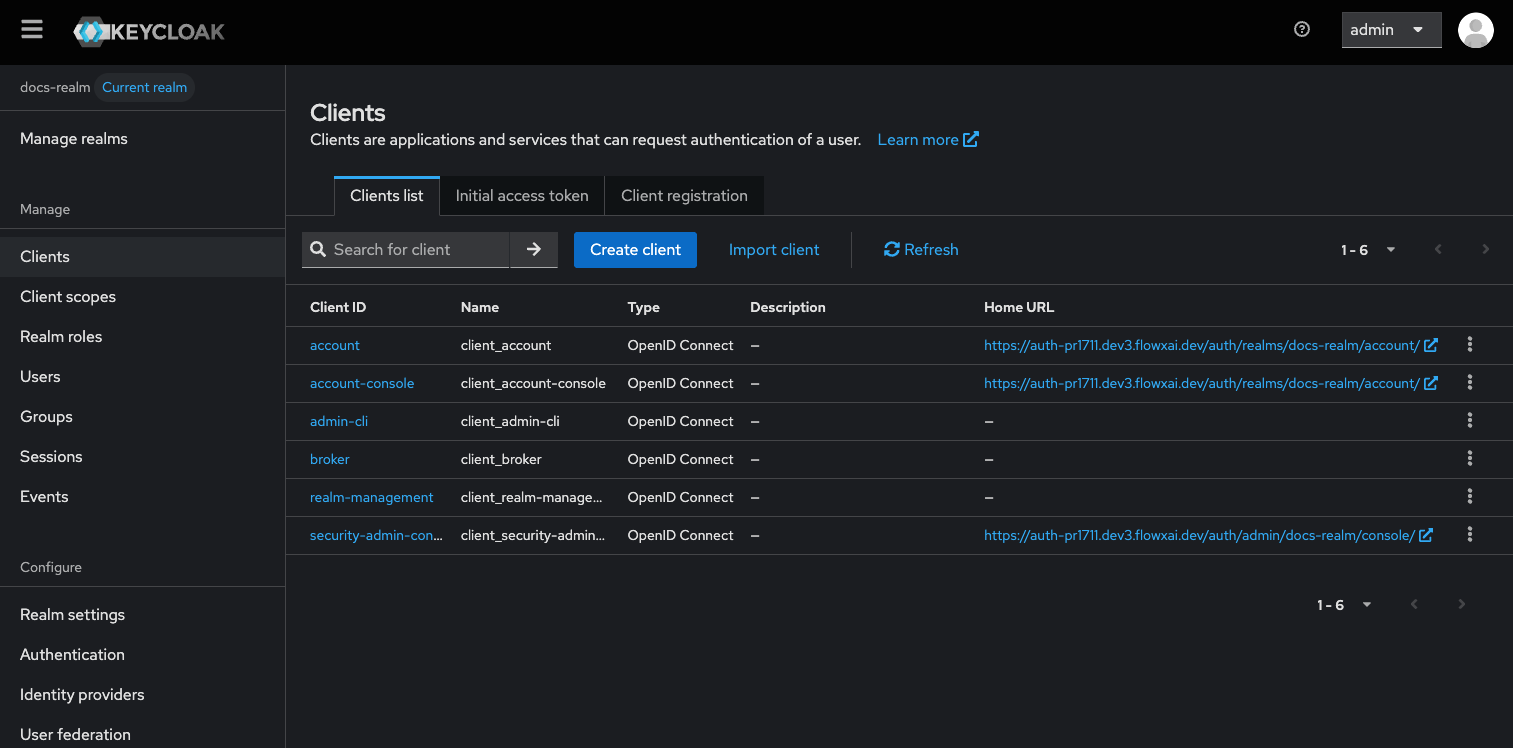
Navigate to Clients
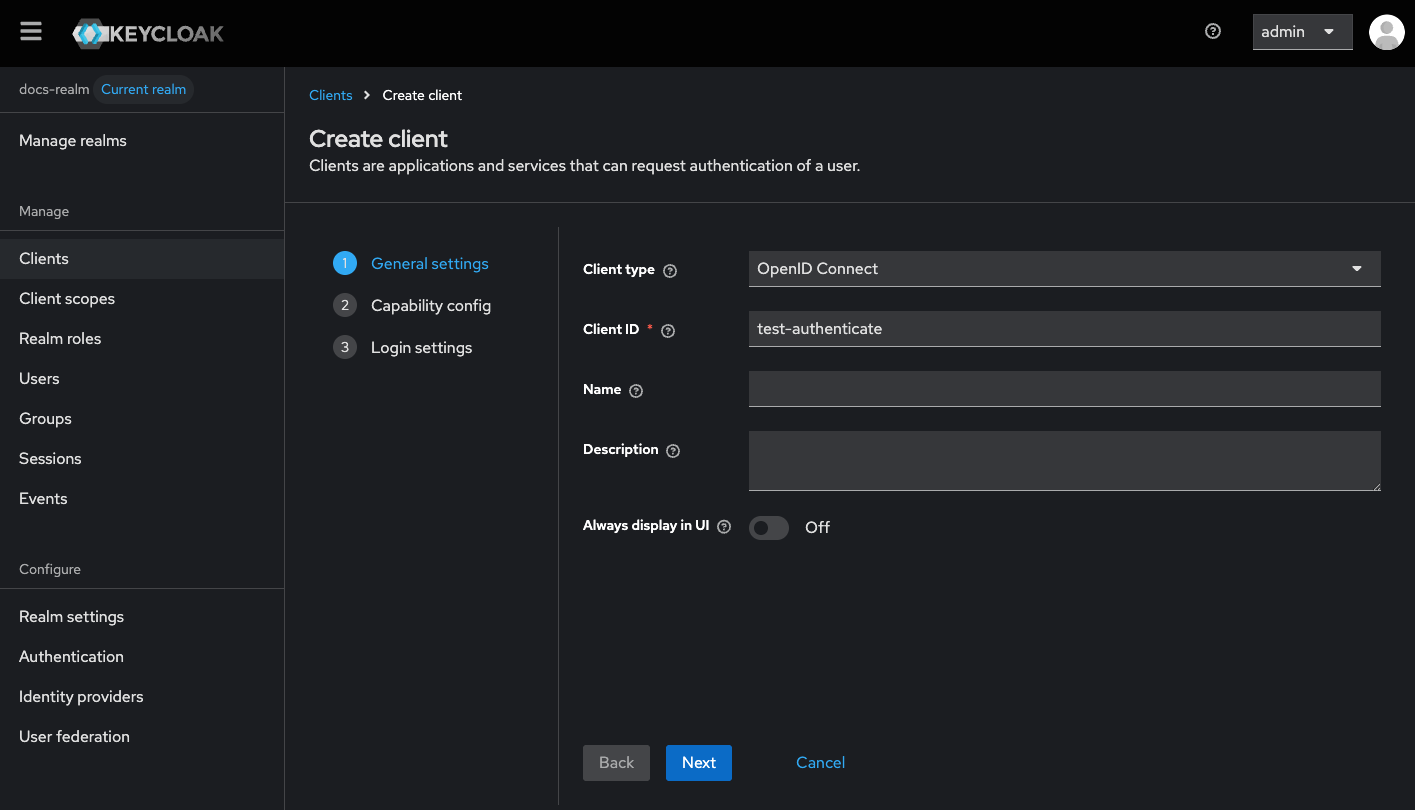
Configure general settings
- Set a client ID to
{your-client-name}-authenticate. - Set the Client type to
OpenID Connect.
Configure capability config
- Enable Direct Access Grants.
- Enable Implicit Flow Enabled.
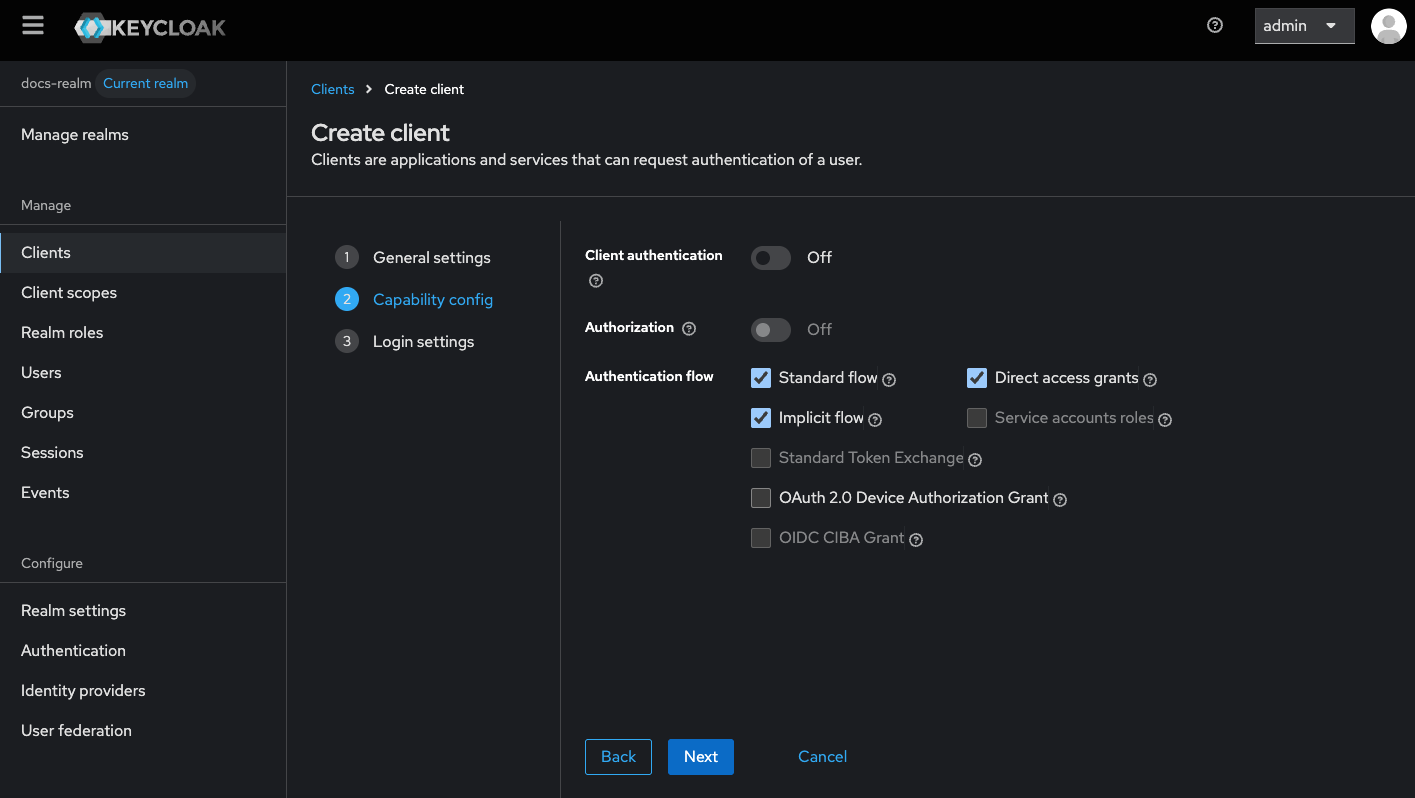
Set valid redirect URIs
- Set Valid redirect URIs, specifying the URI patterns a browser can redirect to after a successful login or logout. Spell out the full host and place the wildcard in the path:
https://your-designer-host/*. Never place the wildcard inside or immediately after the host (https://your-designer-host*).
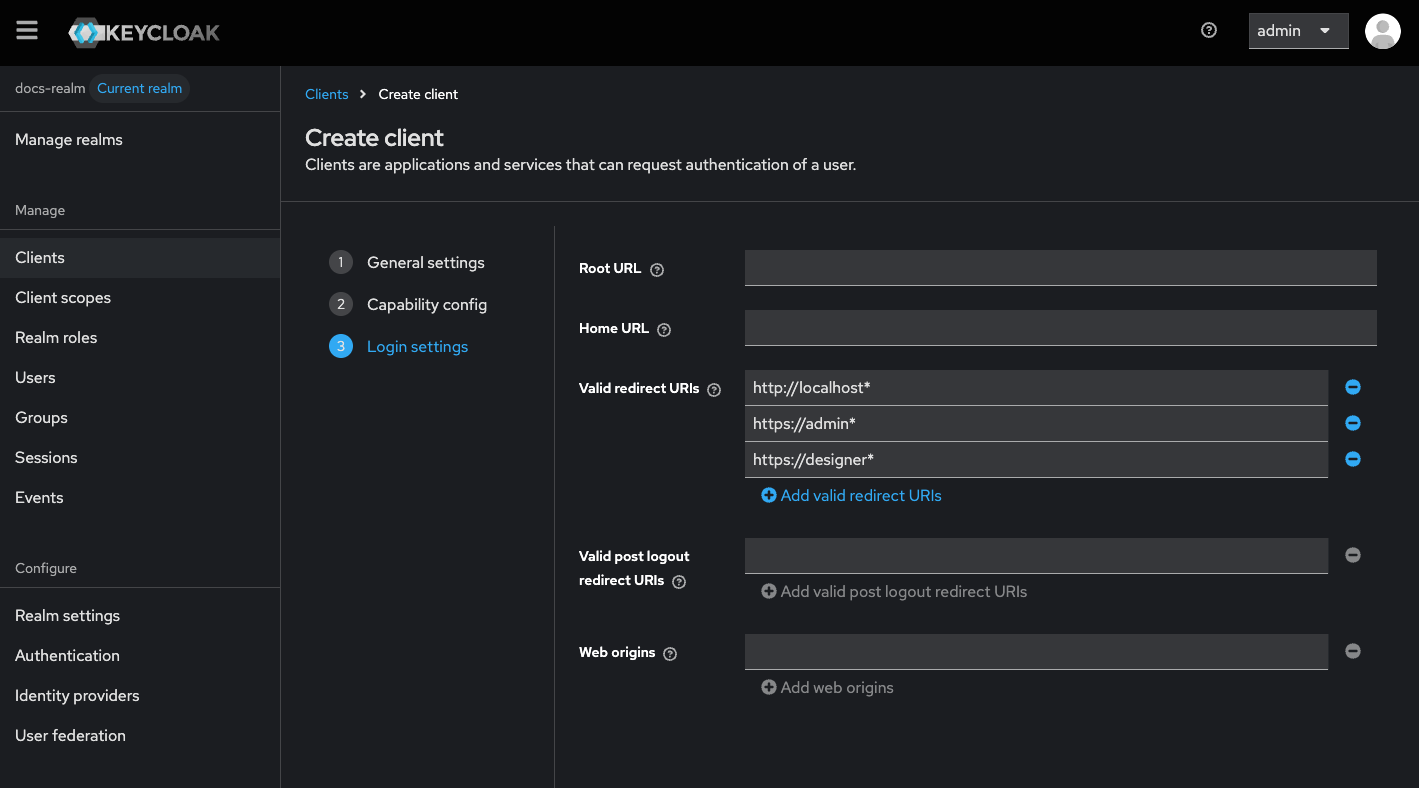
Configure additional settings
- Front Channel Logout: Toggle OFF.
- Backchannel Logout Session Required: Toggle OFF.
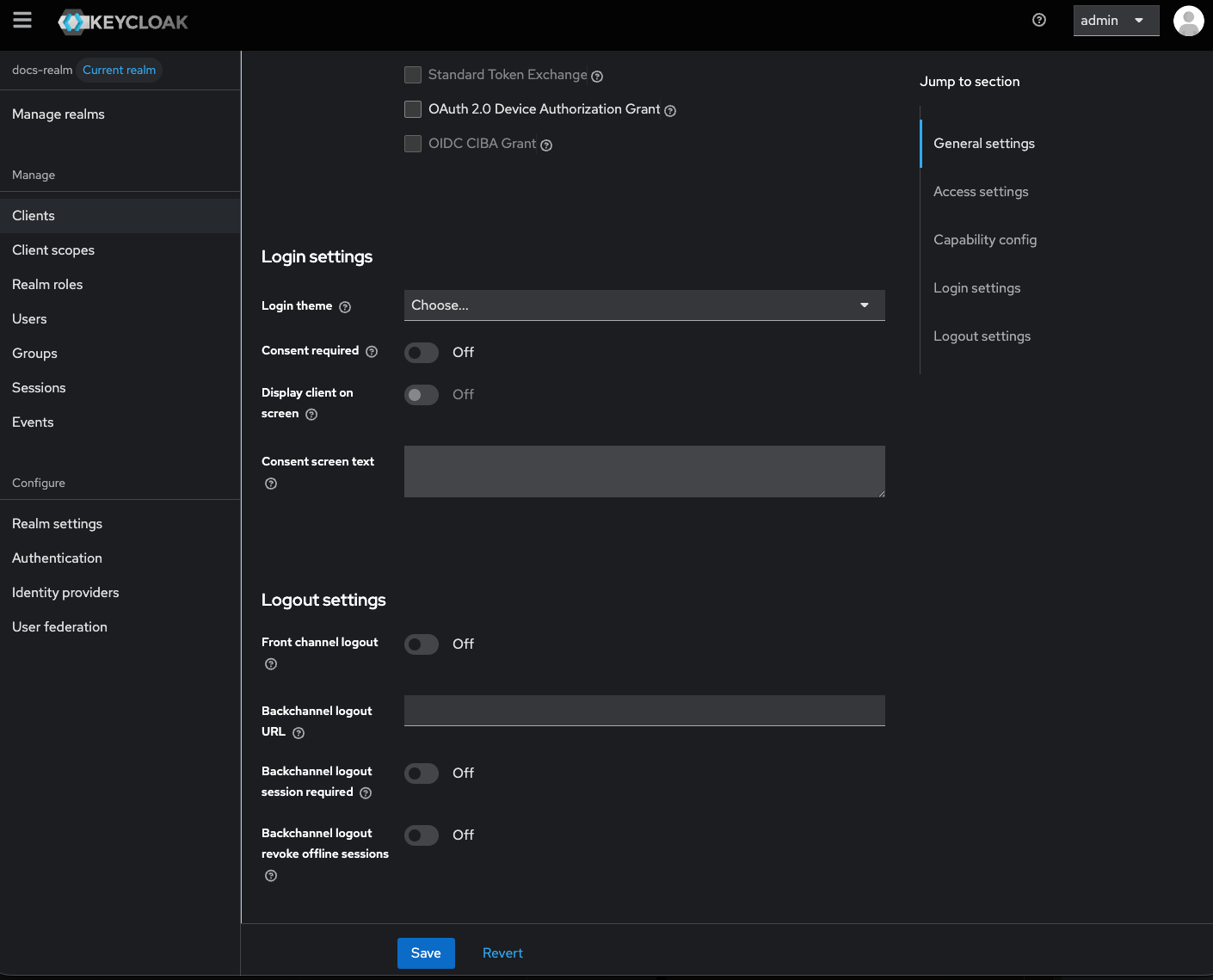
Add mappers
{your-client-name}-authenticate client.Adding an Authorizing client
flowx-platform-authorize client is used for opaque token introspection. In 5.1.x, all services validate tokens by calling the Keycloak introspection endpoint using this client’s credentials.{your-client-name}-platform-authorize client to authorize REST requests to microservices and Kafka.
Create the Client
{your-client-name}-platform-authorize).Set Client type to OpenID Connect.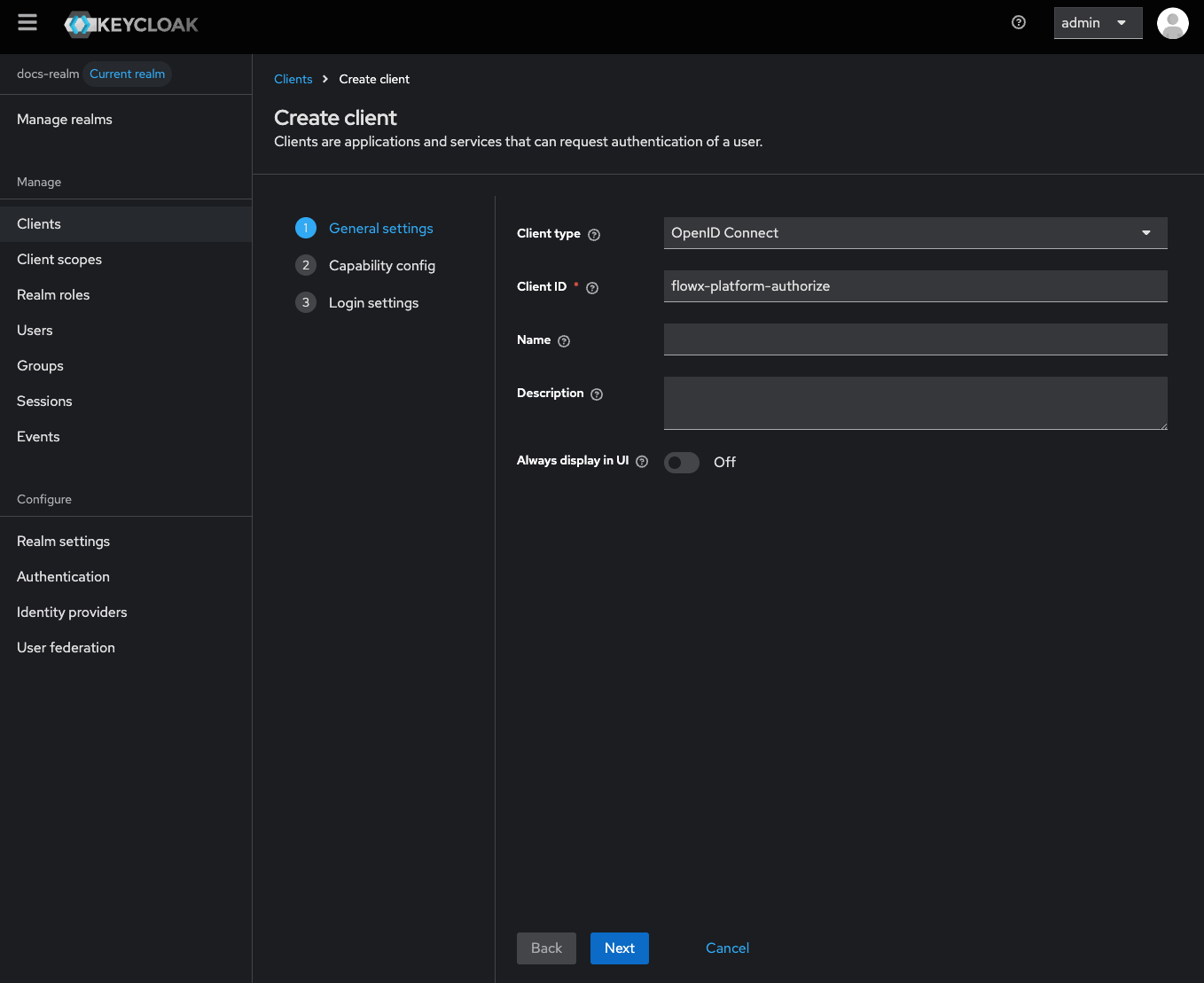
Configure capability config
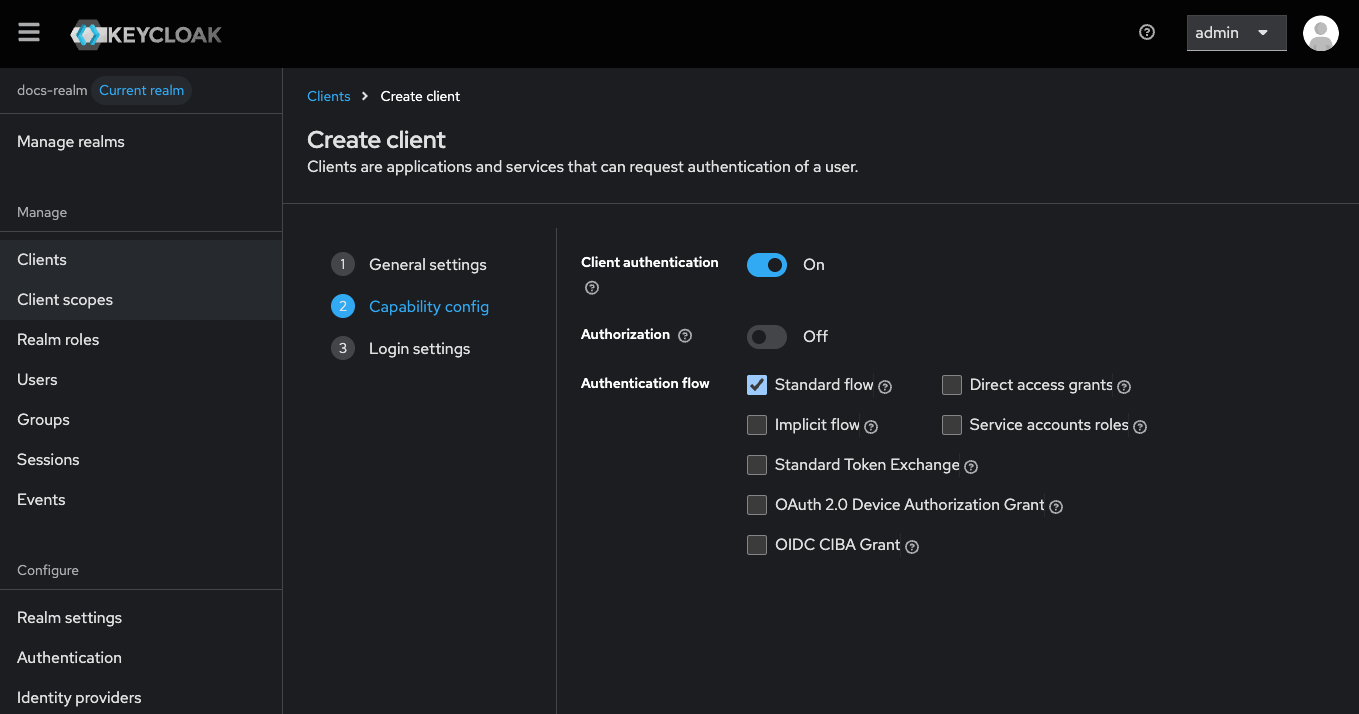
Set valid redirect URIs
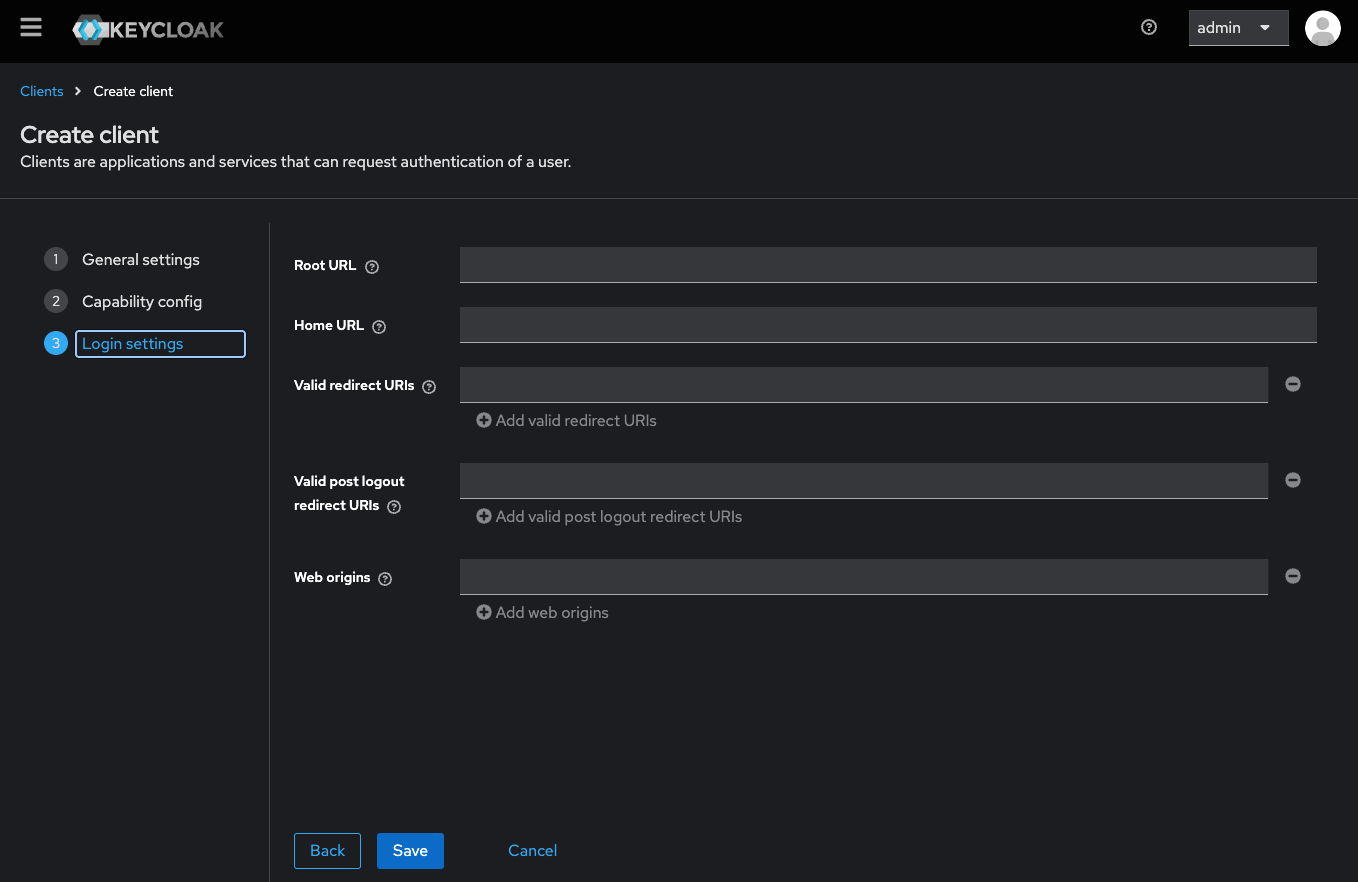
Configure additional settings
- Backchannel Logout Session Required: Toggle OFF.
- Front Channel Logout: Toggle OFF.
{your-client-name}-platform-authorize client will be created and can be used to authorize REST requests to microservices and Kafka within your app.
Example configuration for microservices
- 5.5.0 and later
- 5.1.x (LTS)
flowx-platform-authorize client are no longer used. The shared security library (application-security-client.yaml) handles most configuration automatically.security.oauth2.realm— replaced by per-organization realm resolutionsecurity.oauth2.client.client-id/client-secret— introspection client no longer neededspring.security.oauth2.resource-server.opaque-token.*— entire opaque-token block removed
Adding protocol mappers
Protocol mappers in Keycloak allow you to transform tokens and documents, enabling actions such as mapping user data into protocol claims and modifying requests between clients and the authentication server. This provides greater customization and control over the information contained in tokens and exchanged during authentication processes.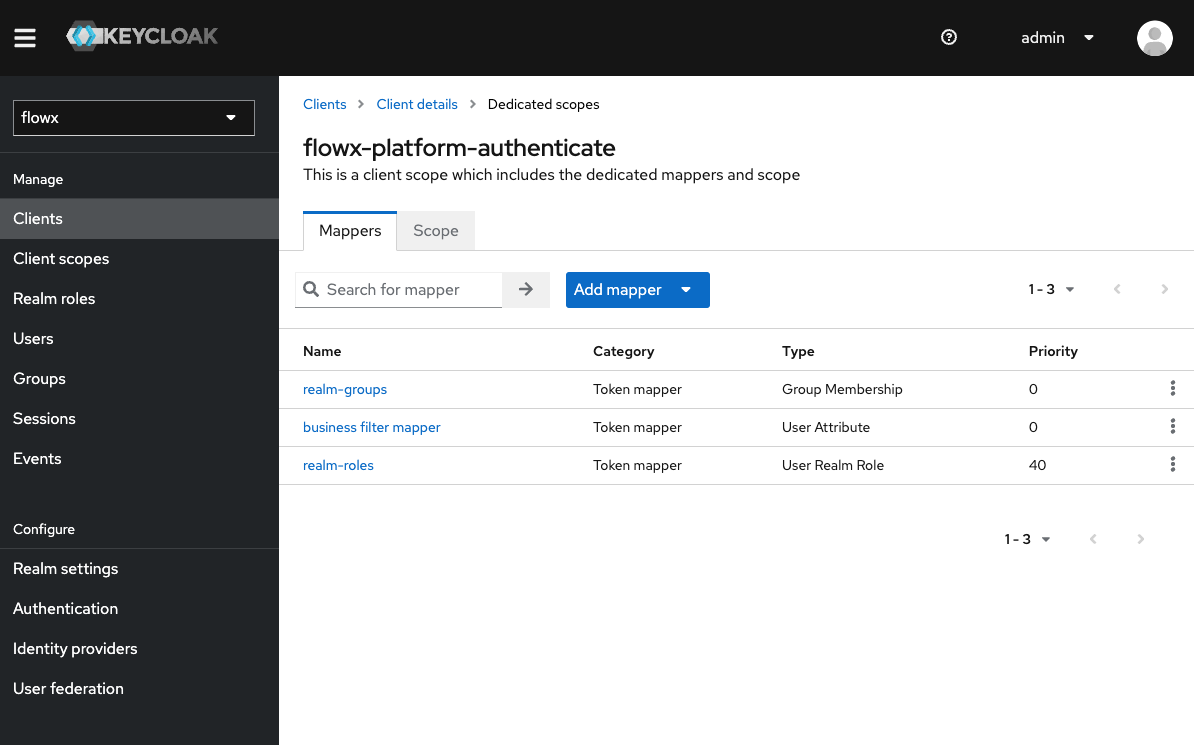
- Group Membership mapper (
realm-groups)- Maps user groups to the authorization token.
- User Attribute mapper (
business filter mapper)- Maps custom attributes, for example, mapping the businessFilters list, to the token claim.
- User Realm role (
realm-roles)- Maps a user’s realm role to a token claim.
/userinfo endpoint, but modern Keycloak versions support adding them to token introspection, which is the recommended approach for better security and performance.Group membership mapper
Steps to add a Group Membership mapper:Navigate to Clients
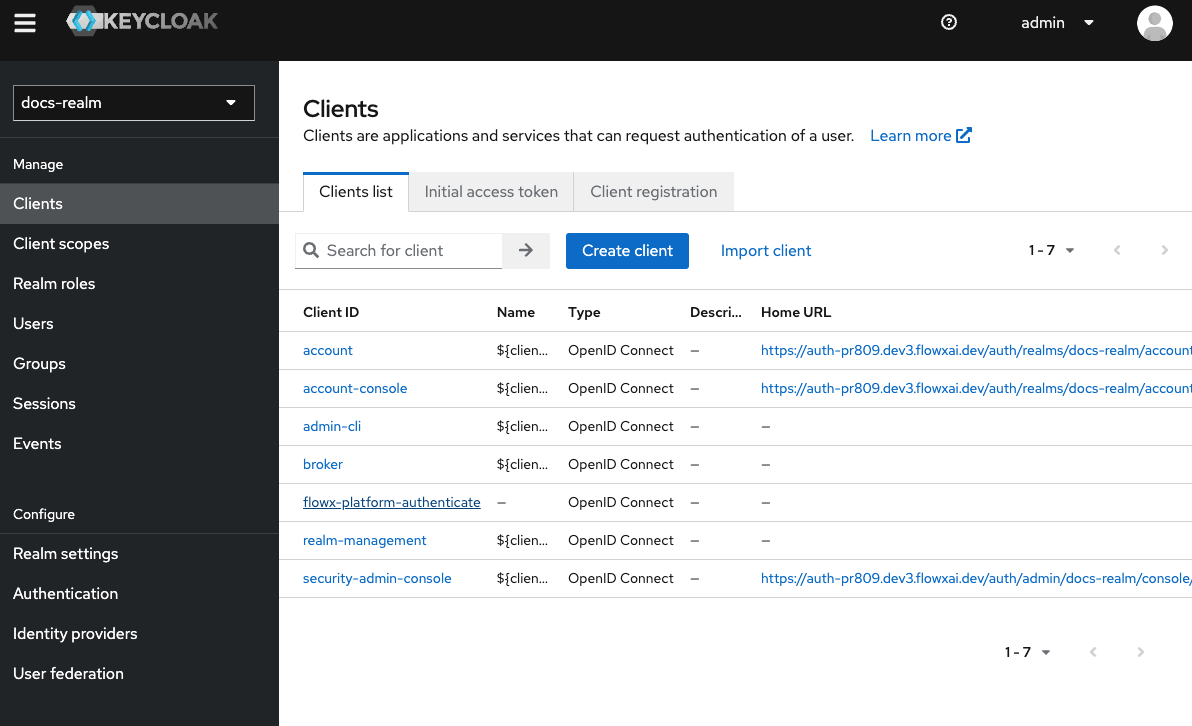
Select Client Scopes
{your-client-name}-authenticate-dedicated to open its settings.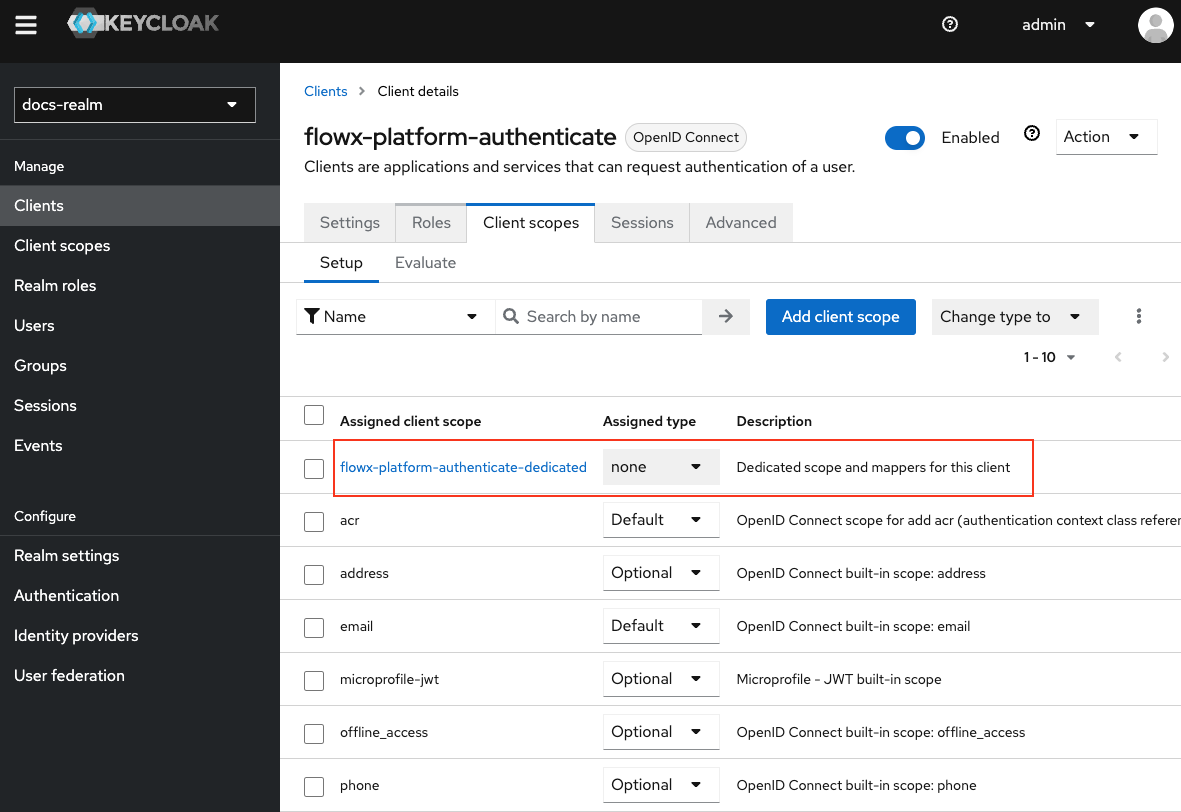
Select client scope
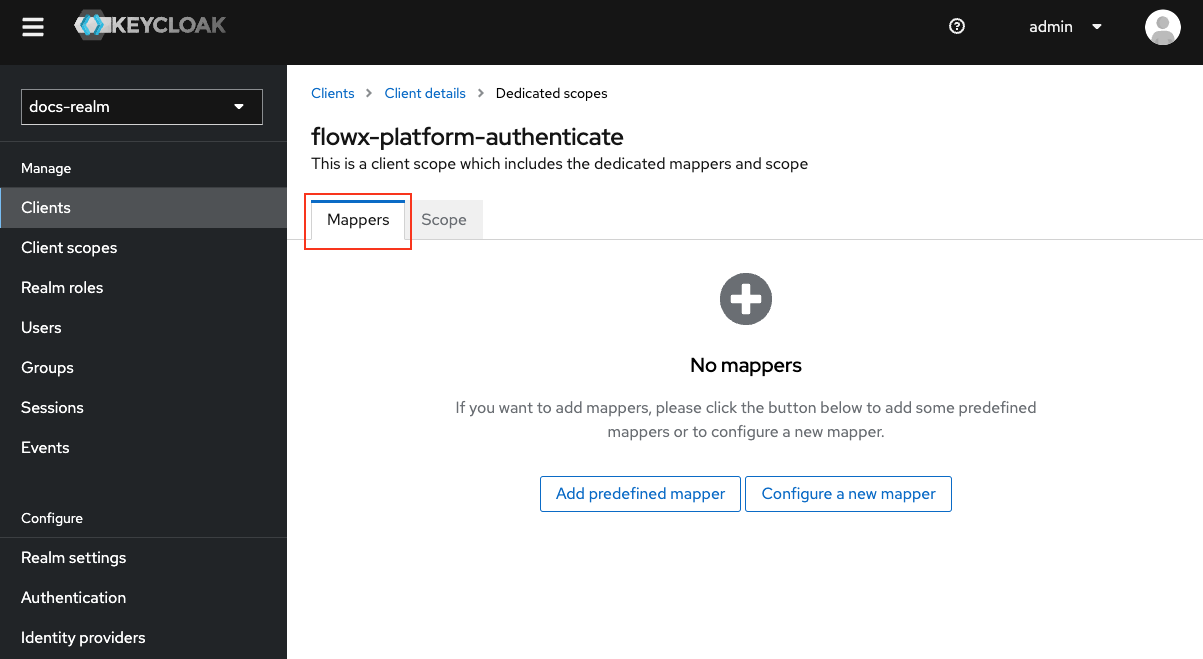
Add a New Mapper
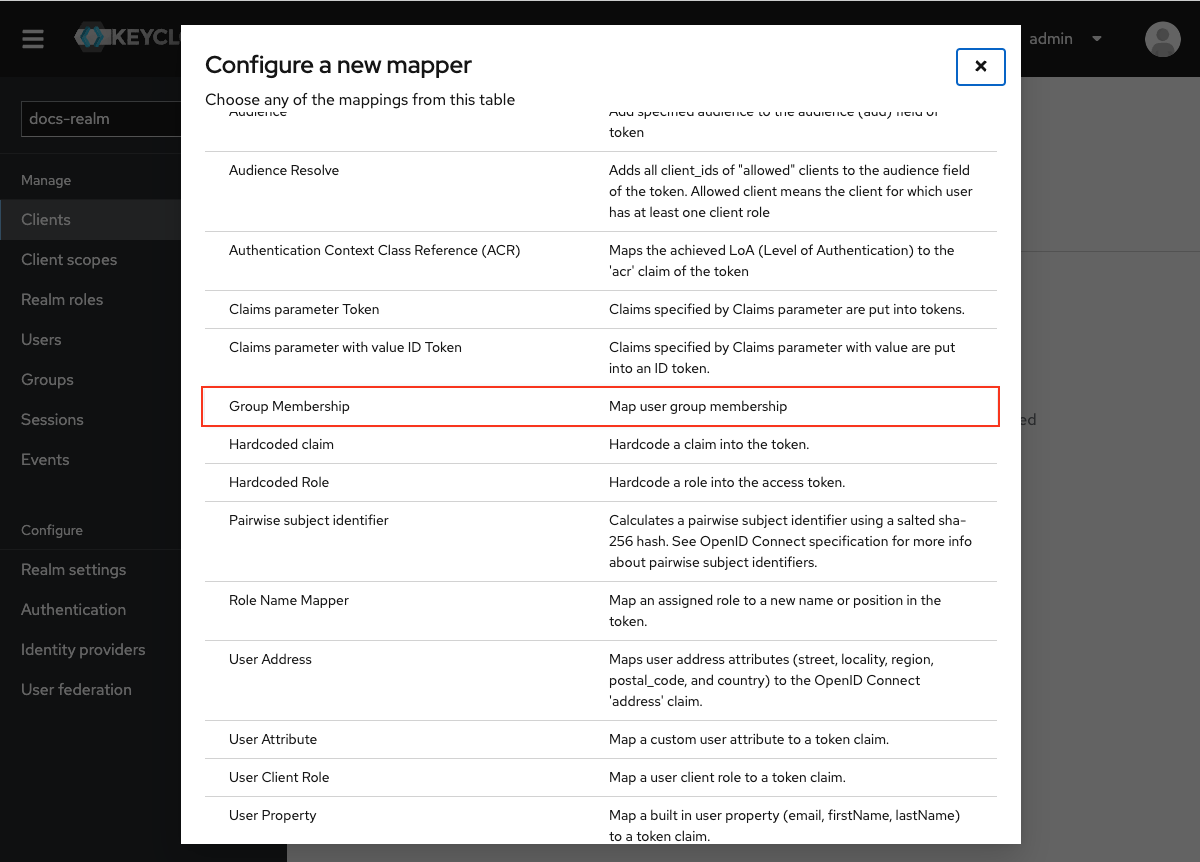
Provide mapper details
realm-groups.Token Claim Name: Set the token claim name, typically as groups, for including group information in the token.Add to ID Token: Toggle OFF.Add to token introspection: Toggle ON.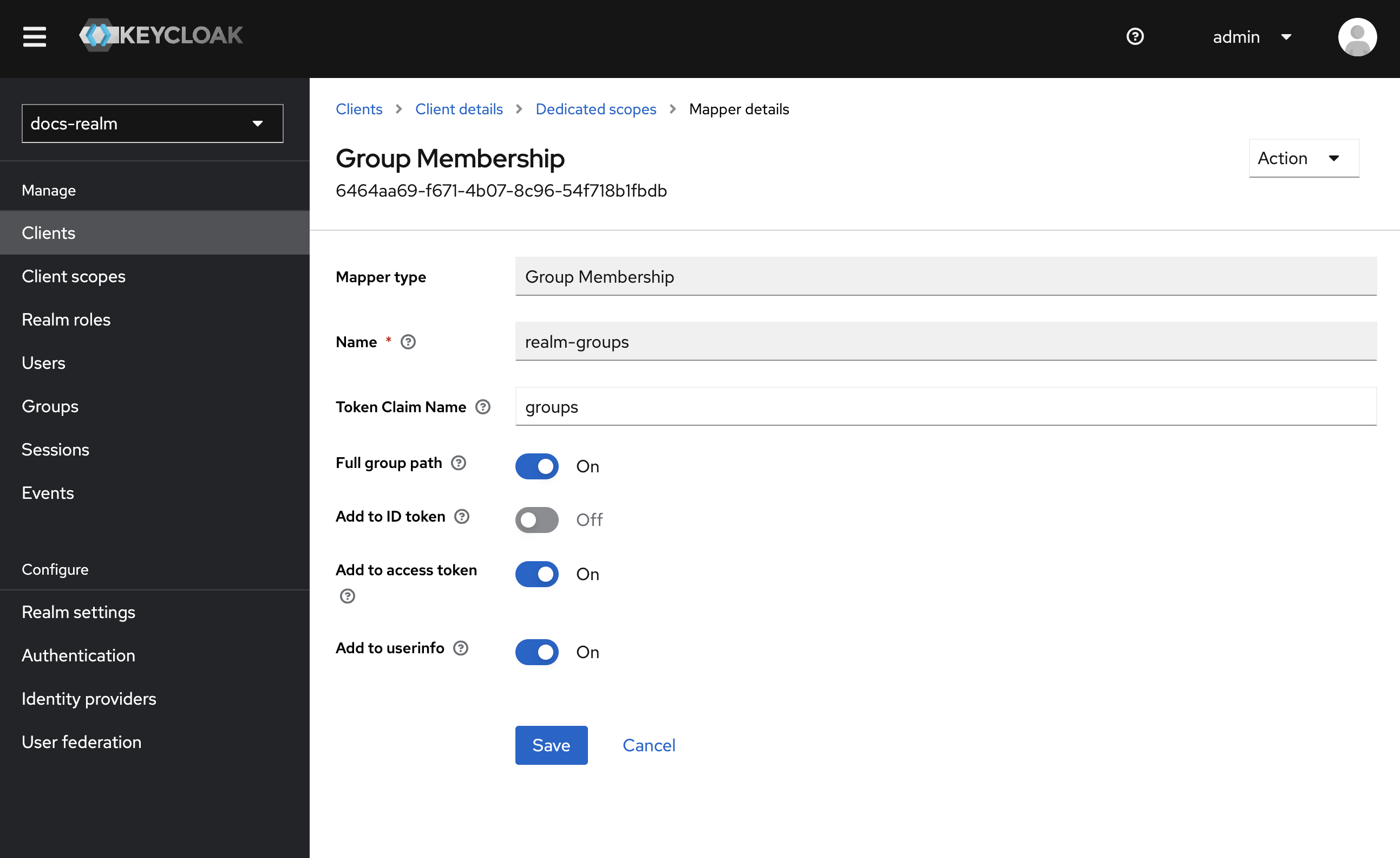
User attribute mapper
To include custom attributes such as business filters in the token claim, follow these steps to add a user attribute mapper:Navigate to Client Scopes
{your-client-name}-authenticate-dedicated to open its settings.Ensure the Mappers tab is selected.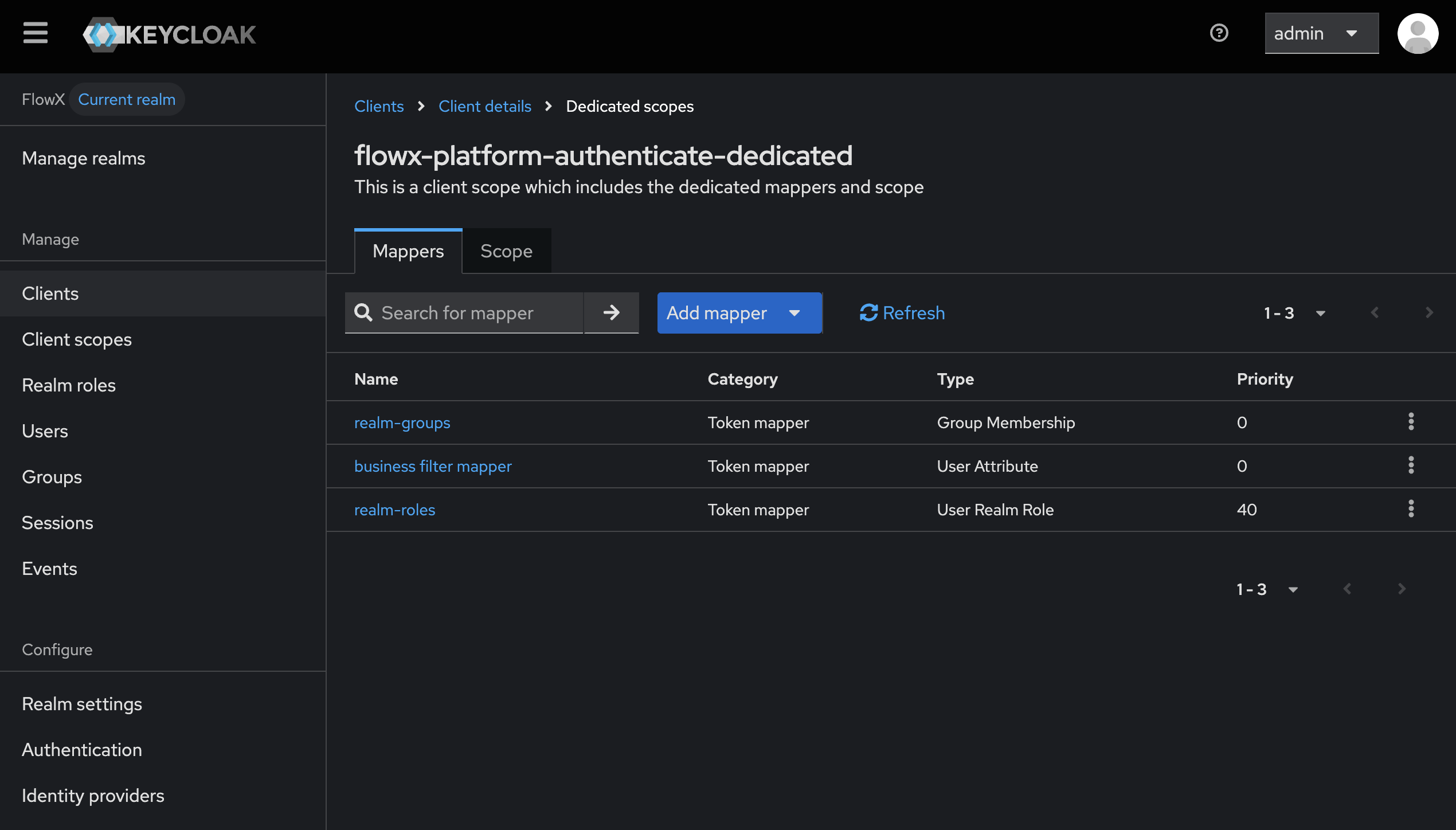
Add a New Mapper
Provide mapper details
- Mapper Type: Select User Attribute.
- Name: Enter a descriptive name for the mapper, such as “Business Filters Mapper”.
- User Attribute: Enter
businessFilter. - Token Claim Name: Enter
attributes.businessFilters. - Add to access token: Toggle ON.
- Add to token introspection: Toggle ON (recommended).
- Multivalued: Toggle ON.
- Aggregate attribute values: Toggle ON.
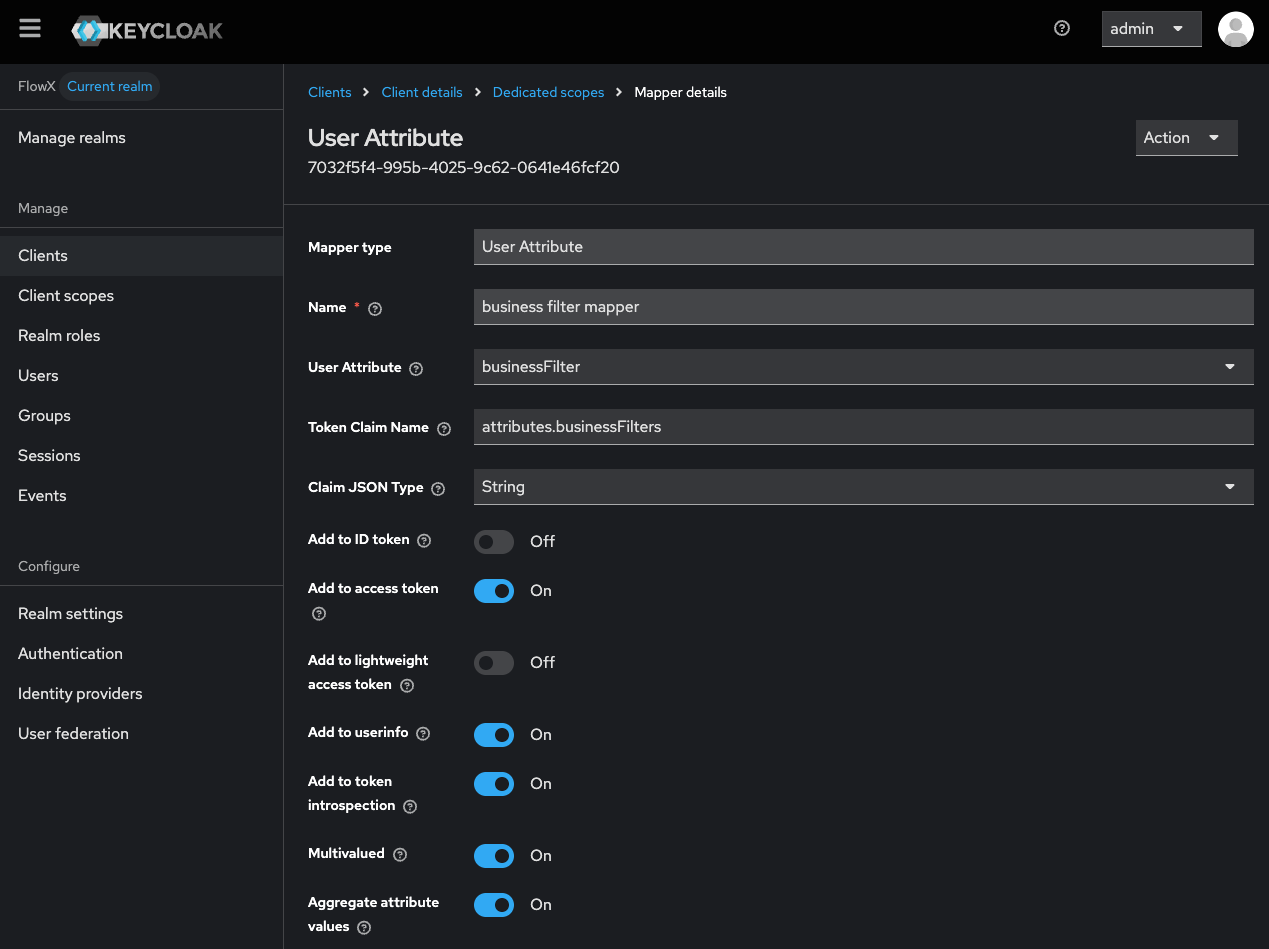
Business filters
Runtime groups attribute mapper
TheflowxIdPGroups user attribute carries the FlowX end-user group memberships for a user. The flowx-platform-authenticate client emits the value on the access token under attributes.runtimeGroups so the runtime authorization service can evaluate per-solution access in a single read.
In FlowX-managed Keycloak deployments this mapper ships with the standard client setup. Add it manually only when you operate Keycloak yourself or have regenerated the client without the standard mapper set.
Navigate to Client Scopes
flowx-platform-authenticate. Click Client Scopes and choose flowx-platform-authenticate-dedicated. Open the Mappers tab.Add a New Mapper
Provide mapper details
- Mapper Type: Select User Attribute.
- Name: Enter a descriptive name, such as “Runtime Groups Mapper”.
- User Attribute: Enter
flowxIdPGroups. - Token Claim Name: Enter
attributes.runtimeGroups. - Add to access token: Toggle ON.
- Add to token introspection: Toggle ON (recommended).
- Multivalued: Toggle ON.
- Aggregate attribute values: Toggle ON.
attributes.runtimeGroups must match the names of end-user groups defined in FlowX. Federated logins populate flowxIdPGroups automatically through the external IDP federation mapper below.
Designer user attribute
ThedesignerUser user attribute is a boolean that flags whether a user has Designer access to the project. The flowx-platform-authenticate client exposes it on the access token as attributes.designerUser; the runtime authorization service reads the claim to skip role checks for designers running their own projects.
In FlowX-managed Keycloak deployments the attribute is set automatically at organization provisioning, and the mapper ships with the standard client setup. Add the mapper manually only when you operate Keycloak yourself.
Navigate to Client Scopes
flowx-platform-authenticate. Click Client Scopes and choose flowx-platform-authenticate-dedicated. Open the Mappers tab.Add a New Mapper
Provide mapper details
- Mapper Type: Select User Attribute.
- Name: Enter a descriptive name, such as “Designer User Mapper”.
- User Attribute: Enter
designerUser. - Token Claim Name: Enter
attributes.designerUser. - Add to access token: Toggle ON.
- Add to token introspection: Toggle ON (recommended).
- Multivalued: Toggle OFF.
- Claim JSON Type: Select boolean.
External IDP federation mapper
This mapper reads the source IDP’s group claim and writes the value into the FlowX-sideflowxIdPGroups user attribute. The Runtime groups attribute mapper above then promotes that user attribute onto the FlowX access token as attributes.runtimeGroups.
Open the federated IDP entry
Add a New Mapper
oidc-user-attribute-idp-mapper; some versions label it OpenID Connect Attribute to User Attribute).Provide mapper details
- Name: Enter a descriptive name, such as “Source groups to flowxIdPGroups”.
- Sync Mode Override: Select Force so subsequent logins re-import the value and pick up source-side group changes.
- Claim: Enter the name of the source IDP claim that carries the user’s group memberships. The exact name depends on the source IDP — for example, FlowX-to-FlowX federation typically uses
groupsList; Entra ID typically uses thegroupsclaim or a custom extension; AD FS uses whatever the source-side claim emitter is configured to send. - User Attribute: Enter
flowxIdPGroups.
businessFilter user attribute. The User attribute mapper section above then exposes it on the token as attributes.businessFilters.User realm role mapper
To add a roles mapper to the{your-client-name}-authenticate client, so roles will be available in the OAuth user info response, follow these steps:
Navigate to Client Scopes
{your-client-name}-authenticate-dedicated to open its settings.Ensure the Mappers tab is selected.Add a New Mapper
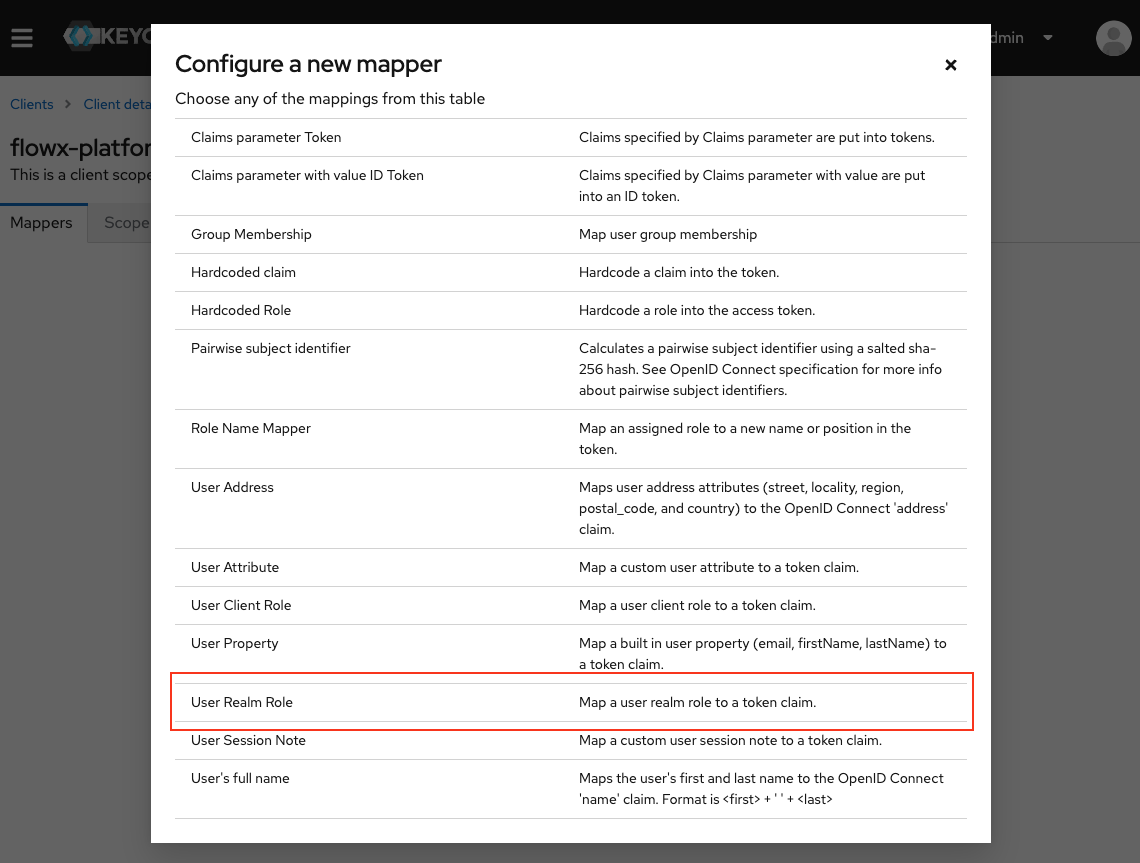
Provide mapper details
- Name: Enter a descriptive name for the mapper, such as “Roles Mapper”.
- Mapper Type: Select User Realm Role.
- Token Claim Name: Enter
roles. - Add to ID Token: Toggle OFF.
- Add to access token: Toggle OFF.
- Add to token introspection: Toggle ON.
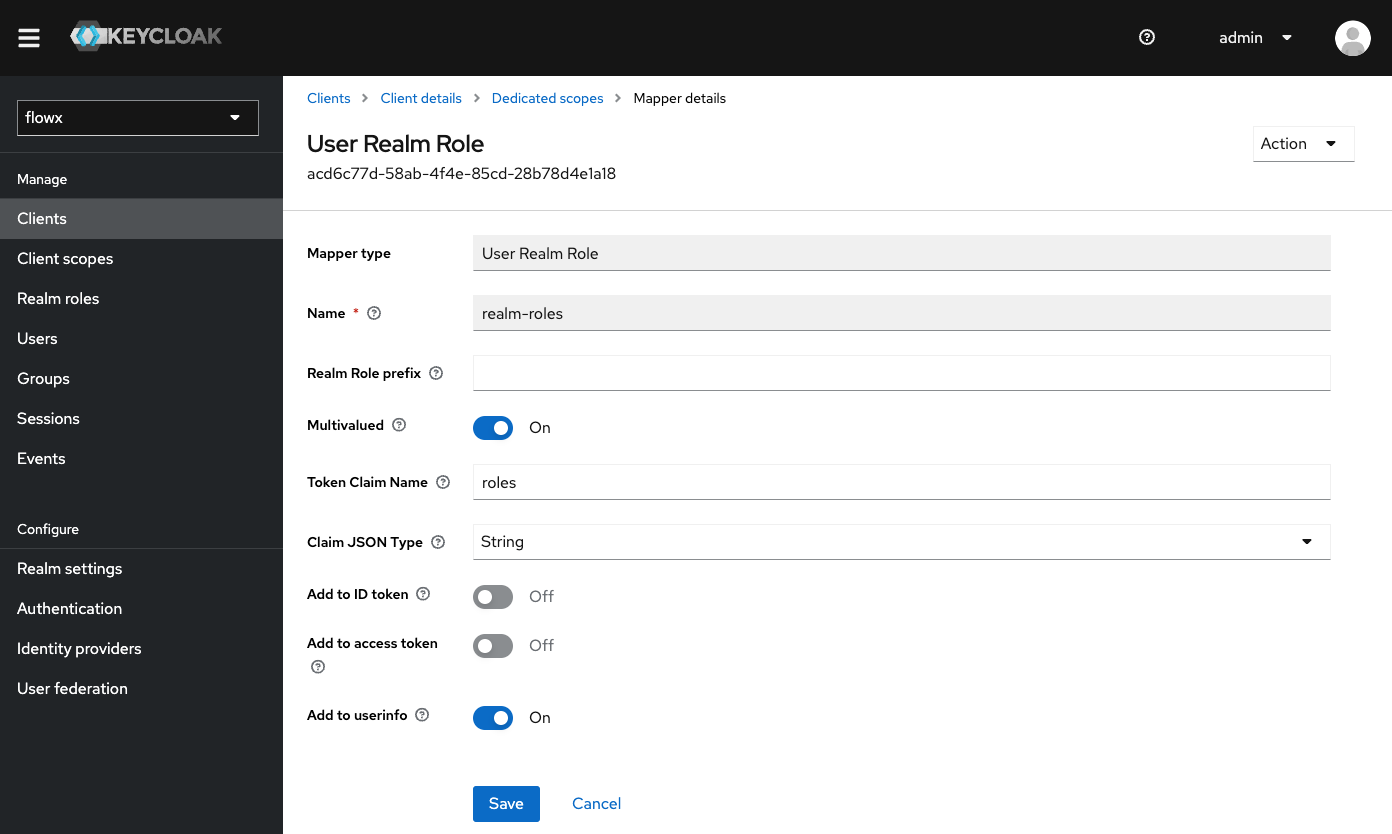
ROLE_ADMIN_MANAGE_*, ROLE_TASK_MANAGER_*, or ROLE_CMS_*, sometimes already assigned to users. FlowX services assign no built-in meaning to these roles — Designer and platform access is governed by workspace and organization roles plus permissions (see the roles & permissions matrix). Realm roles are only evaluated where your own configuration references them, such as swimlane access rules or business filters. Realms provisioned by current FlowX versions no longer include these legacy roles.Creating a basic client scope
To ensure consistent token configuration across all clients, you should create a default client scope named “basic” with predefined mappers.Navigate to Client Scopes
Configure client scope settings
- Name: Enter
basic. - Type: Select Default.
- Protocol: Select OpenID Connect.
- Display on consent screen: Toggle OFF.
- Include in token scope: Toggle ON.
Add predefined mappers
-
sub mapper:
- Click Add mapper → From predefined mappers
- Select sub
- Click Add
-
auth_time mapper:
- Click Add mapper → From predefined mappers
- Select auth_time
- Click Add
Assign to All Clients
- Navigate to Clients in the left menu
- For each client (e.g.,
flowx-platform-authenticate,flowx-platform-authorize, and all service accounts):- Open the client settings
- Go to the Client Scopes tab
- Click Add client scope
- Select basic from the list
- Choose Default as the assignment type
- Click Add
Examples
Login
To request a login token:Refresh token
To refresh an existing token:User info
To retrieve user information:Adding service accounts
Realm architecture
- 5.5.0 and later
- 5.1.x (LTS)
- User-facing clients (
flowx-platform-authenticate) go in the user realm - All service account clients go in the service accounts realm
- The
flowx-platform-authorizeclient is no longer needed (JWT public key validation replaces opaque-token introspection)
Admin service account
The admin service account is used by the admin microservice to connect with Keycloak, enabling user and group management features within the FlowX.AI Designer. Steps to add an Admin service account:Create the Client
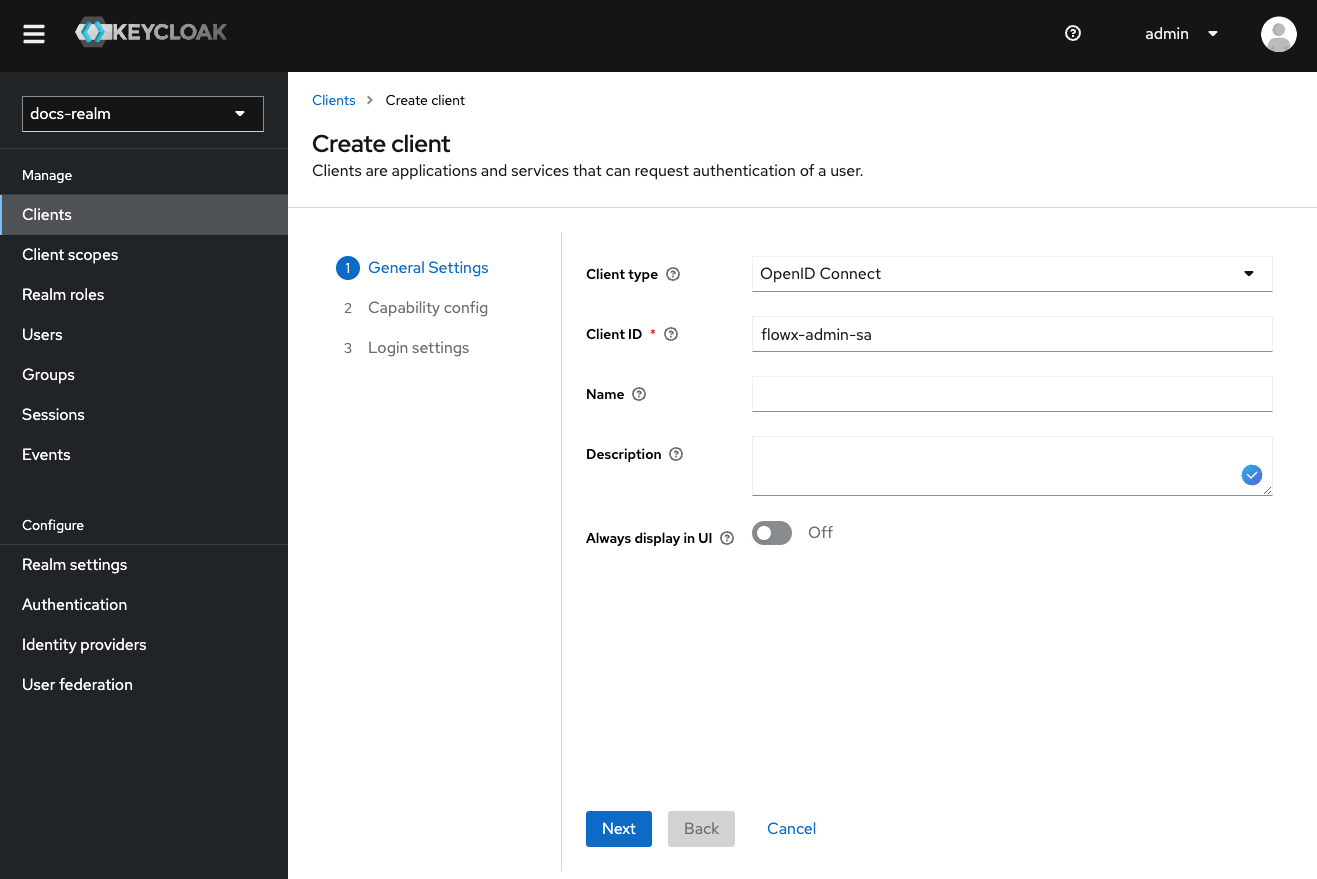
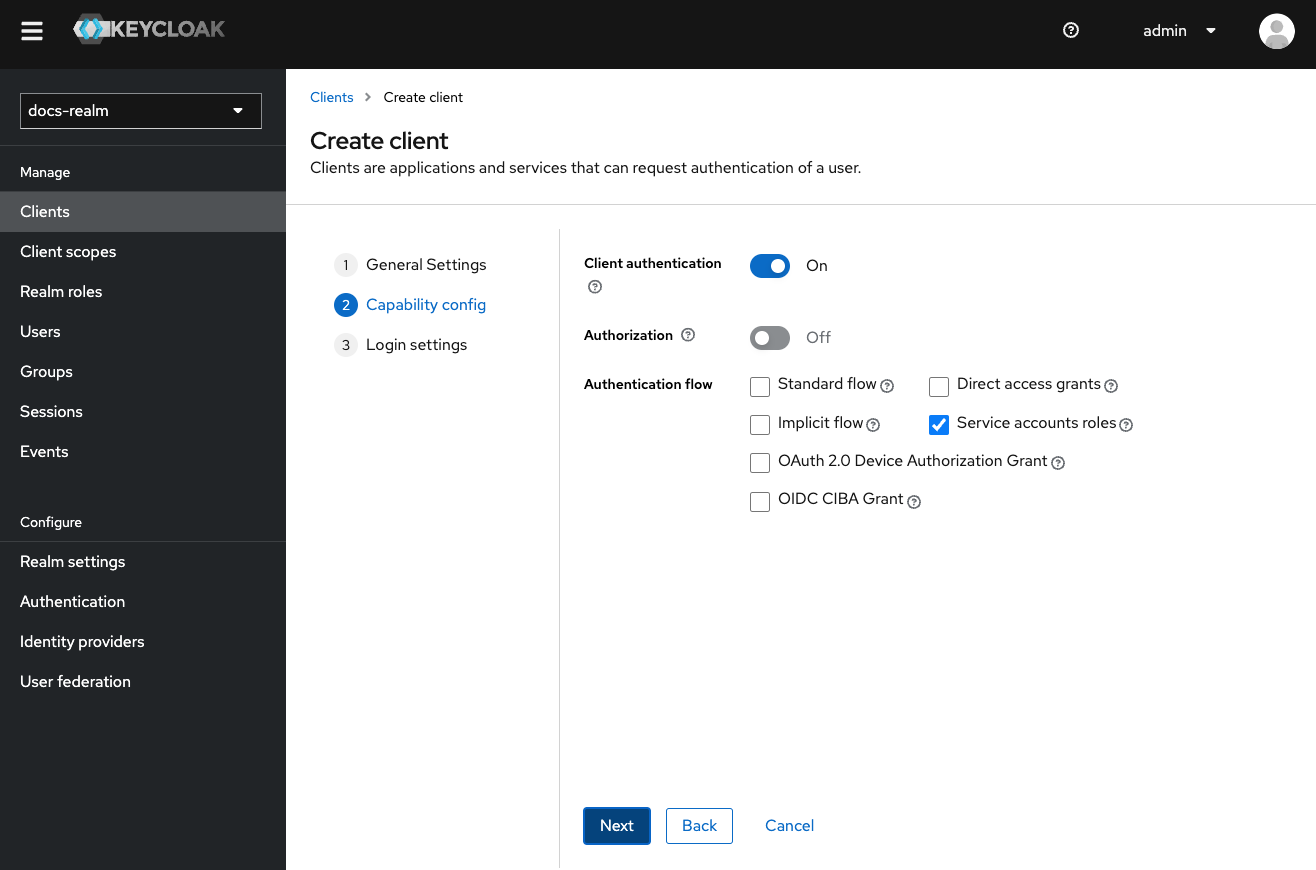
Configure capability config
- Enable Client authentication (access type).
- Disable Standard flow.
- Disable Direct access grants.
- Enable Service accounts roles.
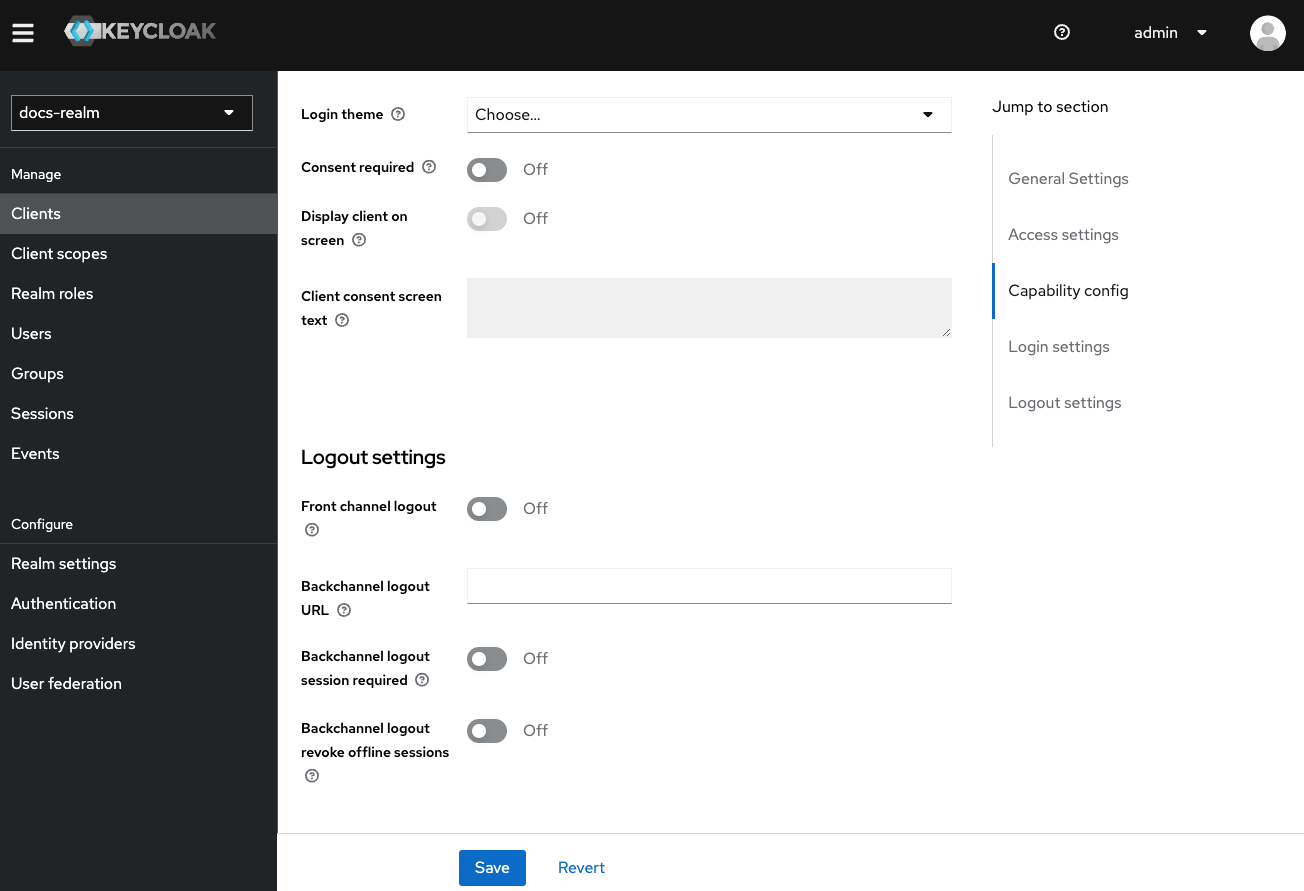
Configure additional settings
- Backchannel Logout Session Required: Toggle OFF.
- Front Channel Logout: Toggle OFF.
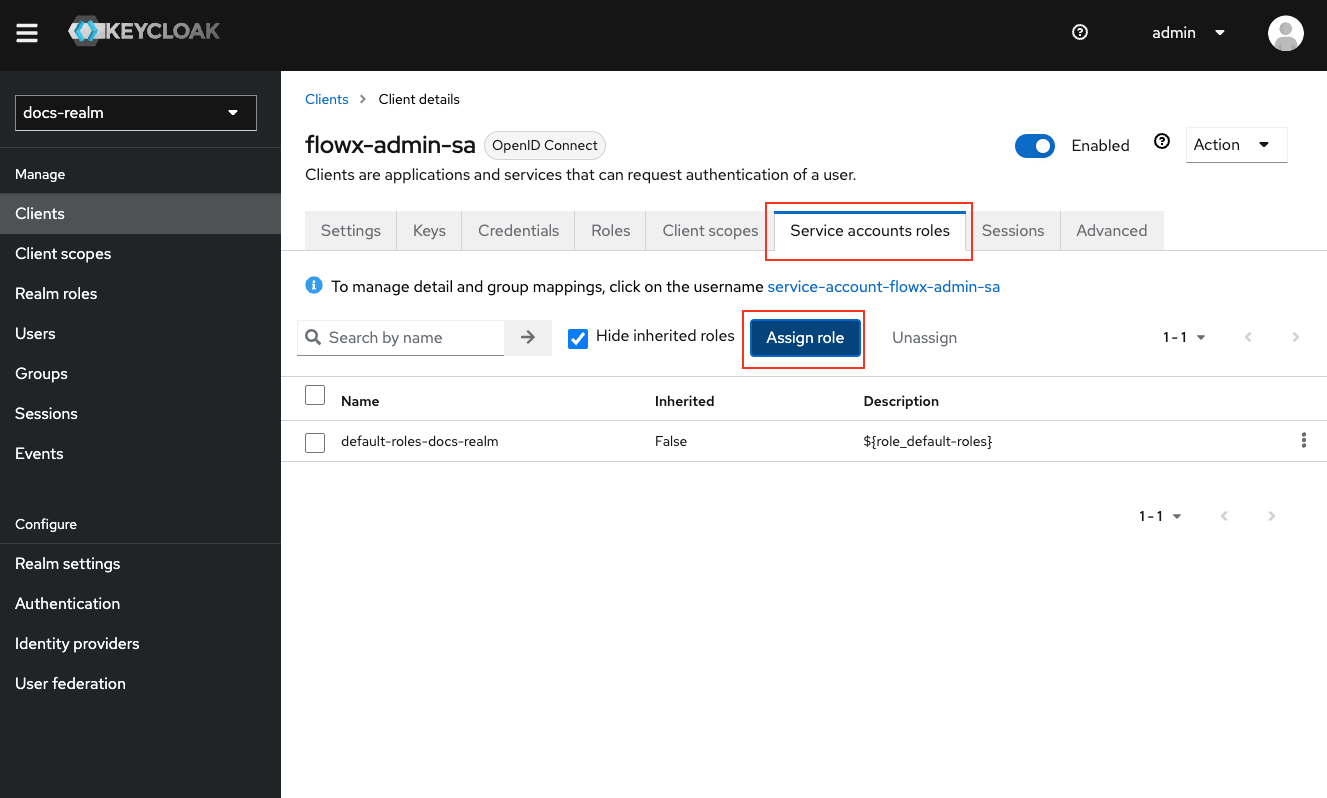
Configure service account roles
Task Management service account
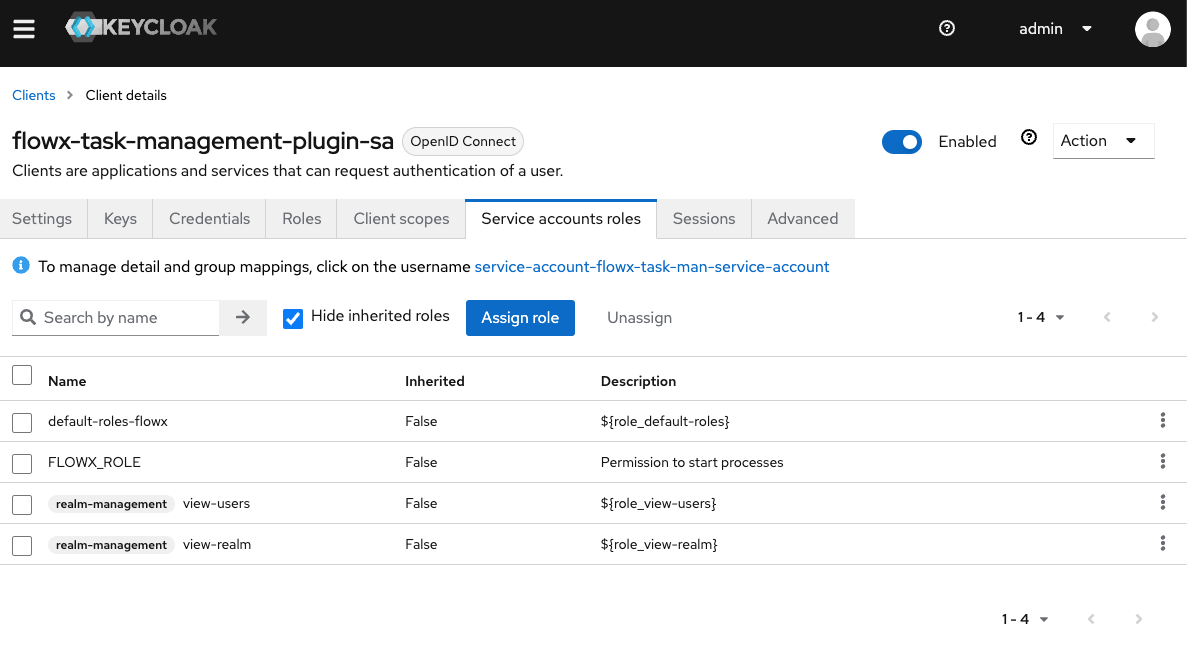
The task management service account facilitates process initiation and enables the use of the task management plugin (requiring theFLOWX_ROLE and role mapper), and access data from Keycloak.
Steps to Add a Task Management service account:
Create the Service Account
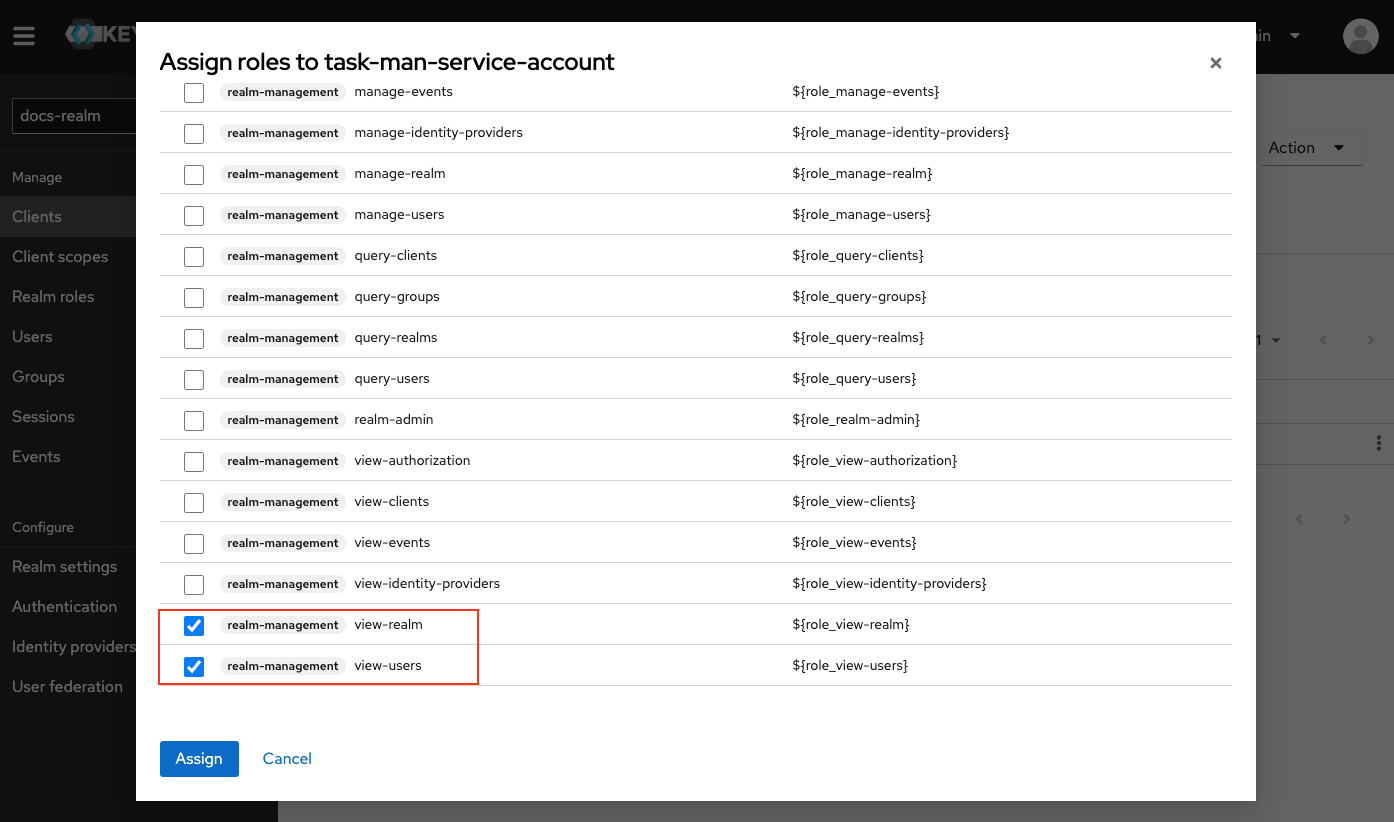
Assign necessary roles
- view-users
- query-users
- query-groups
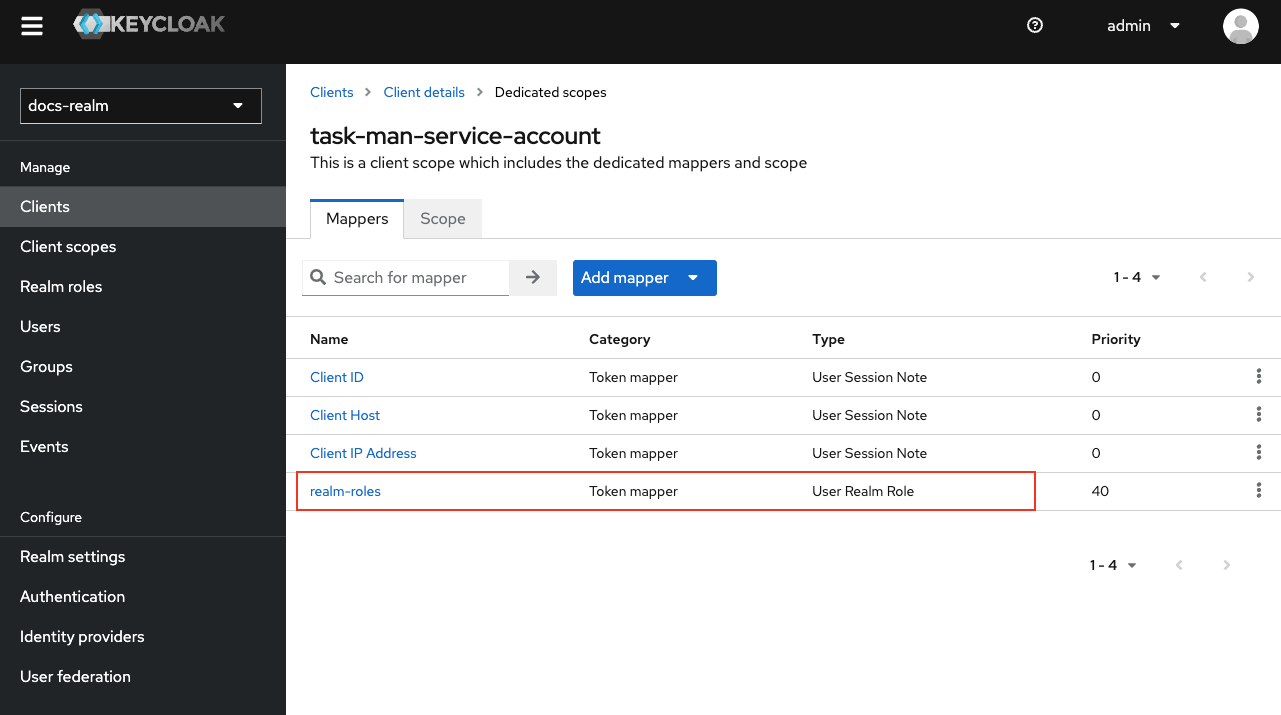
Add a realm roles mapper
{your-client-name}-service-account to open its settings.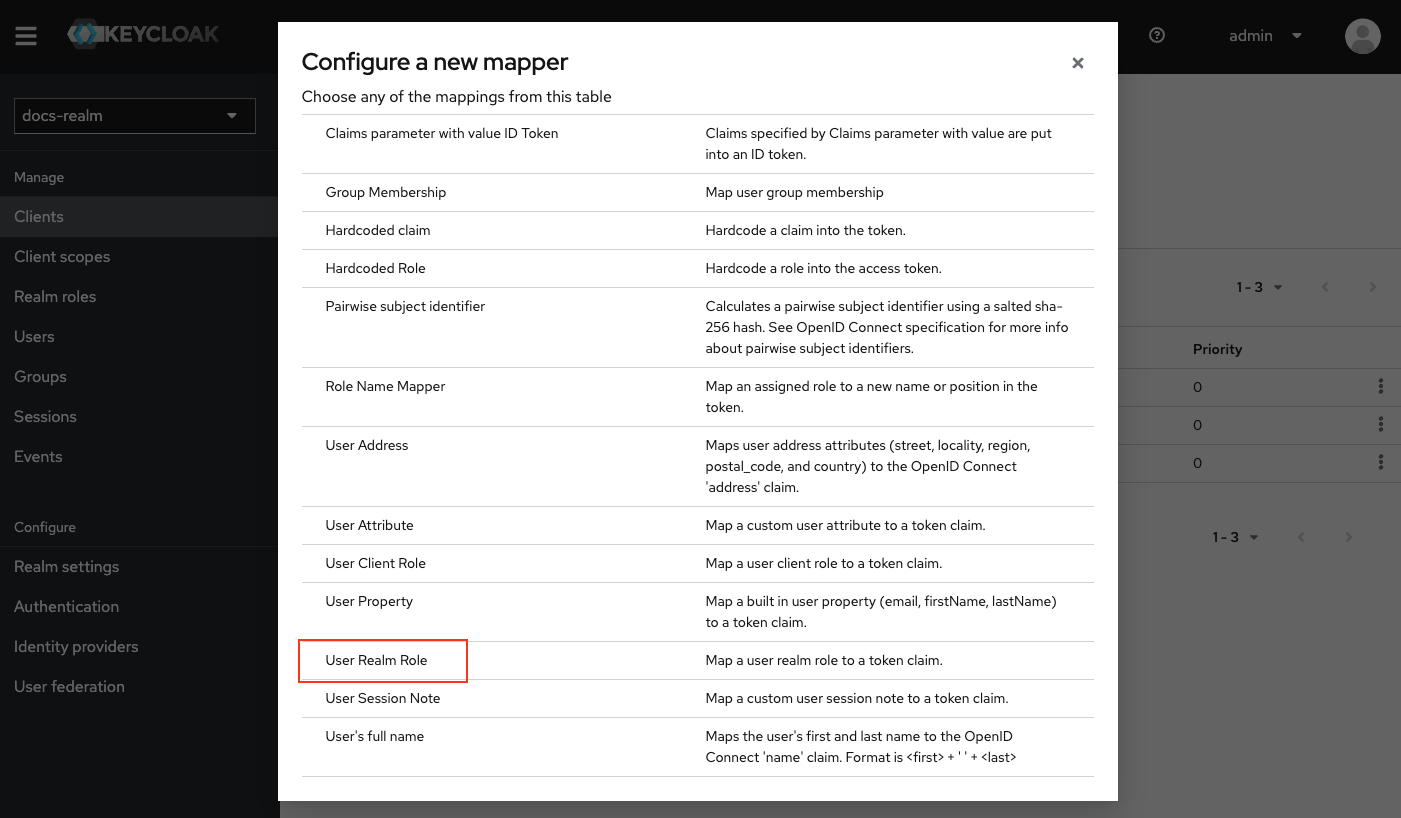
Configure the mapper
realm-roles.Token Claim Name: Set it to roles.Disable Add to ID token.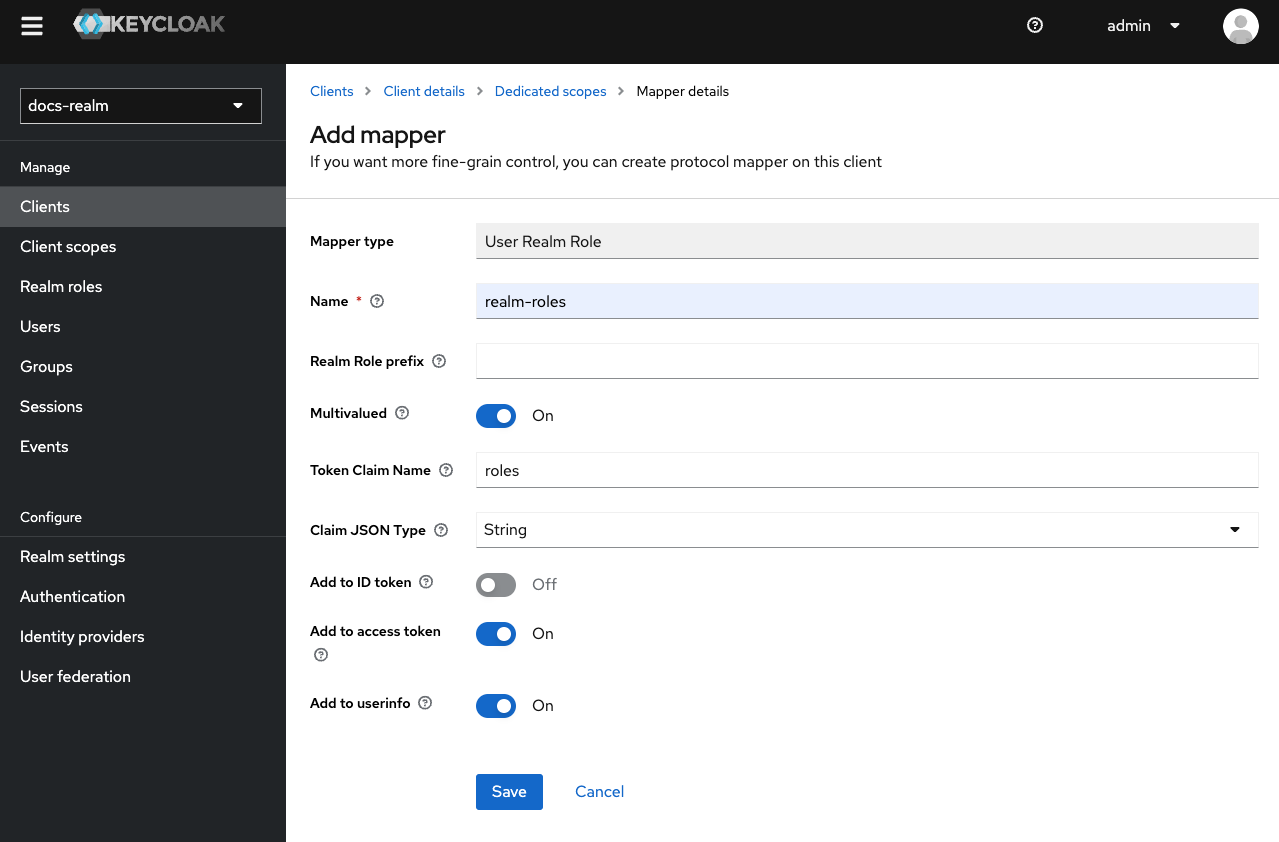
Add the service account realm role
FLOWX_ROLE service account realm role (used to grant permissions for starting processes).FLOWX_ROLE is used to grant permissions for starting processes in the FlowX.AI Designer platform. By default, this role is named FLOWX_ROLE, but its name can be changed from the application configuration of the Engine by setting the following environment variable:FLOWX_PROCESS_DEFAULTROLESProcess engine service account
The process engine requires a service account for service-to-service authentication and authorization.Create the Client
Configure service account roles
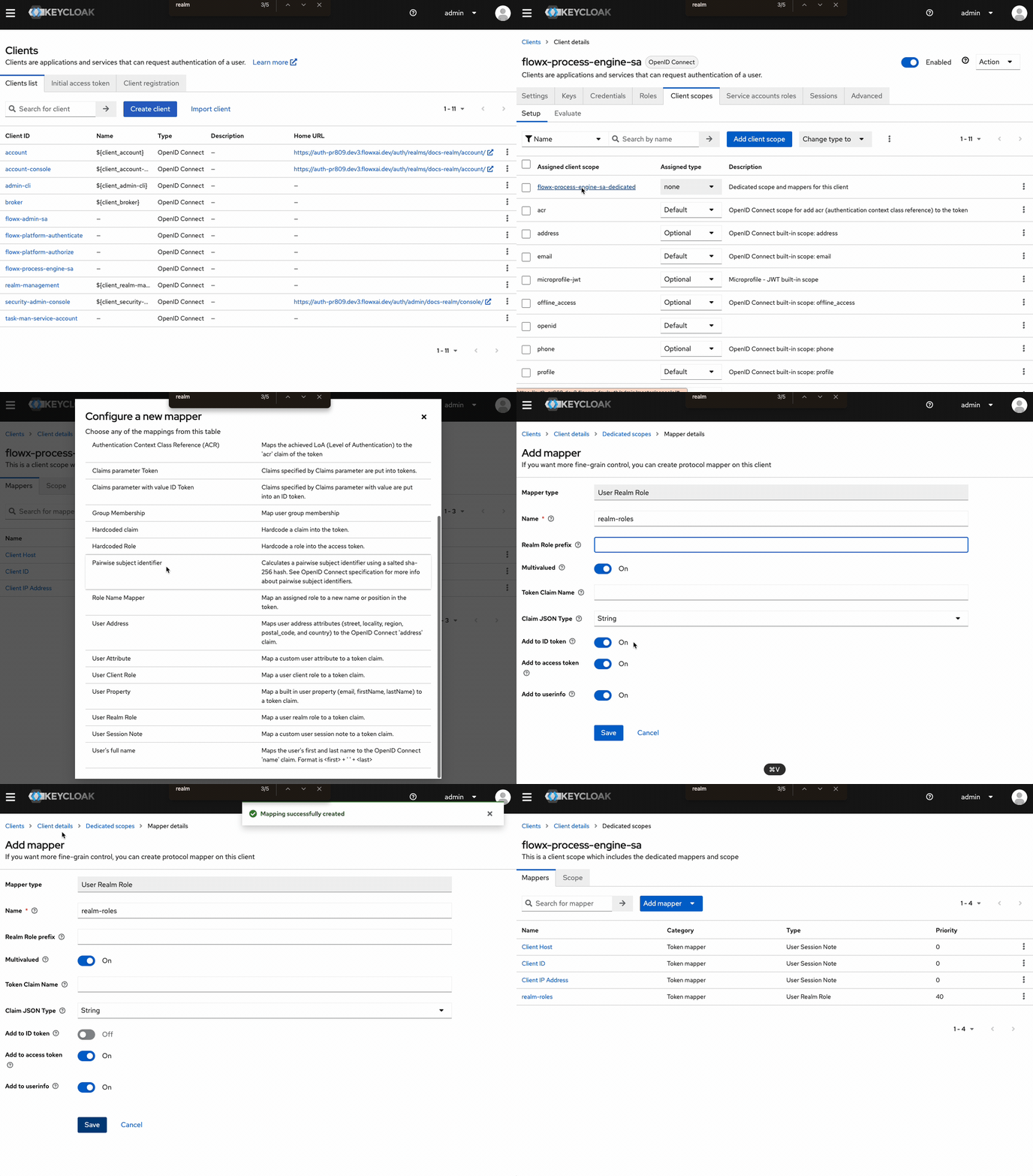
SA_FLOWX realm role.Add a realm roles mapper
{your-client-name}-service-account to open its settings.Ensure the Mappers tab is selected within the dedicated client scope.Click Add mapper. From the list of available mappers, select User Realm Role.Configure the mapper:- Name: Enter
realm-roles - Token Claim Name: Set it to
roles - Add to ID token: Toggle OFF
- Add to token introspection: Toggle ON
Scheduler service account
Create the Client
Configure service account roles
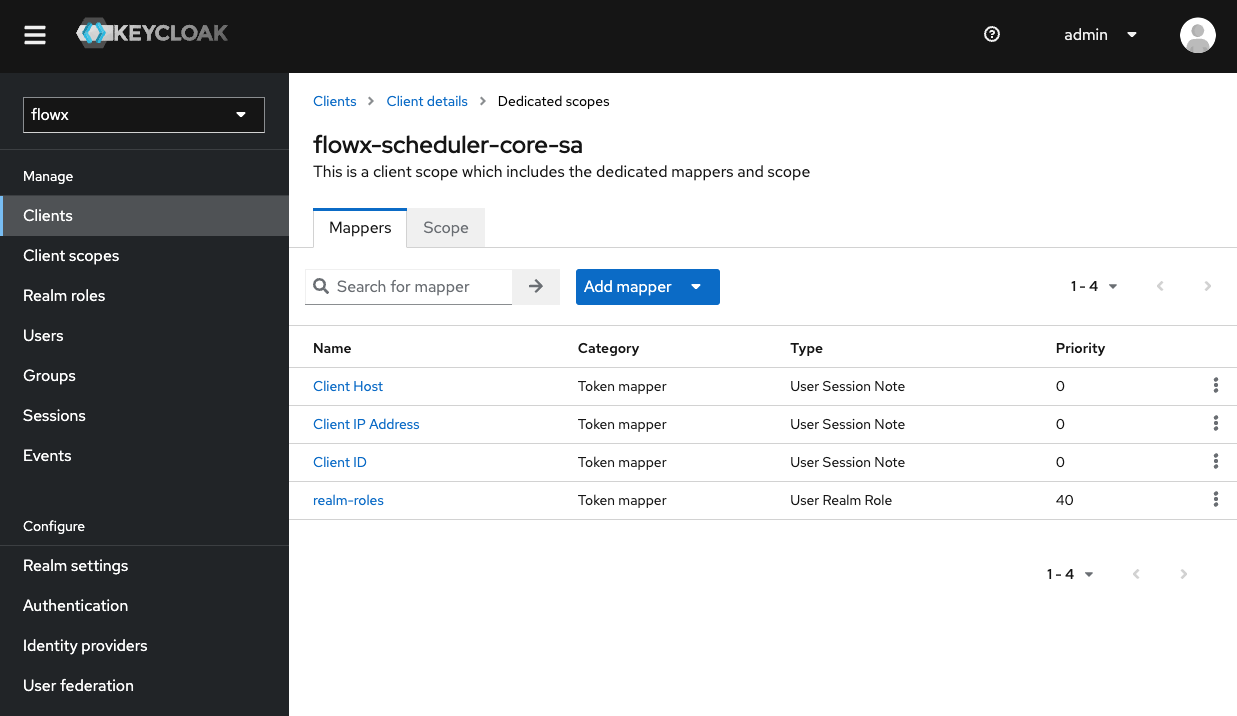
SA_FLOWX realm role.Add a realm roles mapper
{your-client-name}-service-account to open its settings.Ensure the Mappers tab is selected within the dedicated client scope.Click Add mapper. From the list of available mappers, select User Realm Role.Configure the mapper:- Name: Enter
realm-roles - Token Claim Name: Set it to
roles - Add to ID token: Toggle OFF
- Add to token introspection: Toggle ON
Integration Designer service account
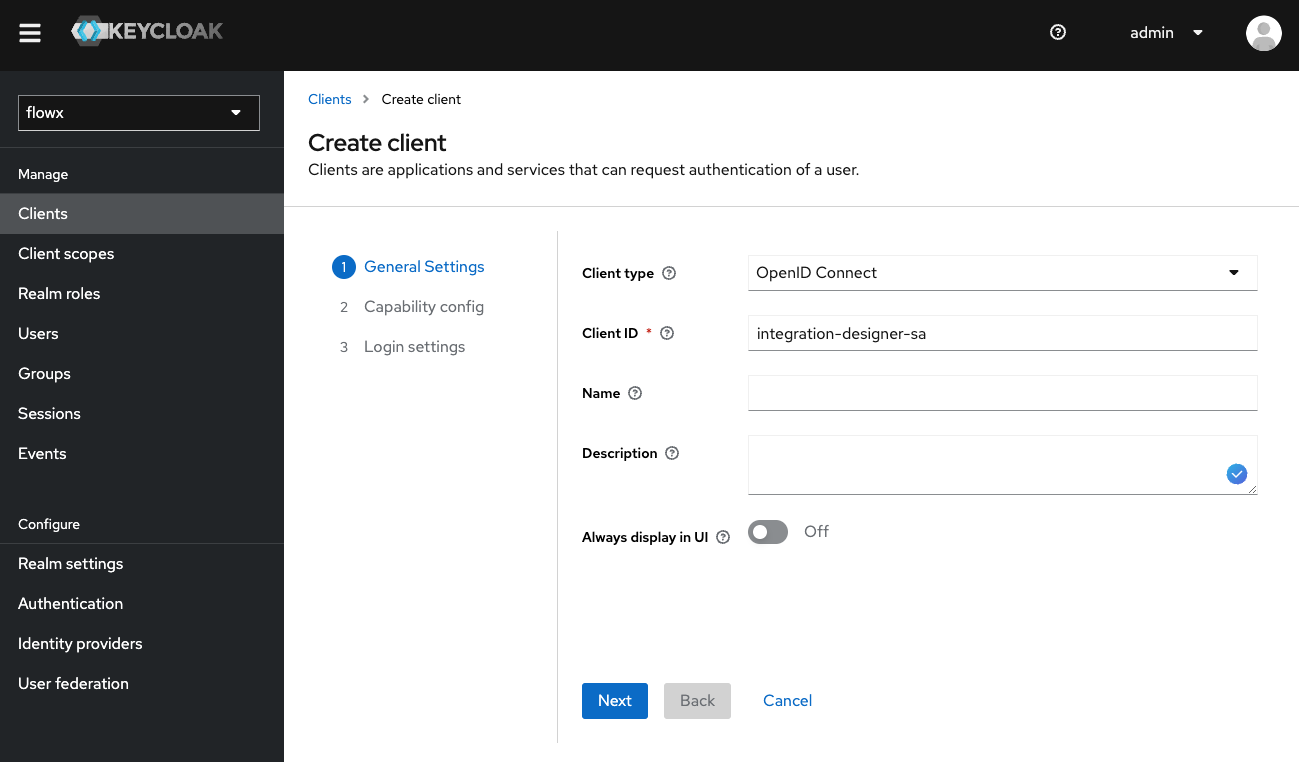
The Integration Designer service account is used by the integration designer microservice to interact securely with Keycloak, enabling it to manage various integrations within the FlowX.AI platform. Steps to set up an Integration Designer service account:Create the Client
- In Keycloak, navigate to Clients and select Create client.
- Enter a Client ID for your new client (e.g.,
flowx-integration-designer-sa).
Configure client capabilities
- Enable Client authentication under access type.
- Enable Service accounts roles to allow the account to manage integrations.
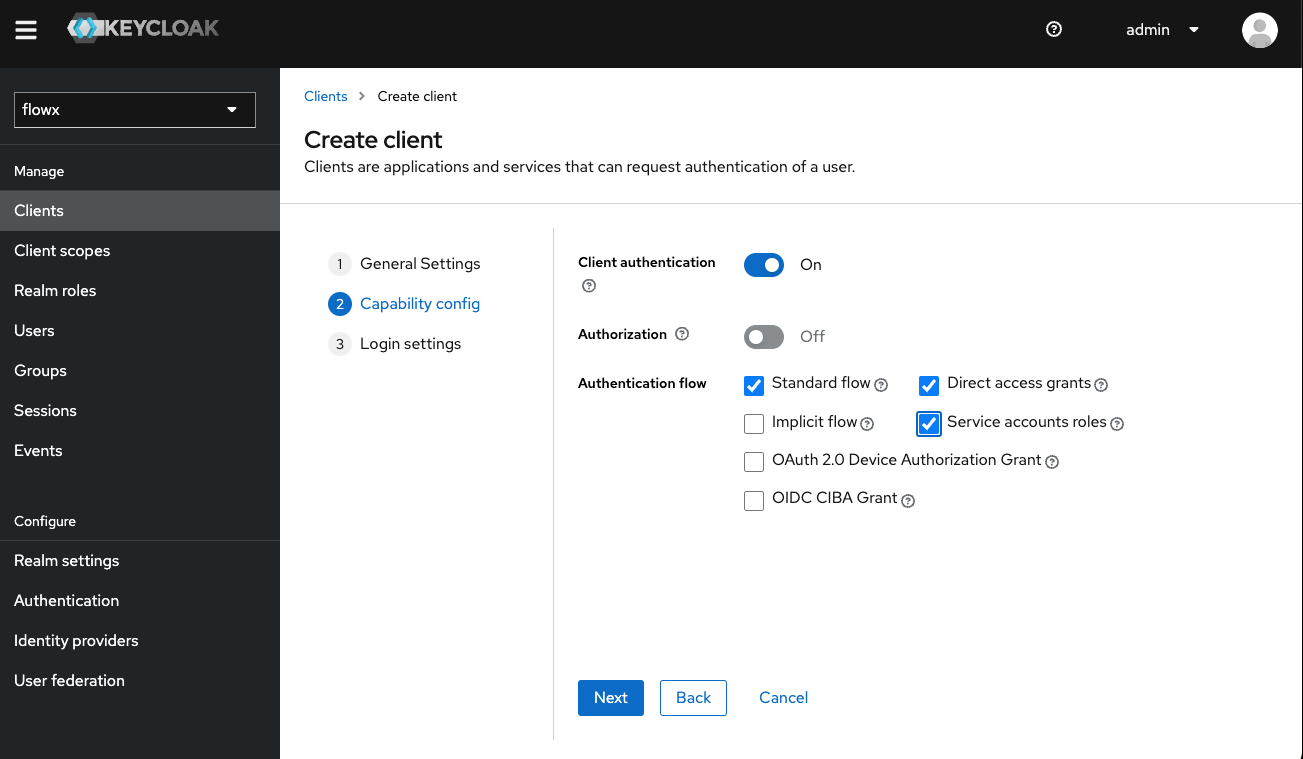
Save the Client Configuration
- Skip the Login settings page.
- Click Save to apply the configuration.
Assign service account client roles
Authorization System service account
The Authorization System service account is used for managing user authentication and authorization operations, including user management, realm configuration, and access control within the FlowX.AI platform. Steps to set up an Authorization System service account:Create the Client
flowx-authorization-system-sa).Configure capability config
- Enable Client authentication (access type).
- Disable Standard flow.
- Disable Direct access grants.
- Enable Service accounts roles.
Configure additional settings
- Backchannel Logout Session Required: Toggle OFF.
- Front Channel Logout: Toggle OFF.
Assign service account client roles
- view-users
- query-users
- manage-users
- manage-realm
Runtime manager service account
The runtime manager service account is used by both Application Manager and Runtime Manager services to connect with Keycloak and perform export/import operations for builds, application versions, or other resource-specific tasks. Steps to add a Runtime manager service account:Create the Client
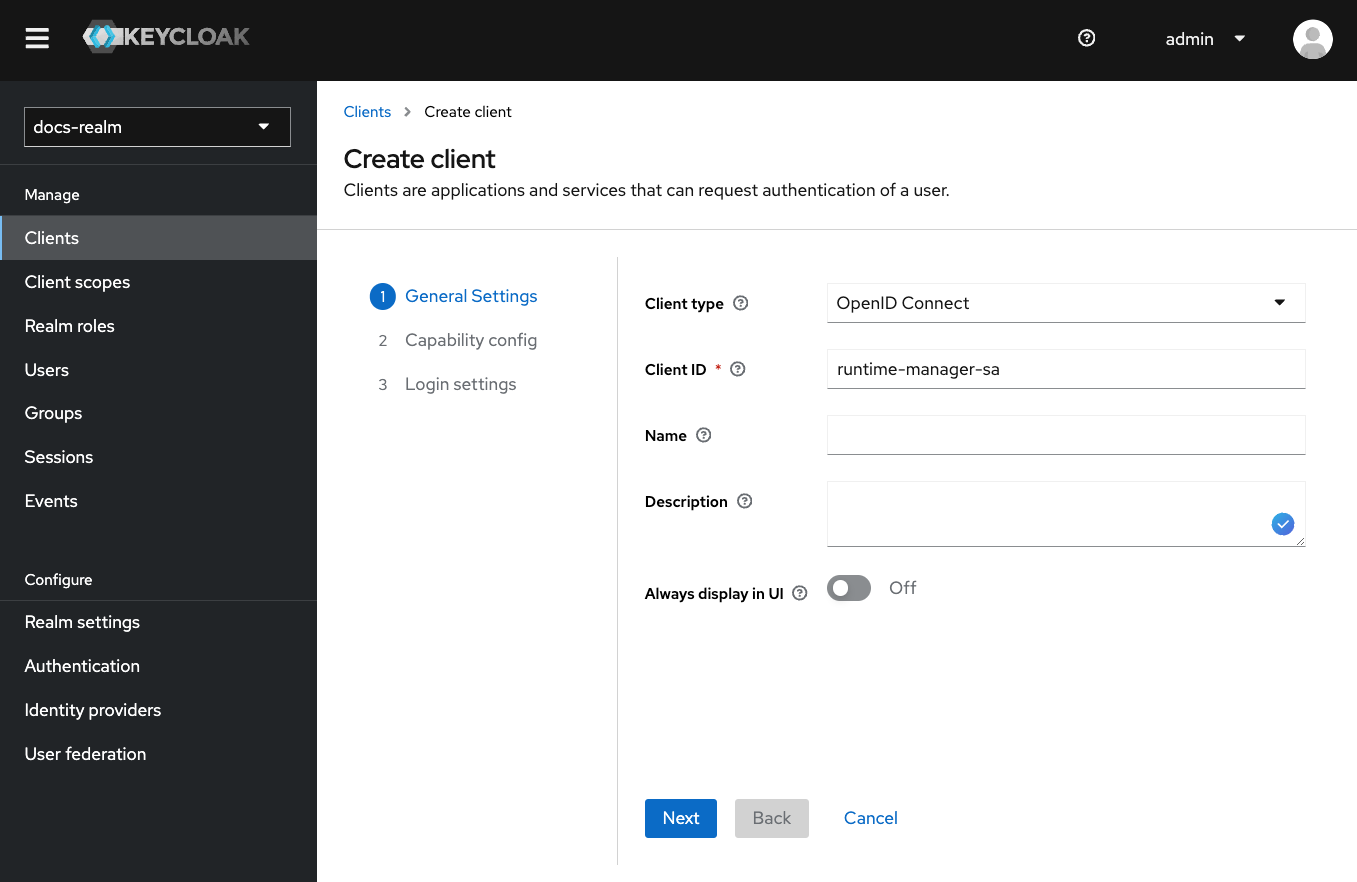
Configure capability config
- Enable Client authentication (access type).
- Disable Standard flow.
- Disable Direct access grants.
- Enable Service accounts roles.
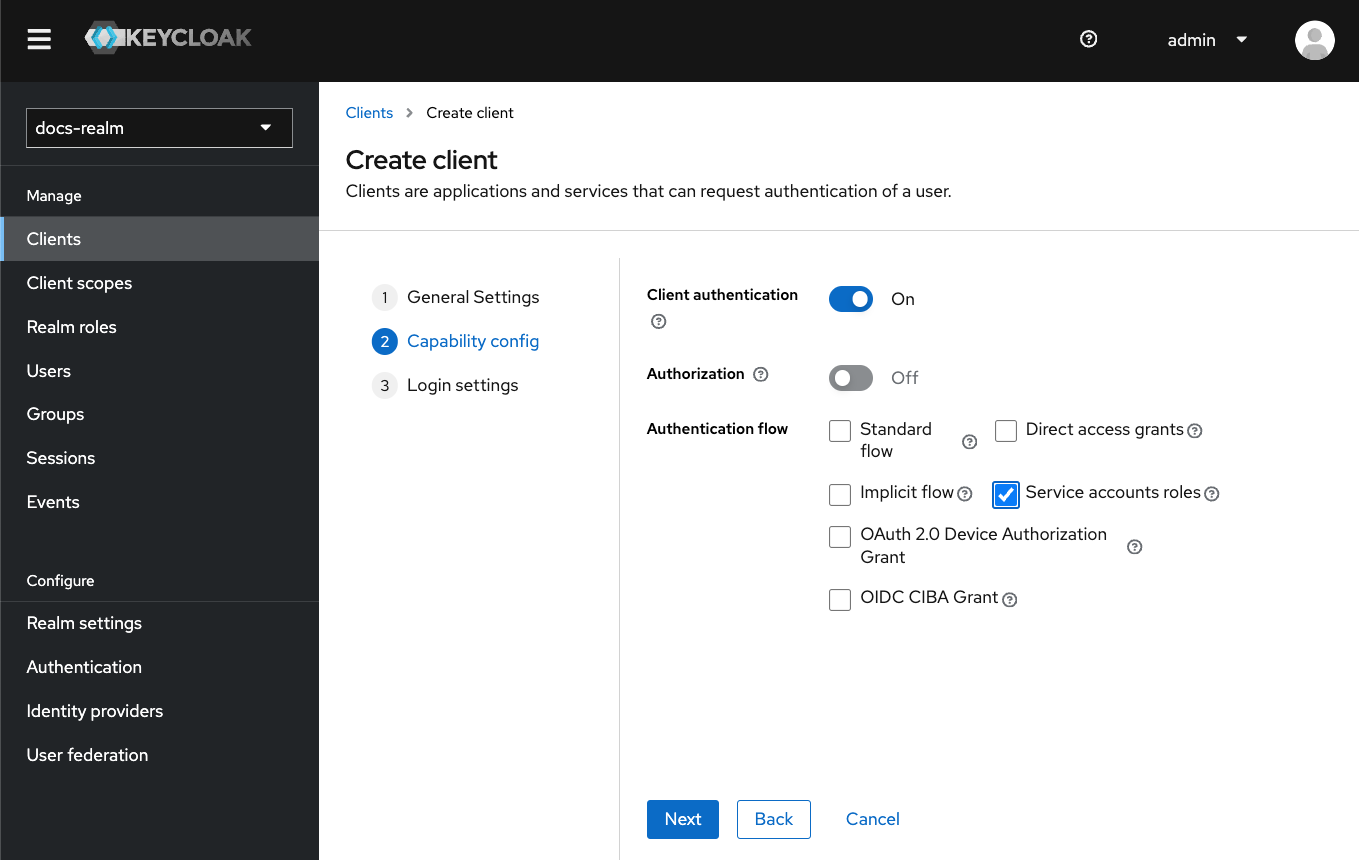
Configure additional settings
- Backchannel Logout Session Required: Toggle OFF.
- Front Channel Logout: Toggle OFF.
Configure service account roles
Organization manager service account
The organization manager service account is used by the organization manager microservice to handle organization and workspace management within the FlowX.AI platform.Create the Client
flowx-organization-manager-sa.Configure service account roles
SA_FLOWX realm role.Email gateway service account
The email gateway service account is used by the email gateway microservice to manage email sending and receiving operations within the FlowX.AI platform.Create the Client
flowx-email-gateway-sa.Assign service account client roles
- view-users
License service account
The license service account is used by the license microservice to manage license validation and enforcement within the FlowX.AI platform.Create the Client
flowx-license-sa.Assign service account client roles
- view-users
Configuring SA_FLOWX realm role
TheSA_FLOWX role is a realm-level role that should be assigned to all service accounts to ensure proper authentication and authorization across the FlowX.AI platform.
SA_FLOWX role in the service accounts realm (00000002-0002-4002-8002-000000000002), since that is where all service account clients reside. In 5.1.x, create it in the user realm.Create the SA_FLOWX Realm Role
- In the Keycloak admin console, navigate to the appropriate realm:
- 5.1.x: Your user realm
- 5.5.0+: The service accounts realm (
00000002-0002-4002-8002-000000000002)
- Go to Realm roles in the left menu.
- Click Create role.
- Enter
SA_FLOWXas the Role name. - Add a description: “Service account role for FlowX.AI platform services”.
- Click Save.
Assign SA_FLOWX to service accounts
SA_FLOWX realm role:- flowx-process-engine-sa
- flowx-admin-sa
- flowx-runtime-manager-sa
- flowx-integration-designer-sa
- flowx-scheduler-core-sa
- flowx-authorization-system-sa
- flowx-task-management-plugin-sa
- flowx-organization-manager-sa (5.5.0+)
- flowx-email-gateway-sa (5.4.0+)
- flowx-license-sa (5.5.0+)
- Navigate to Clients and select the service account client.
- Go to the Service accounts roles tab.
- Click Assign role.
- In the Filter field, select Filter by realm roles.
- Find and select SA_FLOWX from the list.
- Click Assign.
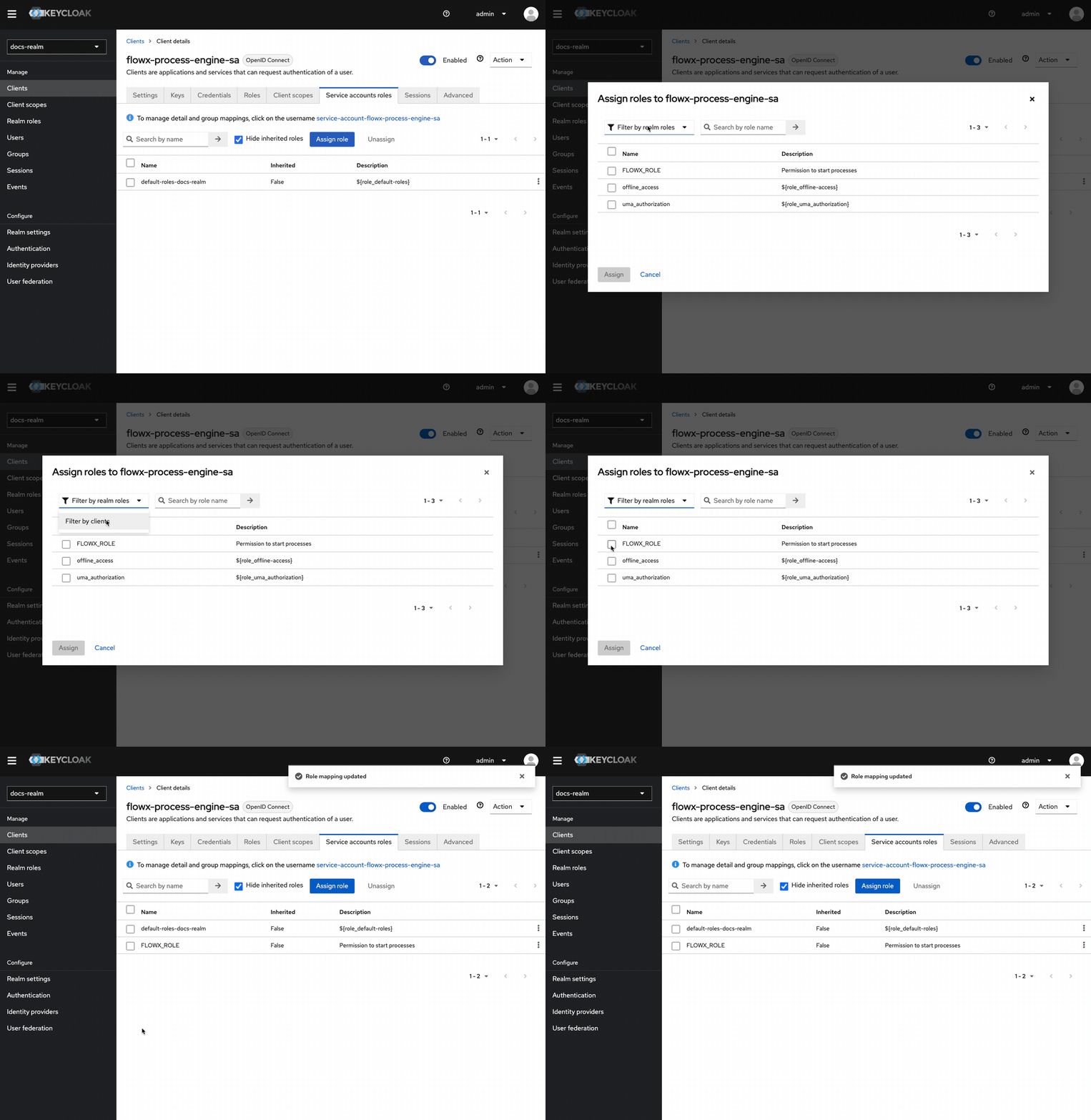
Verify role assignment
SA_FLOWX role listed in its Service accounts roles tab.SA_FLOWX role ensures consistent authentication and authorization behavior across all FlowX.AI platform services. Make sure all service accounts have this role assigned for proper system operation.Email (SMTP) configuration
Navigate to email settings
Configure SMTP connection details
Test the connection
Manual Keycloak configuration
If FlowX services do not have Keycloak admin access, perform the following steps manually in the Keycloak Admin Console:Create the service accounts realm
- Log in to the Keycloak Admin Console.
- Click Create realm.
- Set the Realm name to
00000002-0002-4002-8002-000000000002. - Set the Display name to
Flowx Administration Realm. - Click Create.
- Login tab: Enable Email as username and Login with email
- Authentication → Policies → Password Policy: Add uppercase, digit, special character, and minimum length (8) rules
Move service account clients to the SA realm
- In the SA realm, go to Clients → Create client.
- Enter the Client ID (e.g.,
flowx-admin-sa). - Enable Client authentication and Service accounts roles. Disable Standard flow and Direct access grants.
- Configure Logout Settings: Toggle OFF both Backchannel Logout and Front Channel Logout.
- Assign the
SA_FLOWXrealm role (create it first in the SA realm if it does not exist).
Configure the org_id protocol mapper
flowx-platform-authenticate client has a protocol mapper that adds the org_id claim to access tokens:- Go to Clients →
flowx-platform-authenticate→ Client scopes → dedicated scope. - Add mapper → By configuration → Hardcoded claim.
- Set Name to
org_id, Token Claim Name toorg_id, Claim value to your organization UUID, and Claim JSON Type toString. - Enable Add to access token and Add to token introspection.
Remove service accounts from user realm
flowx-platform-authenticate) in the user realm.Troubleshooting
Bad request error when creating users in FlowX Designer
Bad request error when creating users in FlowX Designer
Realm name conflict
Realm name conflict
Service account authentication fails
Service account authentication fails
- The service account client has Client authentication enabled and Service accounts roles toggled ON.
- The
SA_FLOWXrealm role is assigned to the service account. - The client secret in your deployment matches the secret in Keycloak (Clients → select client → Credentials tab).
- 5.1.x: The
security.oauth2.realmconfiguration points to the correct realm. - 5.5.0+: The
security.oauth2.sa-realmis set to00000002-0002-4002-8002-000000000002and the service account client exists in the SA realm (not the user realm).
Token missing groups, roles, or business filters
Token missing groups, roles, or business filters
- Group Membership mapper with Add to token introspection toggled ON.
- User Realm Role mapper with Add to token introspection toggled ON.
- User Attribute mapper for business filters with Multivalued and Aggregate attribute values toggled ON.
org_id protocol mapper is configured on the flowx-platform-authenticate client in the user realm.Task auto-assignment not working
Task auto-assignment not working
view-users, query-users, and query-groups client roles from realm-management. Verify these are assigned in the Service accounts roles tab. In 5.5.0+, the task management SA is in the service accounts realm but still needs access to user realm data via the master realm configuration.JWT validation fails after upgrading to 5.5.0+
JWT validation fails after upgrading to 5.5.0+
- Verify
security.typeis set tojwt-public-key(notoauth2). - Remove any
spring.security.oauth2.resource-server.opaque-token.*configuration. - Remove the
security.oauth2.realm,security.oauth2.client.client-id, andsecurity.oauth2.client.client-secretproperties. - Ensure
security.oauth2.sa-realmis set to00000002-0002-4002-8002-000000000002. - Verify that
flowx.lib.security.services.organization-manager.base-urlis set and the organization-manager service is reachable.
Summary
By following these steps, you have a minimal Keycloak setup to manage users, roles, and apps efficiently.- 5.5.0 and later
- 5.1.x (LTS)
- A user realm (named with your organization UUID) containing the
flowx-platform-authenticateclient, protocol mappers, users, roles, and groups - A service accounts realm (
00000002-0002-4002-8002-000000000002) containing allflowx-*-saservice account clients with theSA_FLOWXrealm role - SMTP configured in the user realm for password reset and user invitations (required for self-hosted deployments)
- JWT public key validation (
security.type: jwt-public-key) on all services - Master realm credentials configured on the authorization-system service