

Single file
Used with the File Upload Button. The SDK sends a single temp file ID (
{actionName}TempFileId).Multiple files
Used with the Multiple File Upload component. The SDK sends a list of temp file IDs (
{actionName}TempFileIds).Configuring an Upload file action
Multiple options are available for this type of action and can be configured via the FlowX.AI Designer. To configure an Upload File action, use the Actions tab at the task node level, which has the following configuration options:- Action Edit
- Back in steps (for Manual actions)
- Parameters
- Data to send (for Manual actions)
- UI Configuration
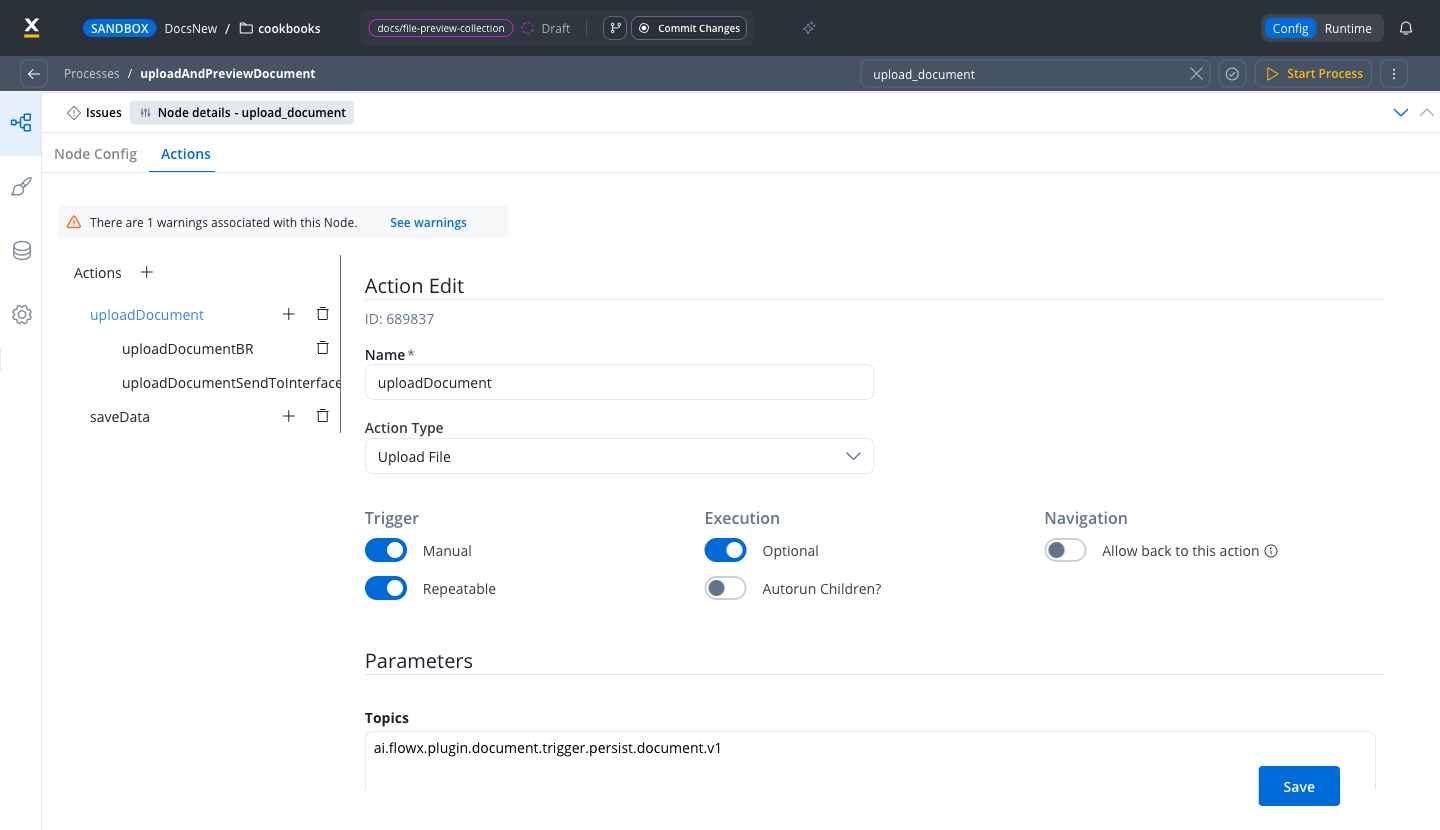
Action edit
- Name - used internally to make a distinction between different actions on nodes in the process. We recommend defining an action naming standard to be able to quickly find the process actions
- Order - if multiple actions are defined on the same node, the running order should be set using this option
- Timer expression - it can be used if a delay is required on that action. The format used for this is ISO 8601 duration format (for example, a delay of 30 seconds will be set up as
PT30S) - Action type - should be set to Upload File
- Trigger type (options are Automatic/Manual) - choose if this action should be triggered automatically (when the process flow reaches this step) or manually (triggered by the user); in most use cases, this will be set to automatic
- Required type (options are Mandatory/Optional) - automatic actions can only be defined as mandatory. Manual actions can be defined as mandatory or optional.
- Repeatable - should be checked if the action can be triggered multiple times
- Autorun Children - when this is switched on, the child actions (the ones defined as mandatory and automatic) will run immediately after the execution of the parent action is finalized
Back in steps
- Allow BACK on this action - back in process is a functionality that allows you to go back in a business process and redo a series of previous actions in the process. For more details, check Moving a token backwards in a process section.
Parameters
- Topics - the Kafka topic where the file will be posted
- Document Type - other metadata that can be set (useful for the document plugin)
- Folder - allows you to configure a value by which the file will be identified in the future
- Advanced configuration (Show headers) - this represents a JSON value that will be sent on the headers of the Kafka message
Data to send
- Keys - are used when data is sent from the frontend via an action to validate the data (you can find more information in the User Task configuration section)
UI configuration
When configuring the event handler that corresponds to the Upload File node action, you must set the Action Type to Upload. This ensures proper integration between the frontend interface and the backend upload functionality.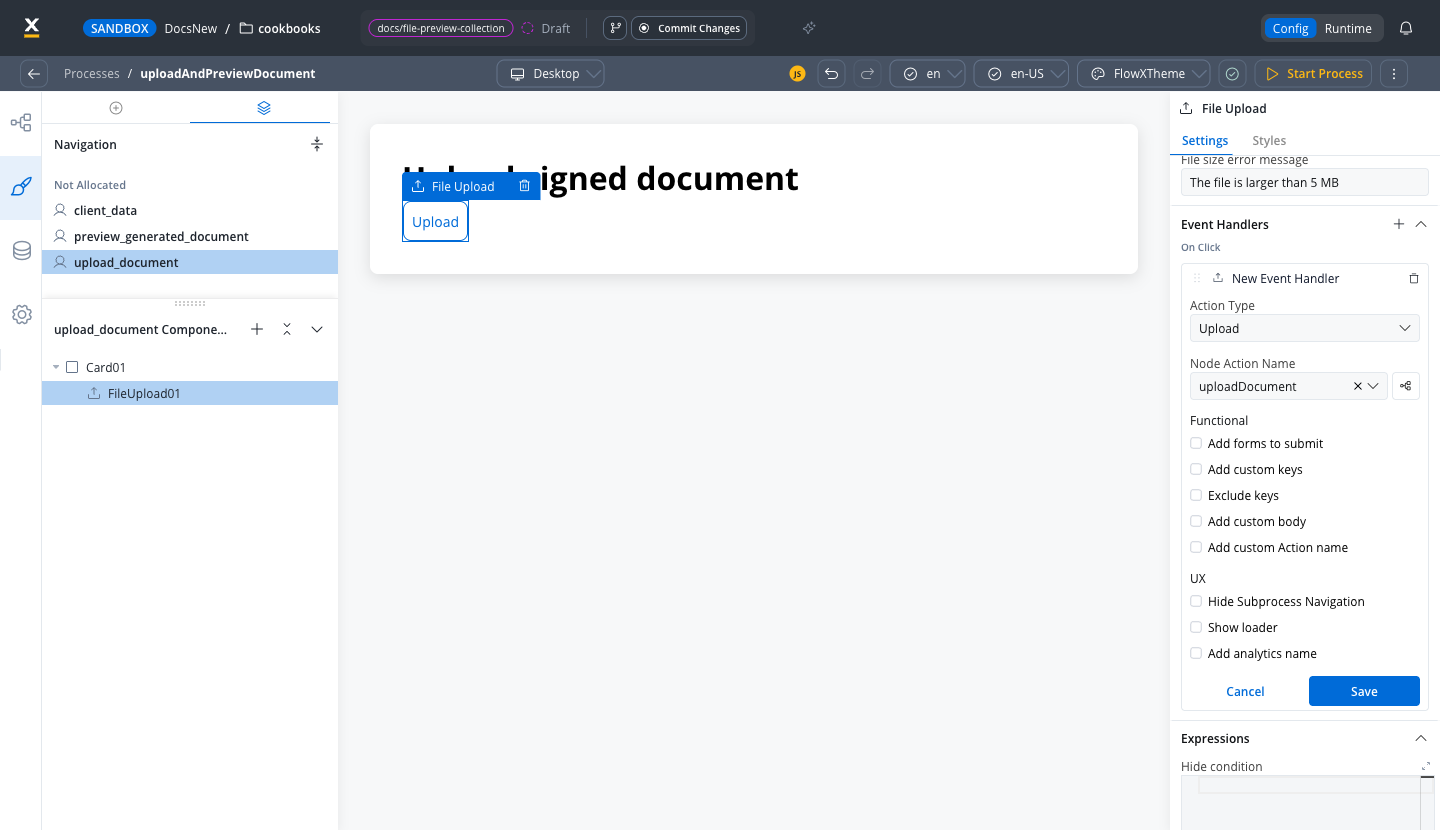
Single vs. multi-file processing
When the Upload File action executes, the process engine checks for two mutually exclusive parameter keys:
If neither key is present, the action returns an error and no Kafka message is published.
Multi-file Kafka topics
When the multi-file path is triggered, the following dedicated Kafka topics are used:
For multiple files, set the action’s Topics parameter to the bulk persist topic. To read the results, add a Custom Topic data stream on the bulk results topic to the node.
Multi-file request payload
shouldOverride is always false for multi-file uploads. All files share the same customId and use documentType from the action configuration (typically BULK). This means files accumulate — re-uploading adds new documents rather than replacing existing ones.Partial success handling
The document plugin processes each file individually. If one file fails, the remaining files continue processing — successfully persisted files are not rolled back. The response includes a per-file status so your process logic can handle partial failures.Multi-file reply
The bulk results message lists one entry per file underdocuments, each with its own downloadPath, originalFileName, and error:
downloadPath is relative and filePath is a storage path, not a URL. To show each uploaded file, see Preview files in a collection.
Action order
The process engine rejects an action while a mandatory action placed above it on the same node hasn’t run. Place the Upload File action above any mandatory manual action, such as thesaveData action a user task creates, by dragging it in the node’s Actions list.
Example: single file upload
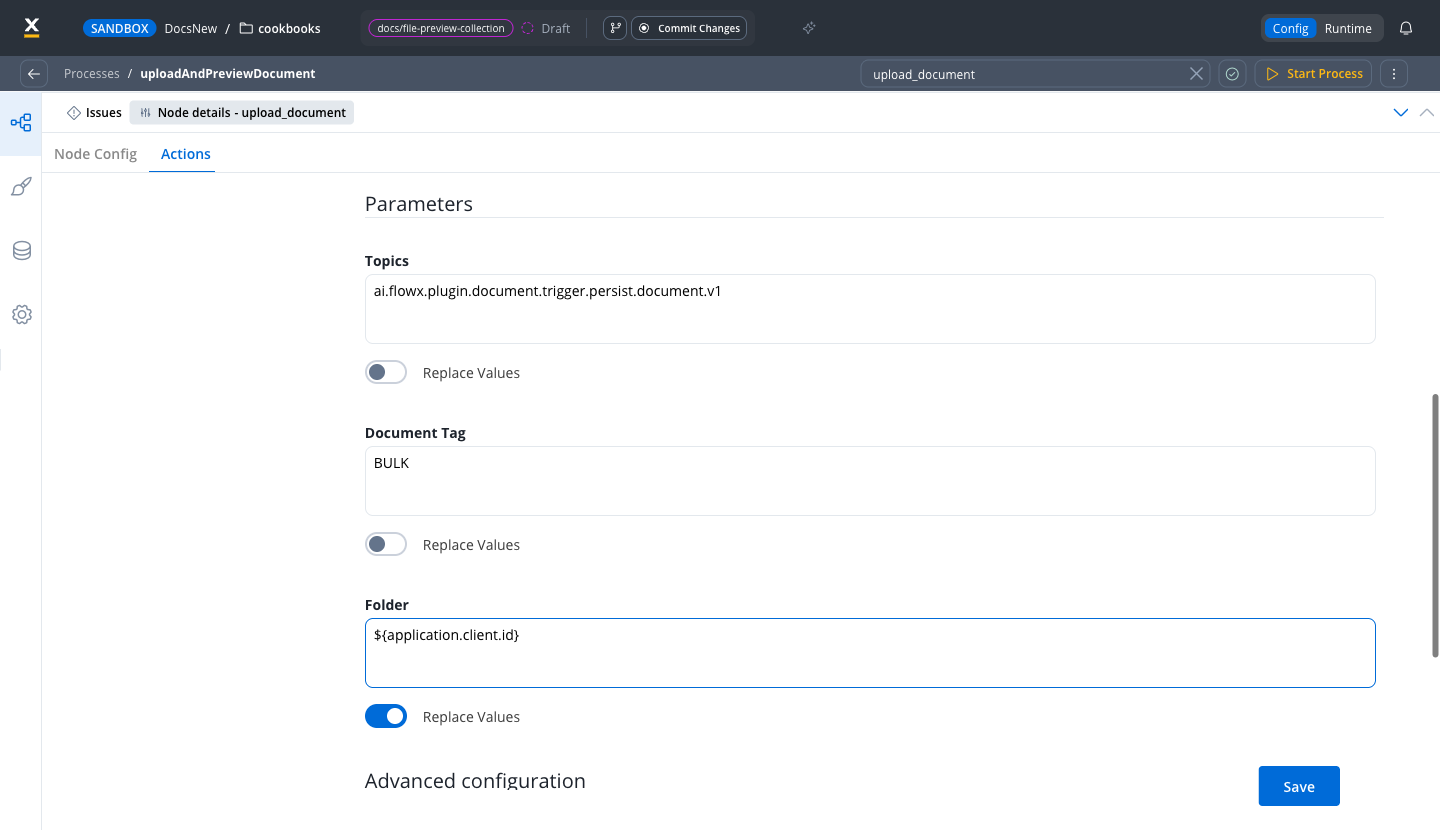
An example of Upload File Action is to send a file to the document plugin. In this case, the configuration will look like this: Parameters configuration- Topics (topicName) - will be set to the Documents plugin persist topic, by default
ai.flowx.plugin.document.trigger.persist.document.v1 - Document Type - metadata used by the document plugin, here we will set it to
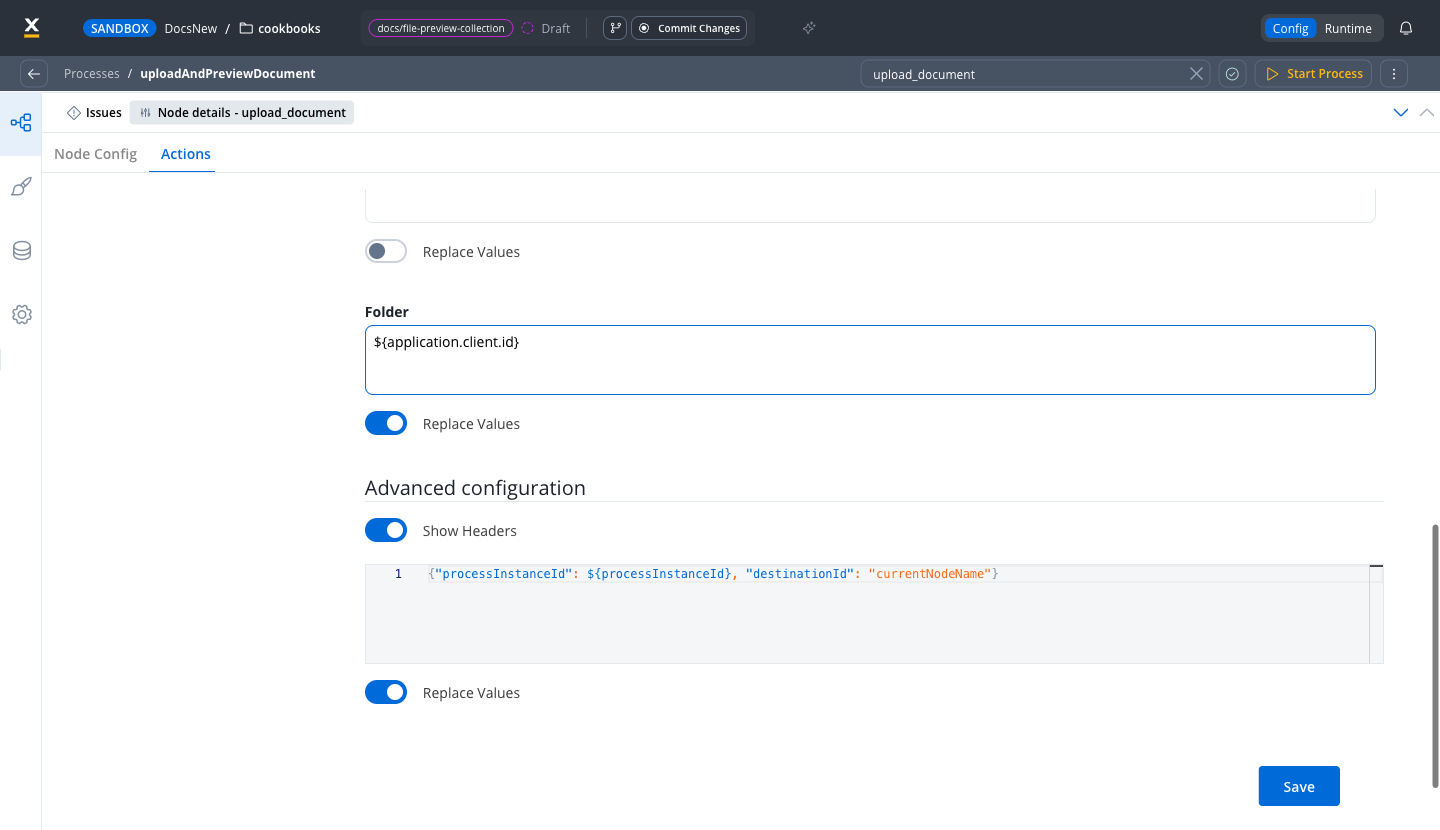
BULK - Folder - the value by which we want to identify this file in the future (here we use the client.id value available on the process instance data:
${application.client.id}
- Headers - headers will send extra metadata to this topic -
{"processInstanceId": ${processInstanceId}, "destinationId": "currentNodeName"})
downloadPath, not a complete URL. To show the uploaded file in a File Preview, see Preview an uploaded file.
Academy courses
Upload and Preview Files course
Hands-on course covering data stream topics, upload actions, and file preview UI elements