Configuring a File preview element
A File Preview element can be configured for both mobile and web applications.File preview properties (web)
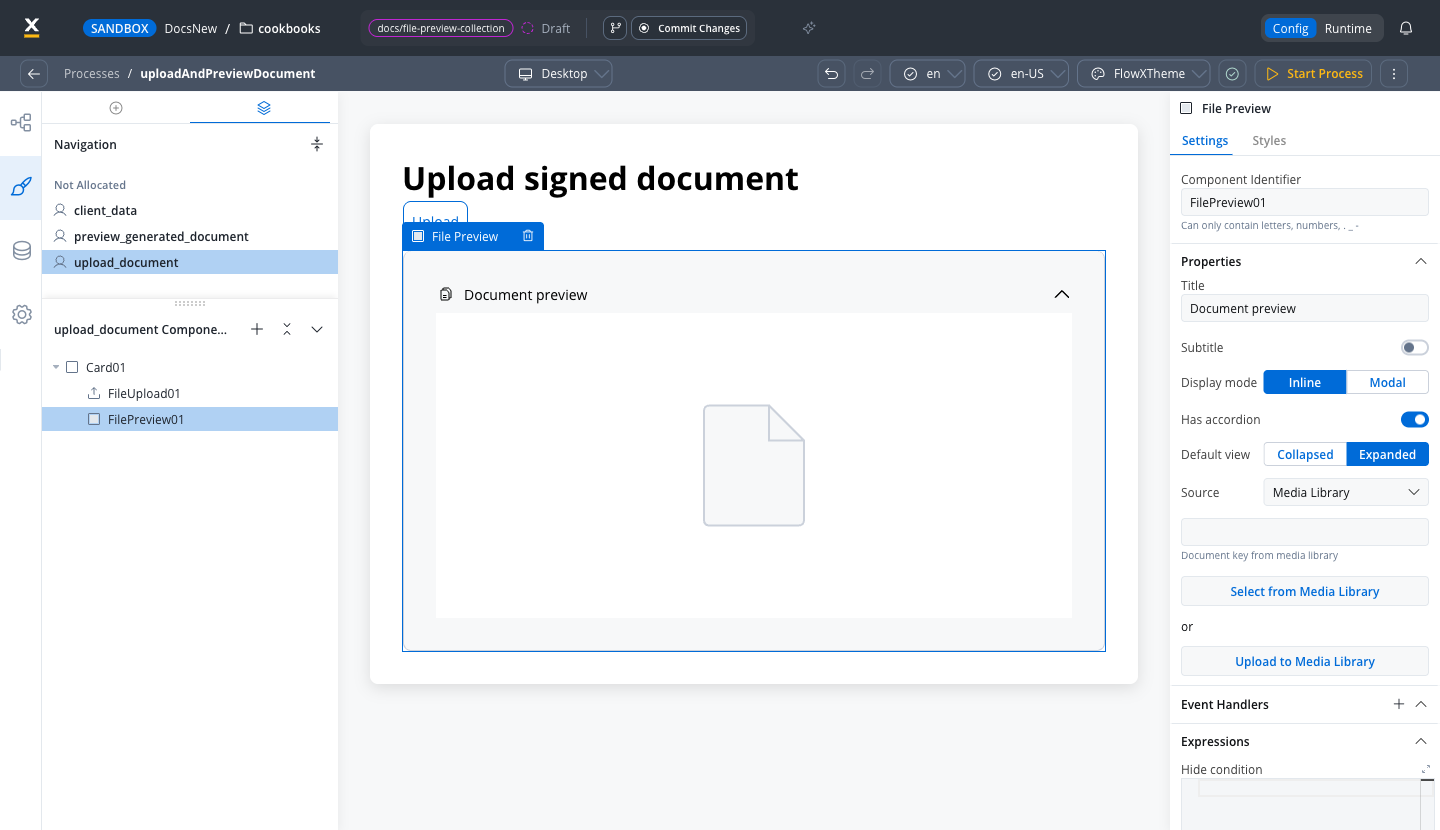
Captured in the FlowX.AI 5.13 Designer, where Source Type is labeled Source and lists the 5.13 sources. See File sources in FlowX.AI 5.13 below.
- Title: Specifies the title of the element. If the file is downloaded or shared, the file name should serve as the title used in the preview component.
- Subtitle: Allows for the inclusion of a subtitle for the element.
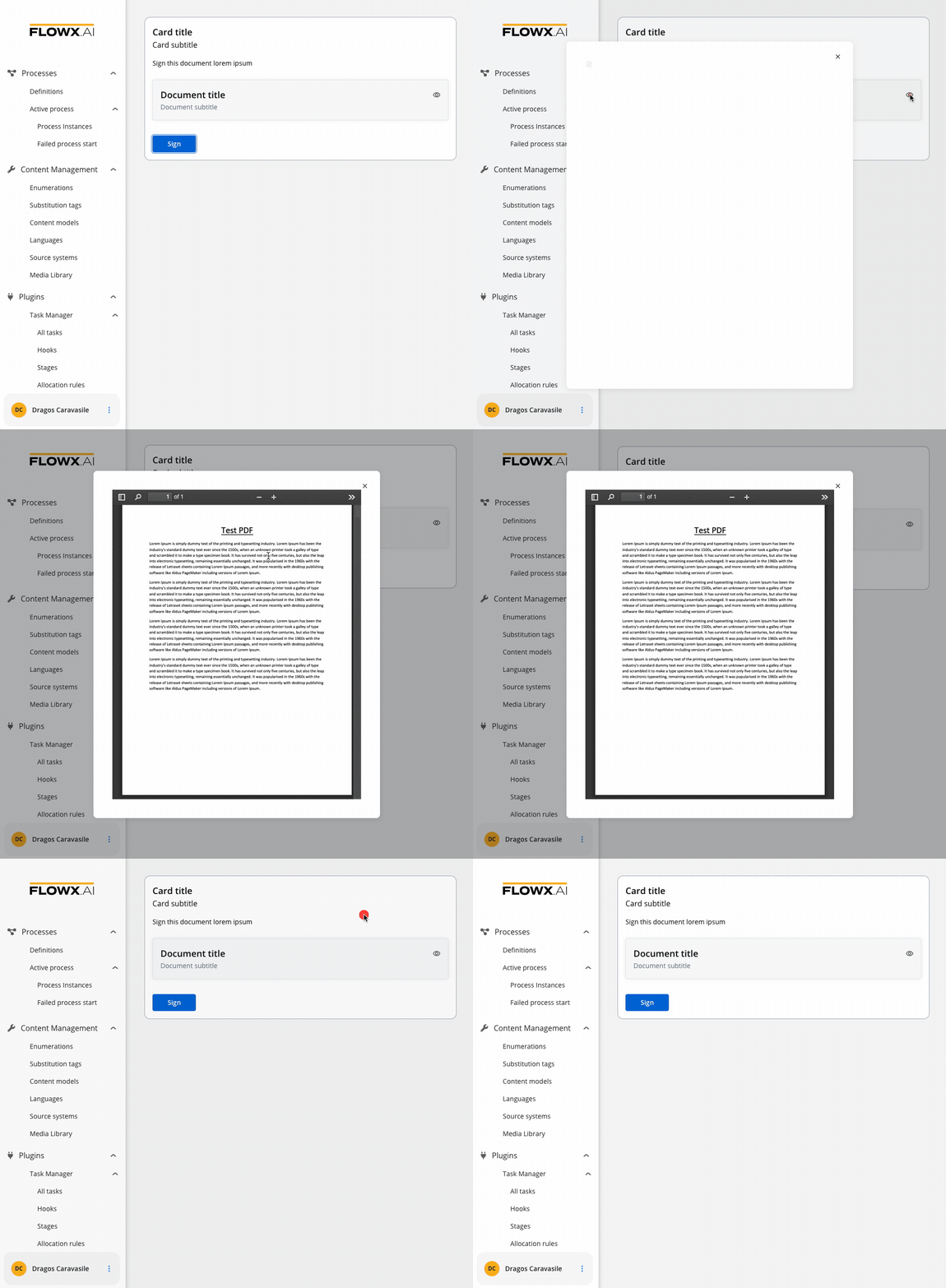
- Display mode: Depending on the selected display method, the following properties are available:
-
Inline → Has accordion:
false: Displays the preview inline without an expand/collapse option.true(Default View: Collapsed): Displays the preview inline with an expand/collapse option, initially collapsed.true(Default View: Expanded): Displays the preview inline with an expand/collapse option, initially expanded.
- Modal → view icon is enabled
-
Inline → Has accordion:
- Has accordion: Introduces a Bootstrap accordion, facilitating the organization of content within collapsible items. It ensures that only one collapsed item is displayed at a time.
- Source Type:
- Media Library: Refers to PDF documents uploaded in the Media Library.
PDF documents uploaded to the Media Library must adhere to a maximum file size limit of 10 MB.
- Process Data: Identifies the key location within the process where the document is sourced, establishing the linkage between the document and process data. The value at that key is used as-is, so it must be a complete, absolute URL. The renderer attaches the user’s access token only when the URL ends in
download. To preview a file uploaded through the Documents plugin, see Preview an uploaded file. - Static: Denotes the document’s URL, serving as a fixed reference point.
File preview properties (mobile)
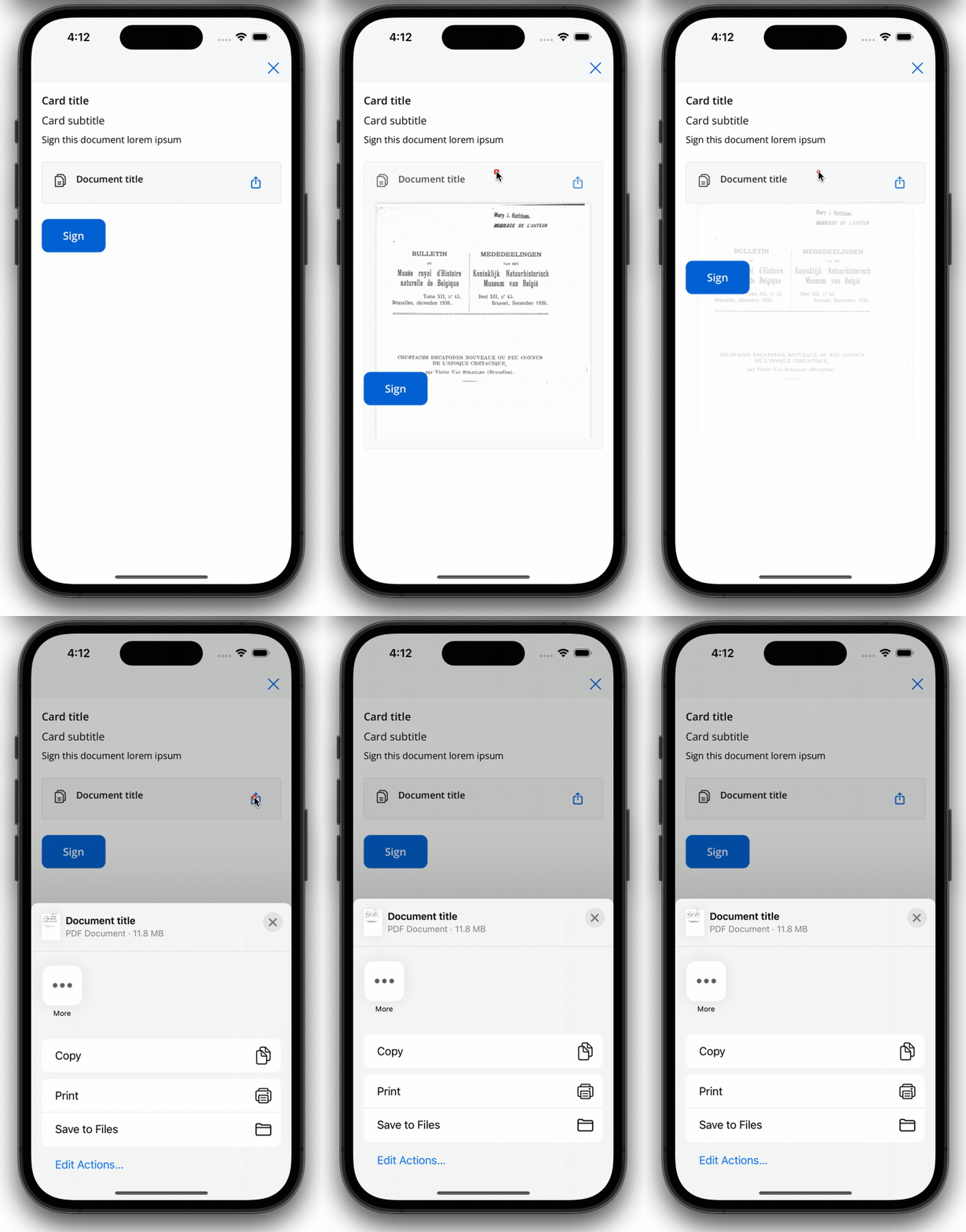
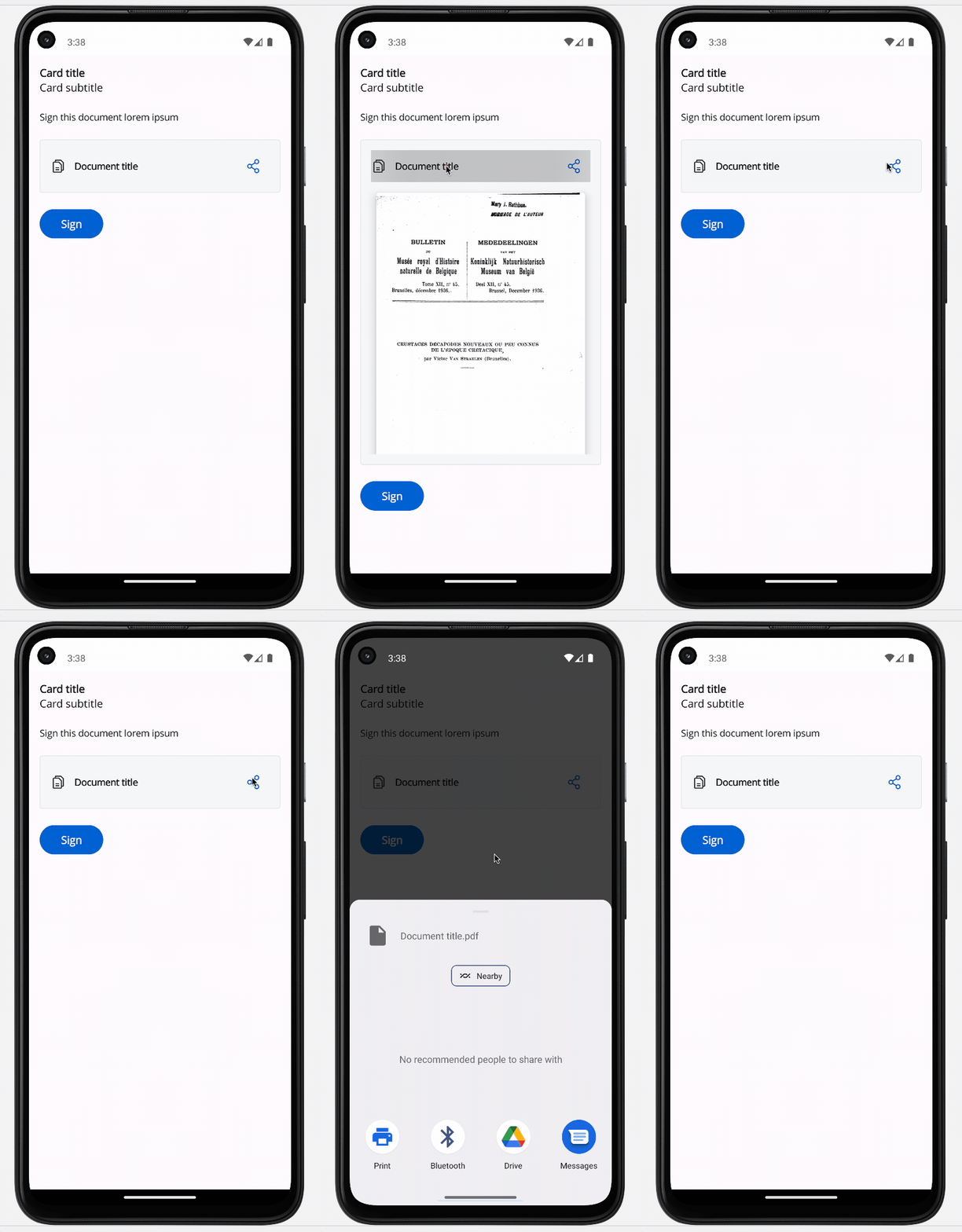
Both iOS and Android devices support the share button.
iOS
Android
File preview styling
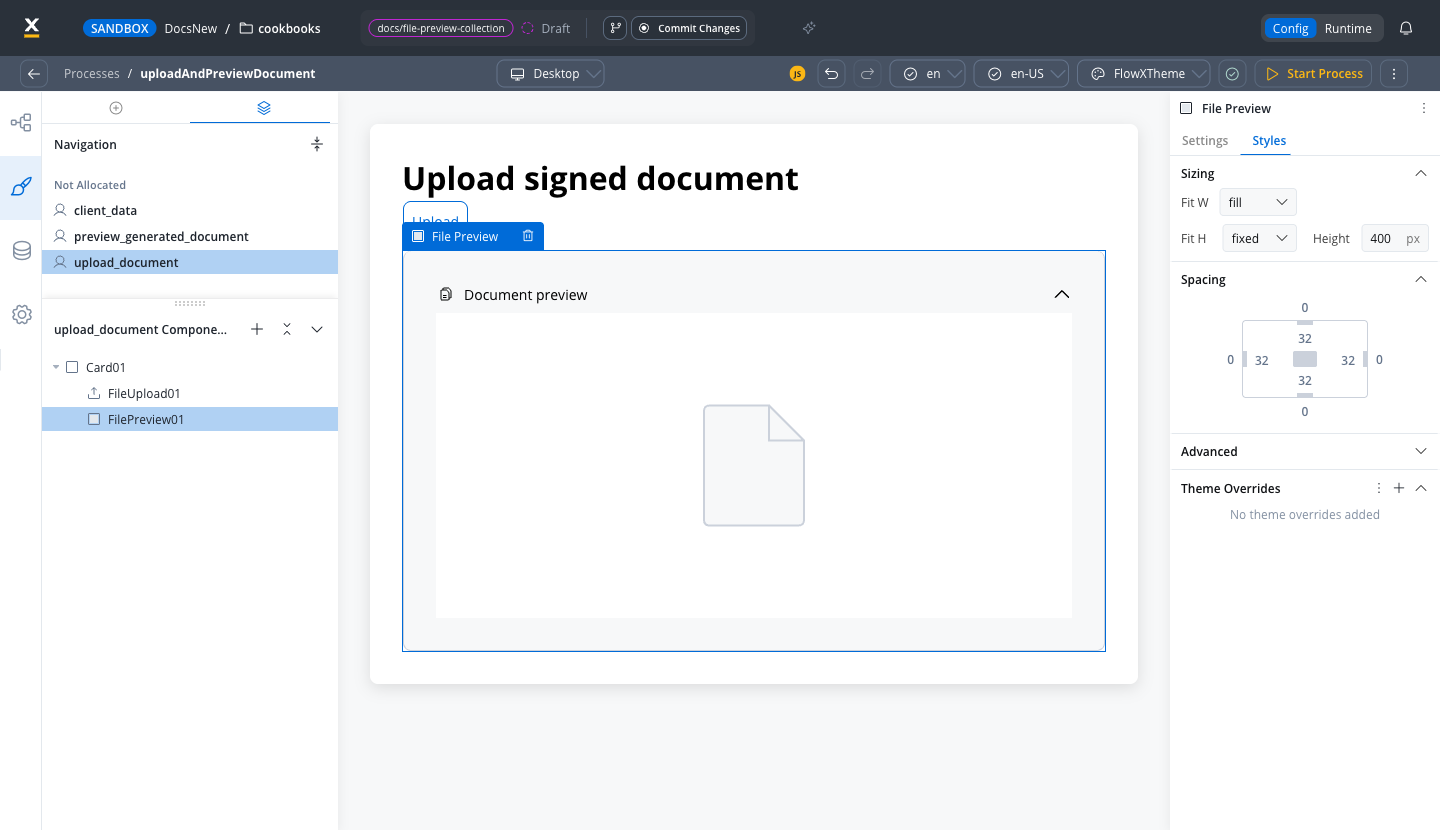
The File Preview styling property enables you to customize the appearance of the element by adding valid CSS properties. For more information, see the styling documentation. When drag and drop a File Preview element in UI Designer, it comes with the following default styling properties:Sizing
- Fit W - auto
- Fit H - fixed / Height - 400 px
File Preview example
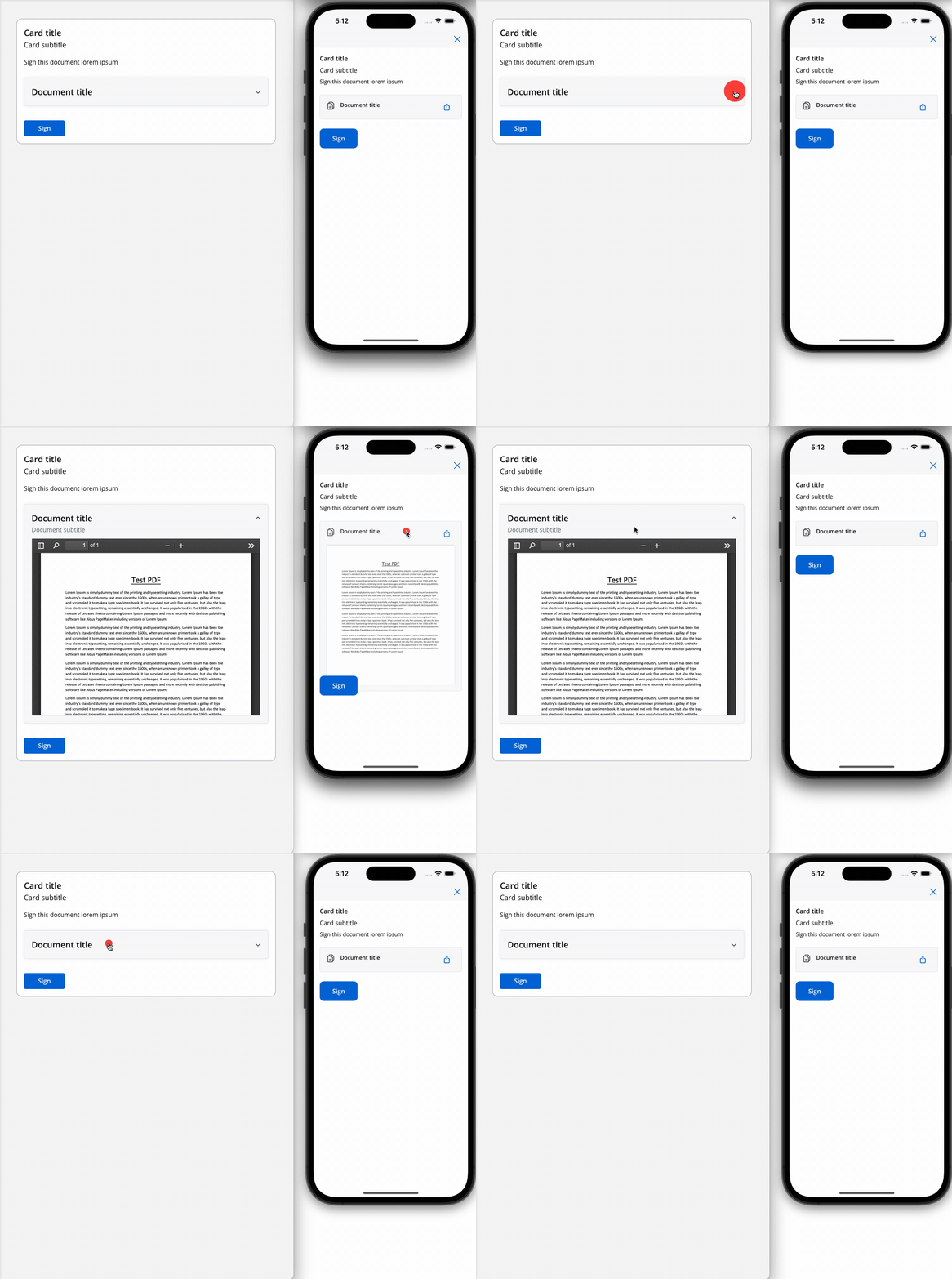
Below is an example of a File Preview UI element with the following properties:- Display mode - Inline
- Has accordion - True
- Default view - Expanded
- Source Type - Static
Preview an uploaded file
When a user uploads a file with a File Upload component, the Documents plugin stores it and replies on its persist reply topic. The reply doesn’t contain a URL that File Preview can load directly:downloadPathis relative, for exampleinternal/files/{fileId}/download.filePathis the object path in file storage (MinIO or S3), not a URL.
1
Receive the upload reply
Configure the upload as described in Creating and uploading a new document. On the node that receives the reply, add an Integration Output data stream (Source: Custom Topic) with the persist reply topic and a key, for example
uploadedDocument.2
Build the absolute URL
Add a business rule that prefixes The example uses MVEL.
downloadPath with the Documents plugin base URL and stores the result under a new key:{your-flowx-api-host} is the host that serves the FlowX APIs to your renderer. The Documents plugin is exposed on it under /document, as listed in the ingress service route reference.3
Bind File Preview to the URL
On the user task that shows the file, set the File Preview Source Type to Process Data and the key to
preview.filePath.File sources in FlowX.AI 5.13
SaaS · 5.13Available on SaaS with FlowX.AI 5.13. This feature is live on managed (SaaS) deployments now. Self-hosted deployments will receive it with the next LTS release family.
- Media Library: a PDF from the project’s Media Library.
- Document Plugin Path: a Documents plugin
downloadPath, such as the one in an upload reply. The renderer adds the Documents plugin base URL, so you don’t need a business rule to build the URL. - URL: a complete, absolute URL.
downloadPath in the upload reply, for example uploadedDocument.downloadPath.
Preview files in a collection
SaaS · 5.13Available on SaaS with FlowX.AI 5.13. This feature is live on managed (SaaS) deployments now. Self-hosted deployments will receive it with the next LTS release family.
1
Add the Upload File action
On the user task, add an Upload File action, for example
uploadDocs, with these parameters:- Topics: the Documents plugin bulk persist topic, by default
ai.flowx.plugin.document.trigger.persist.document.bulk.v1. - Document Tag:
BULK. - Folder: the value that groups the files, for example
${processInstanceId}. - Headers:
{"processInstanceId": ${processInstanceId}, "destinationId": "uploadDocuments", "callbacksForAction": "uploadDocs"}.destinationIdis the name of the user task node, andcallbacksForActionis the name of the Upload File action.
saveData action the user task creates. The process engine rejects the upload while a mandatory action placed above it hasn’t run.2
Connect the Multiple File Upload component
On the Multiple File Upload component, add an event handler with Event type
CLICK and Action type Upload, and select the Upload File action.3
Receive the bulk reply
On the same node, add an Integration Output data stream with Source set to Custom Topic, the bulk reply topic
ai.flowx.engine.receive.plugin.document.persist.document.bulk.results.v1, and a key, for example docs. The reply stores the files as a list under docs.documents, one entry per file, each with its own downloadPath.4
Send the reply to the user task
Add a child action under the Upload File action, of type Send data to user interface, with the message
{"docs": ${docs}}. It runs when the bulk reply arrives and refreshes the user task with the uploaded files.5
Bind the collection and File Preview
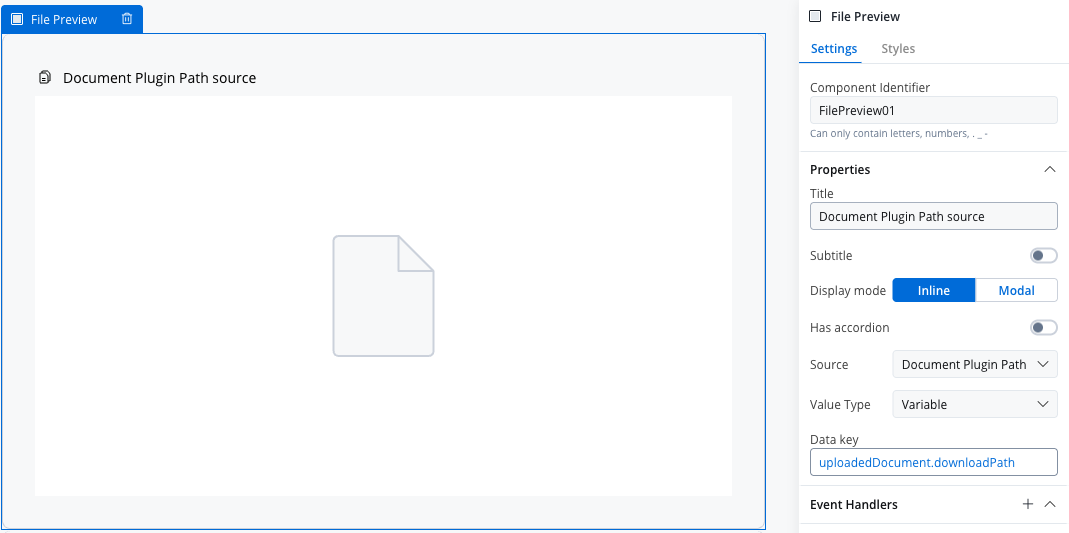
Add a Collection with source
docs.documents, and a collection prototype with identifier key documentType and value BULK. Inside the prototype, add a File Preview with Source set to Document Plugin Path, Value Type set to Variable, and Data key set to downloadPath.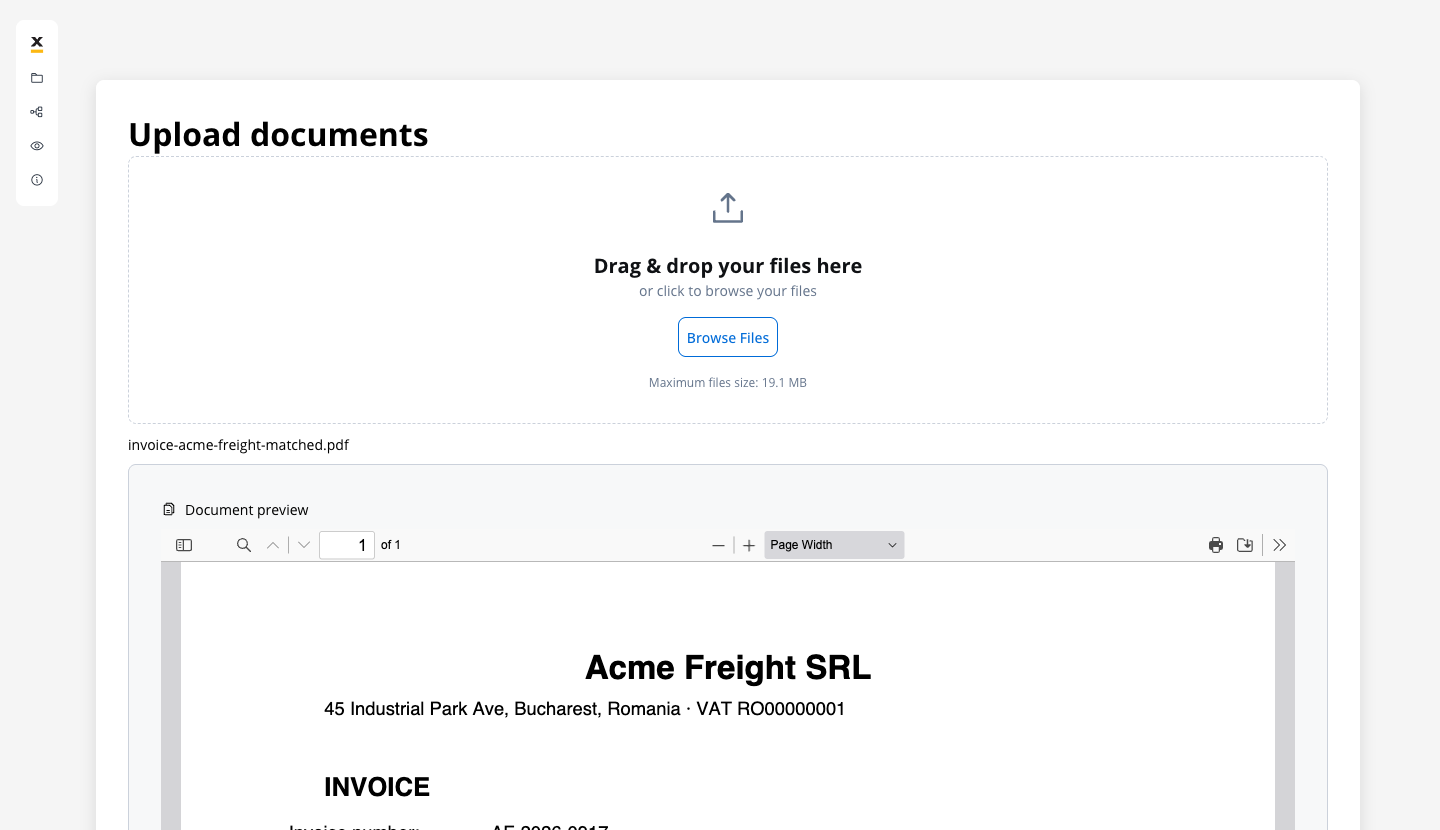
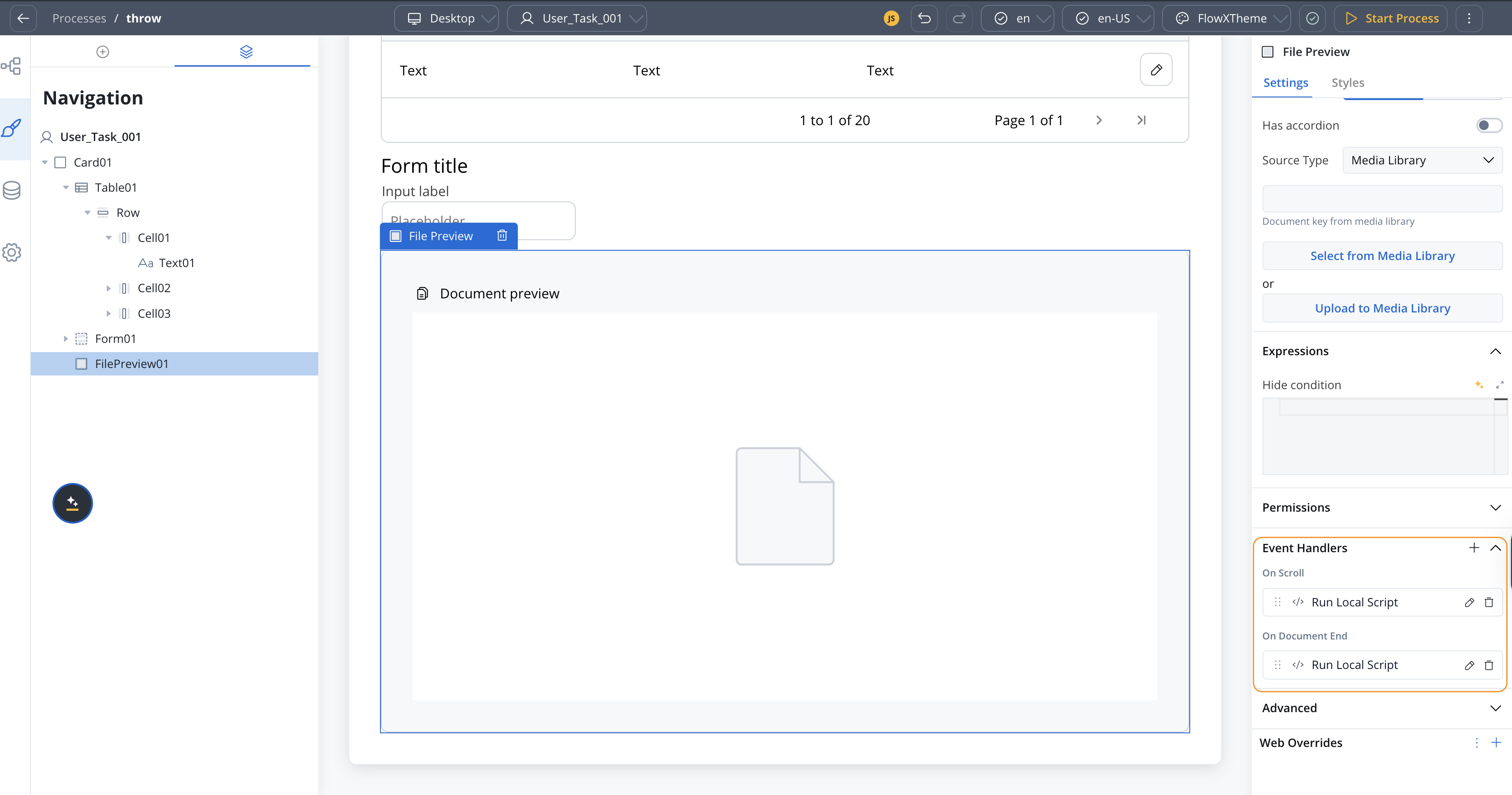
Event handlers
Available starting with FlowX.AI 5.9.1.
- On Scroll: fires as the user scrolls within the previewed document.
- On Document End: fires when the user reaches the end of the document.