

Available on SaaS with FlowX.AI 5.12. This feature is live on managed (SaaS) deployments now. Self-hosted deployments will receive it with the next LTS release family.
On self-hosted FlowX.AI 5.9, this page isn’t available yet. Find past workflow runs in two places:
- Runs started from the Designer: open the workflow in Integration Designer and open the Run Logs panel at the bottom. Its History list shows past runs. Select one to see each node with its logs, input and output, which is how you find the node that failed and its error.
- Runs started by a process: open the process instance and use its Workflows tab.
Overview
The Workflow Instances page lists every workflow run in the project, in one place. Until now a workflow’s runs were visible only from inside that workflow in the Integration Designer, so finding a failed run meant already knowing which workflow it belonged to. Open it from Projects → Your Project → Runtime → Workflow Instances. Viewing it requires the same read permission as the Process Instances page.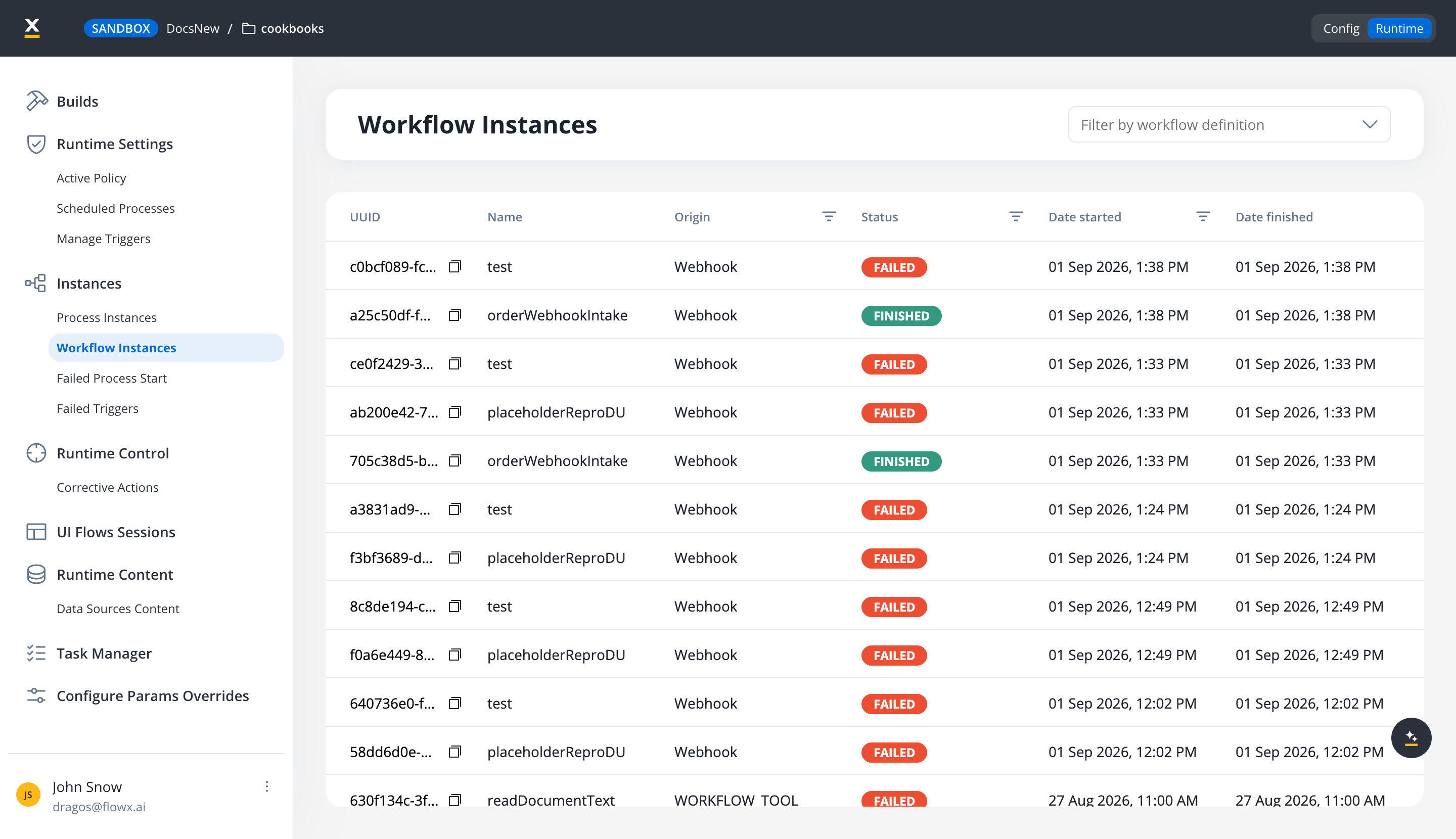
The list
Finding the runs you care about
Three controls narrow the list:- Filter by workflow definition, above the table.
- Origin and Status column filters, each a multi-select, so one view can show, say, every Failed run started by a Webhook or Email trigger.
- A date filter on Date started, for scoping to an incident window.
Related resources
Process instances
The sibling page for process runs, with the same status and date filters
UI Flow sessions
Sessions for UI Flows, also filterable by status and start date